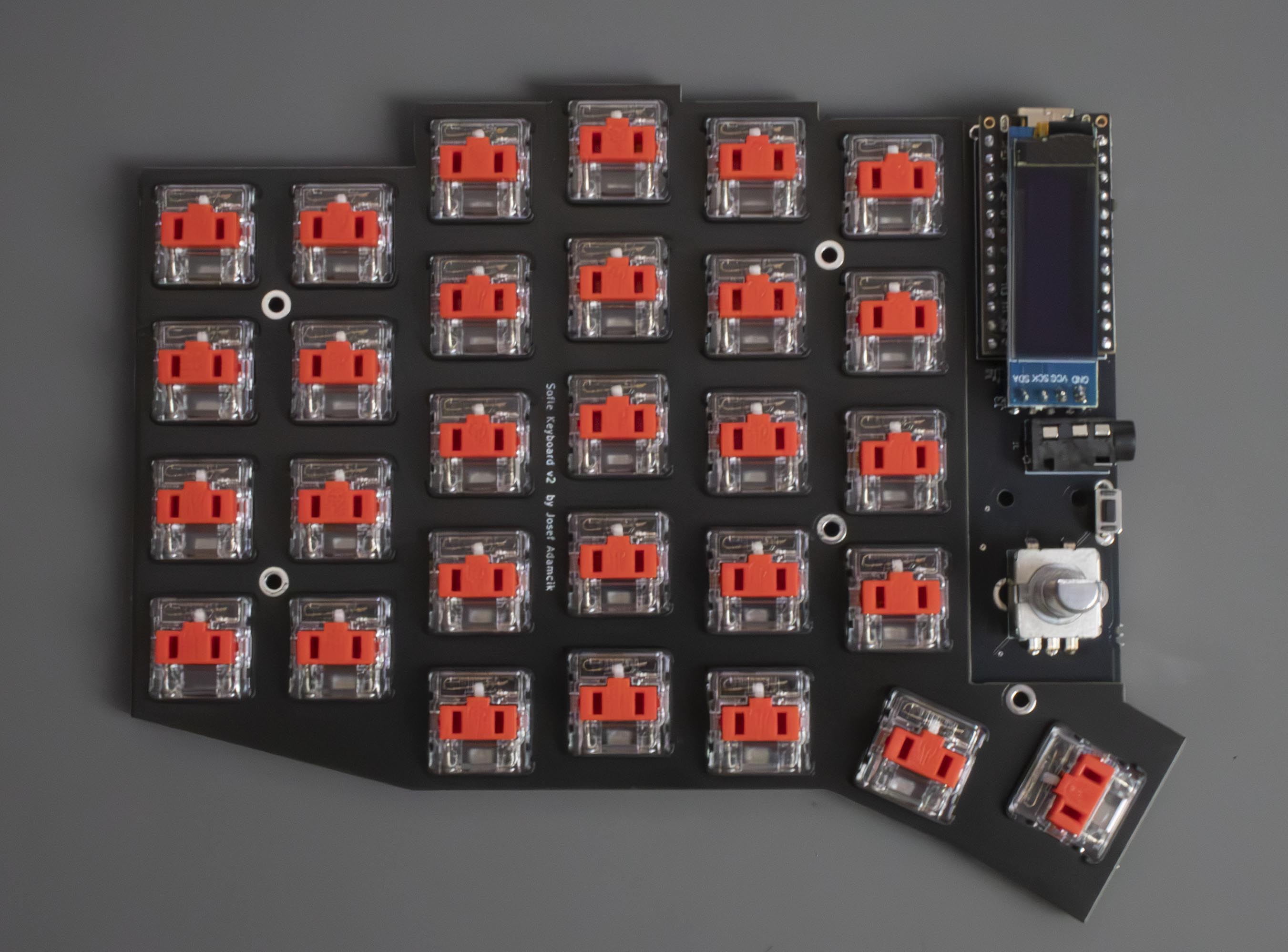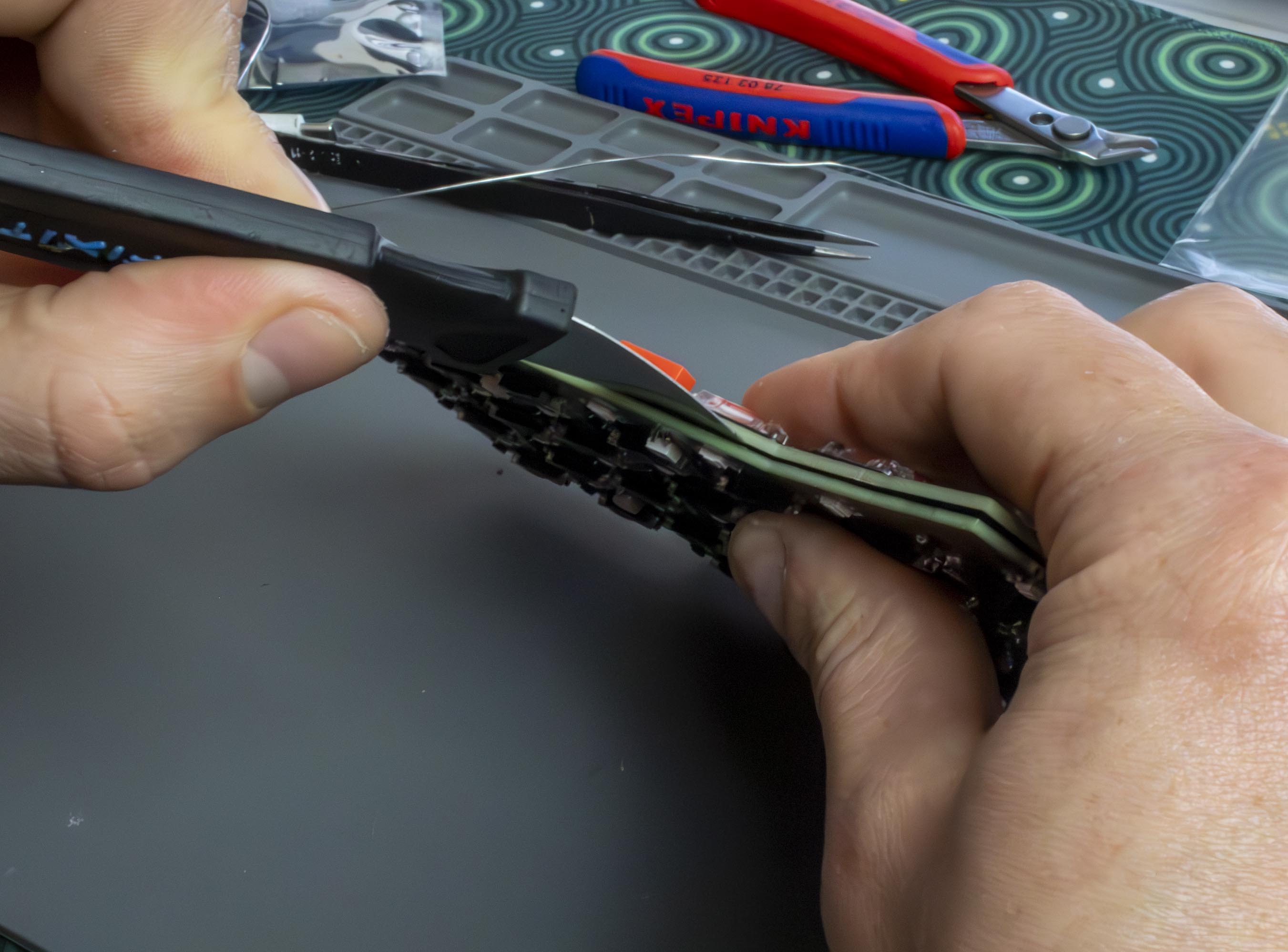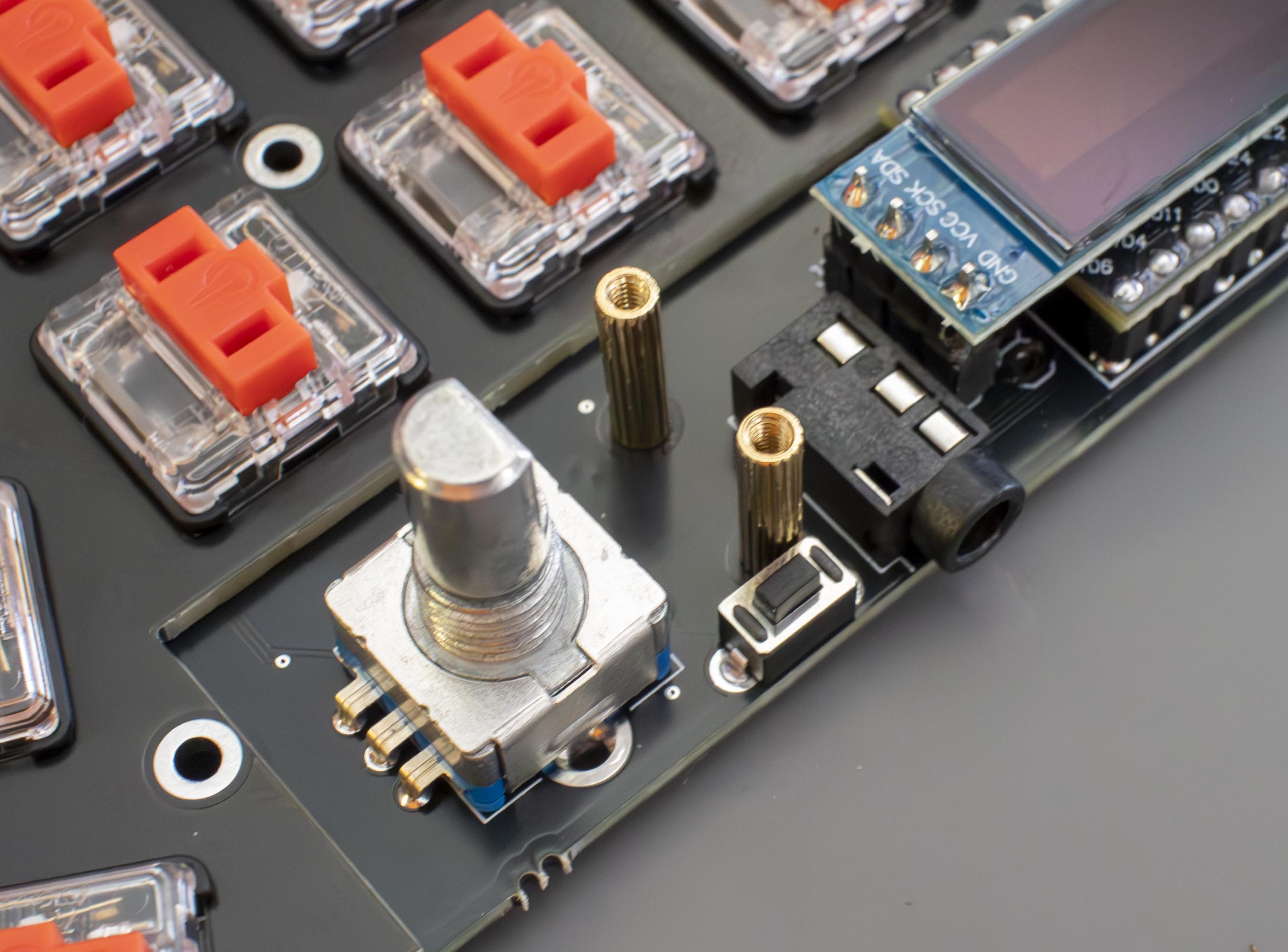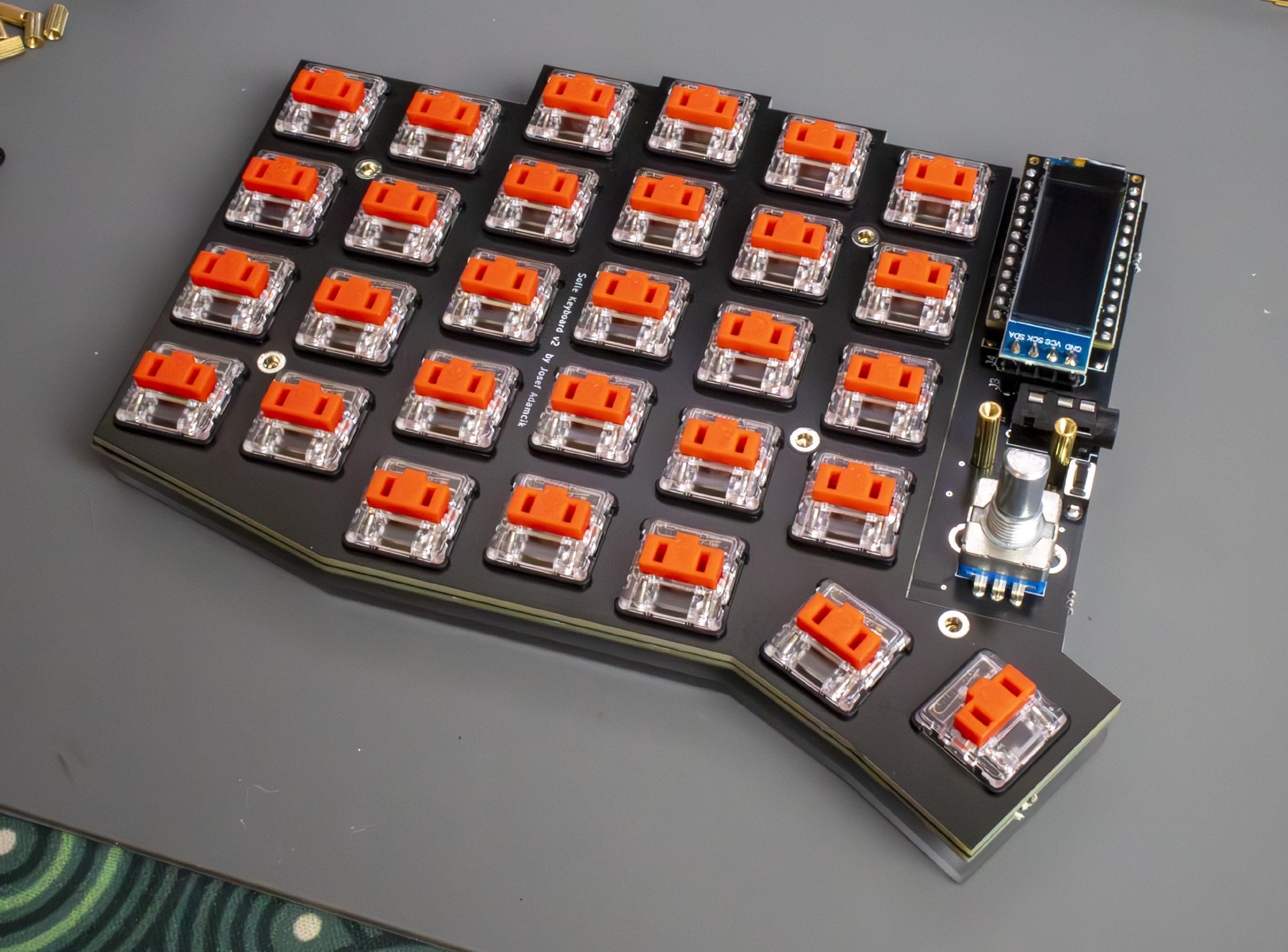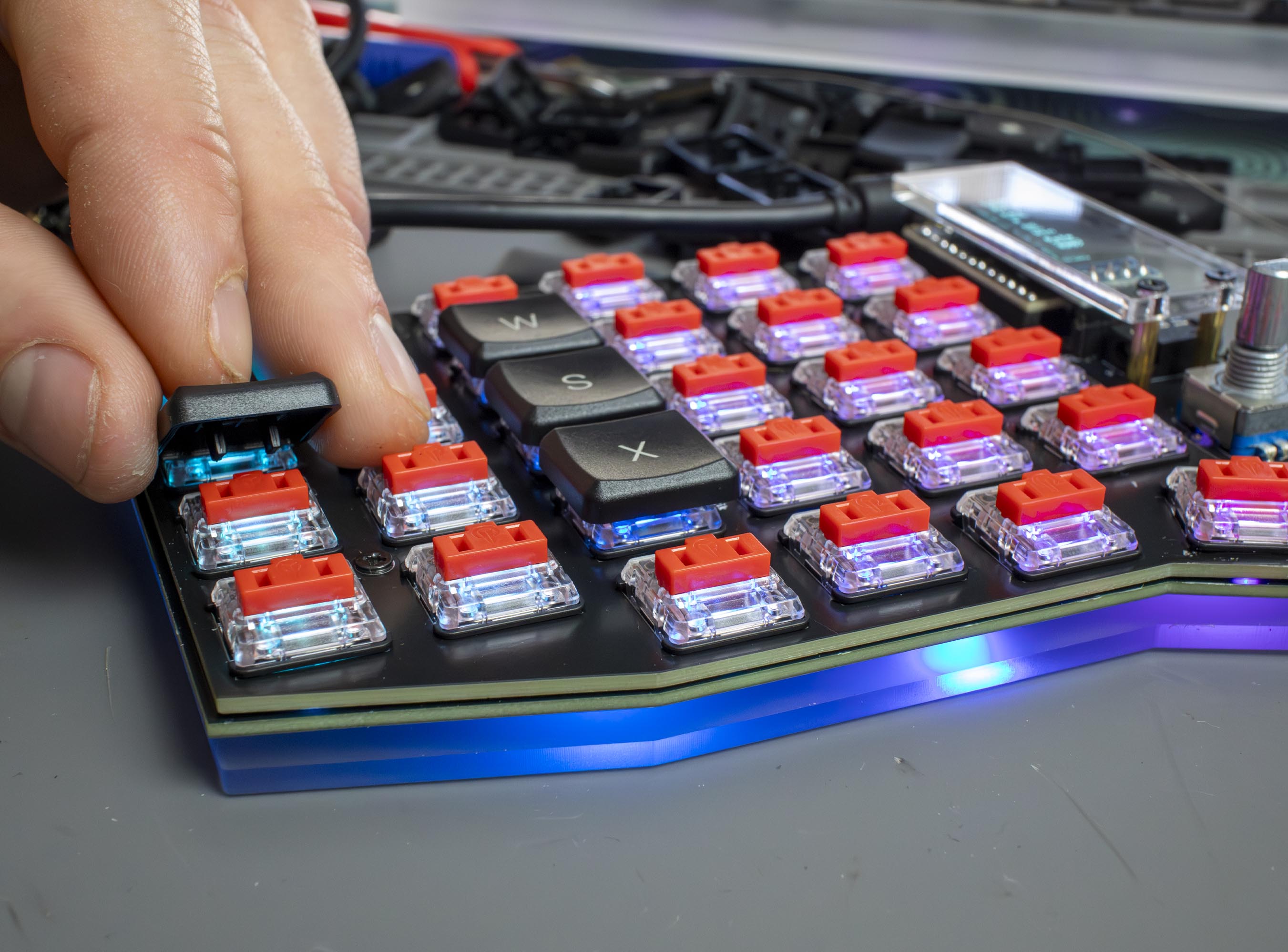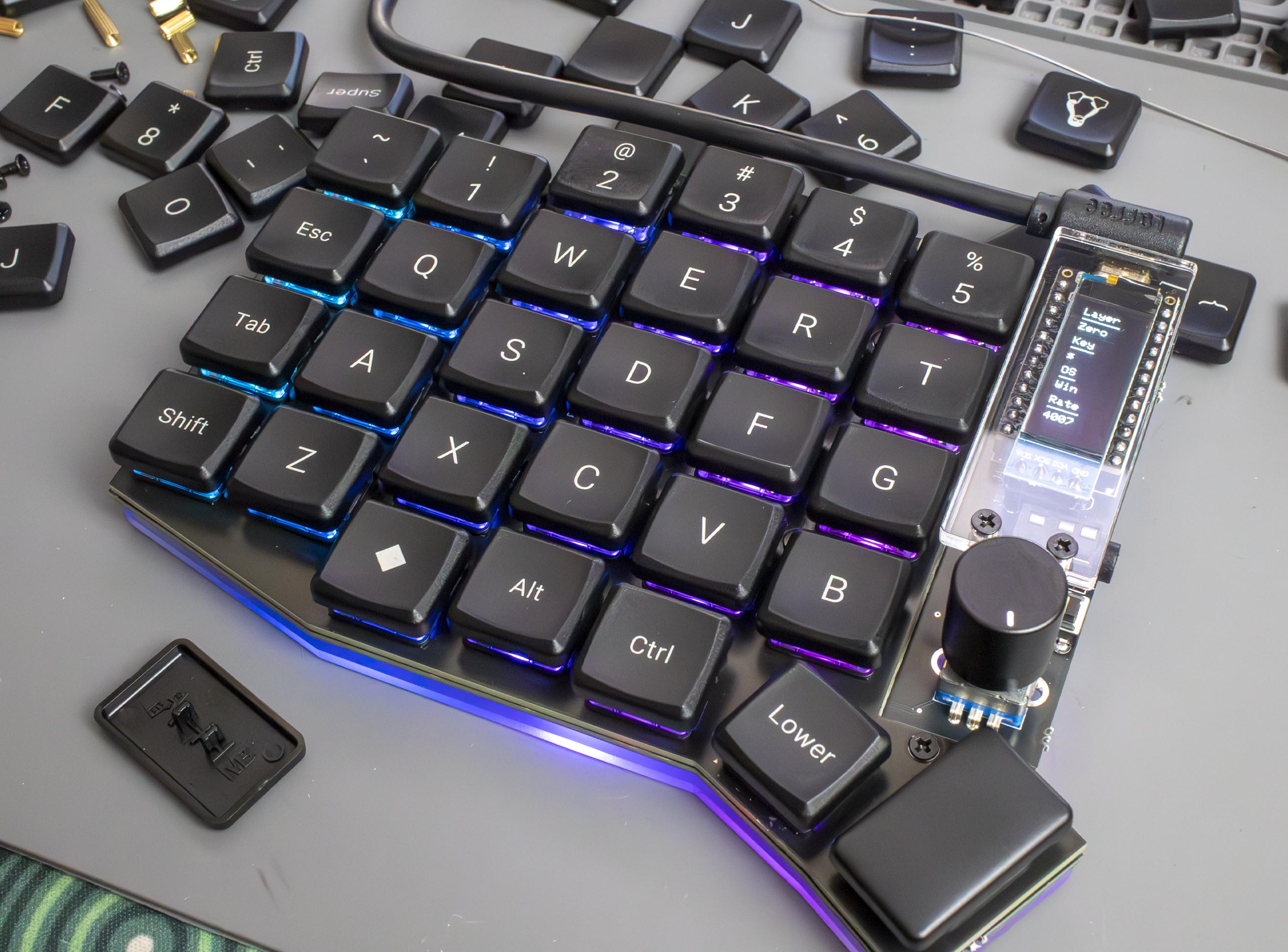
# Wired Sofle V2 Build Guide

*This build guide features the choc (low profile) variant of the Sofle V2, but the build guide will be the same for the MX variant too!*

## Contents of the Kit:

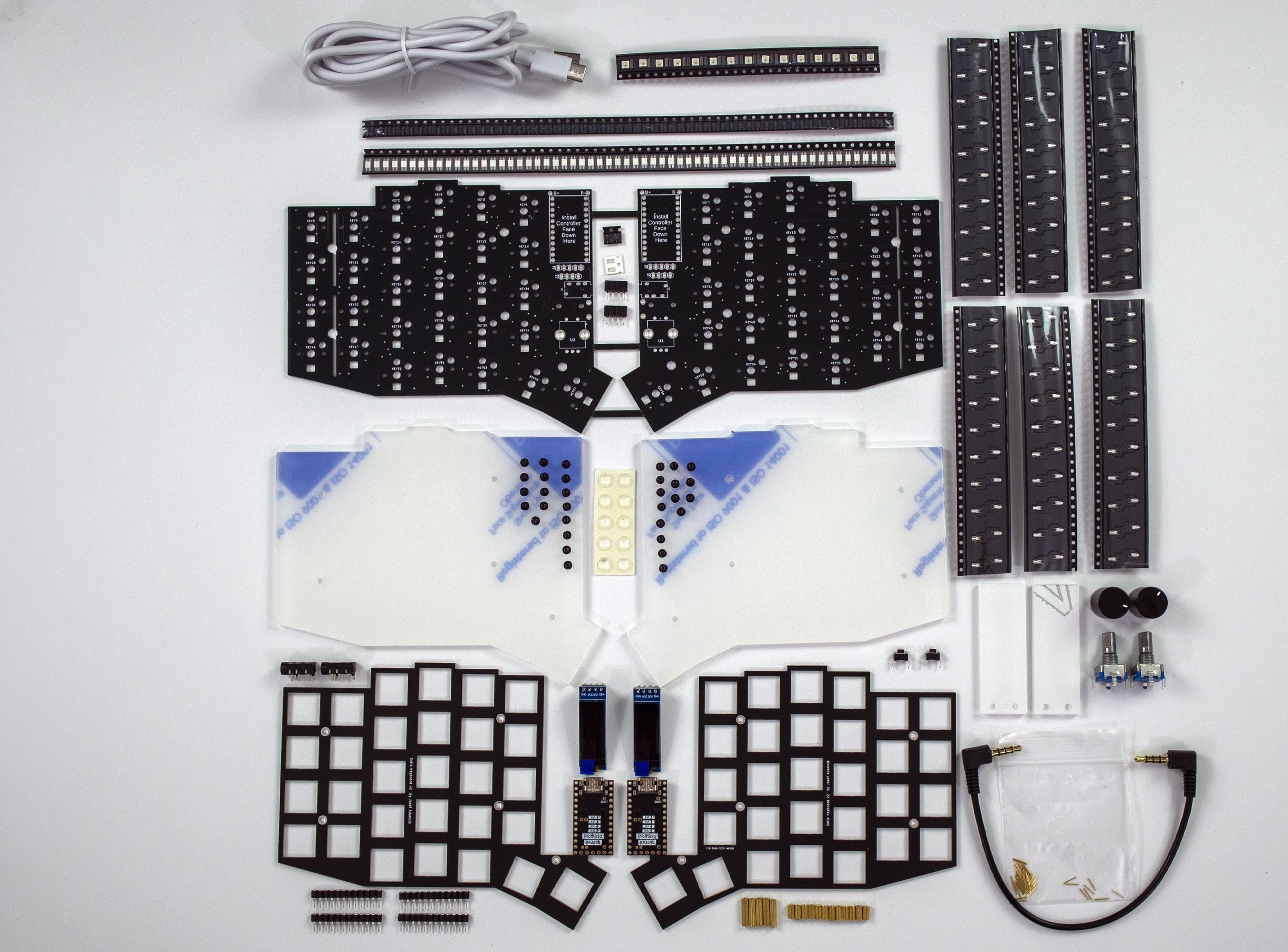
First things first, let’s check we've got everything included in the kit. If there’s anything missing, send us a message [here](https://mechboards.co.uk/pages/faq) so we can get you back to the build ASAP! (Spares are included in the contents below)

|                               |                           |                               |
| ----------------------------- | ------------------------- | ----------------------------- |
| 1 x PCB                       | 2 x Acrylic OLED cover    | 60 x Mini-E LED               |
| 2 x Switch plate              | 60 x SMD diode            | 14 x Underglow LED            |
| 2 x Frosted acrylic backplate | 60 x Hotswap socket       | 2 x OLED screen               |
| 1 x TRRS cable                | 2 x Rotary encoder + knob | 2 x RP2040 controller         |
| 2 x Zener diode               | 2 X 15Ω resistor          | 2 x OLED socket               |
| 4 x Controller socket         | 2 x Reset switch          | 2 x TRRS jack                 |
| 50 x Mill-max pins            | 10 x Rubber feet          | 12 x 6/8mm Standoff (choc/MX) |
| 5 x 12mm Standoff             | 16 x 4mm Screws           | 16 x 6mm Screws               |

<figure><img src="/files/CmbbJ8MrSLNN8LFH0hFR" alt=""><figcaption><p>IMAGE OF KIT CONTENTS</p></figcaption></figure>

## Other Parts Required:

There are a couple of parts that are required for the build that aren't included in the kit, hopefully you've already got these:

|                              |                    |   |
| ---------------------------- | ------------------ | - |
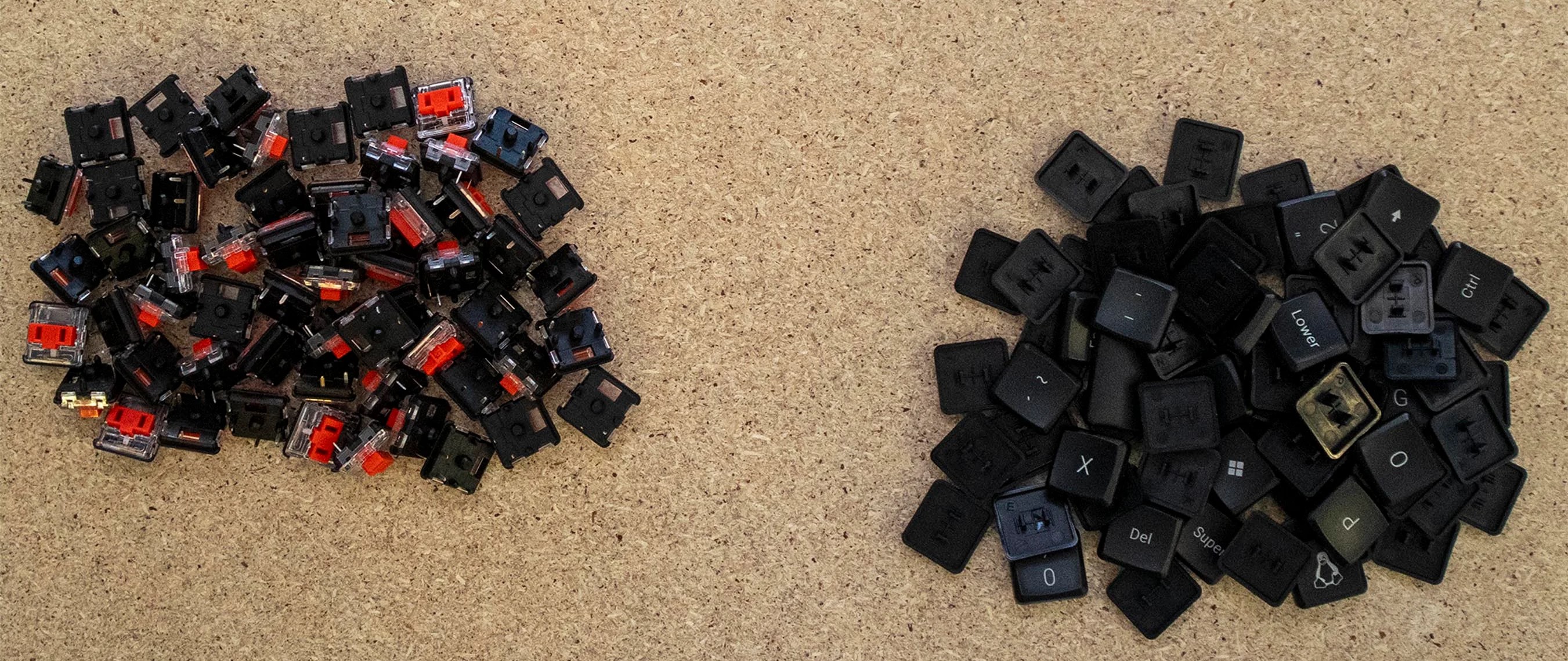
| 60 x Switches of your choice | 1 x Set of keycaps |   |

<figure><img src="/files/gL4JKHpmRc87ejeXhCBh" alt=""><figcaption><p>IMAGE OF BITS REQUIRED</p></figcaption></figure>

## Tools Required:

Here's a list of the tools you need to build the keyboard:

|                |                                |          |
| -------------- | ------------------------------ | -------- |
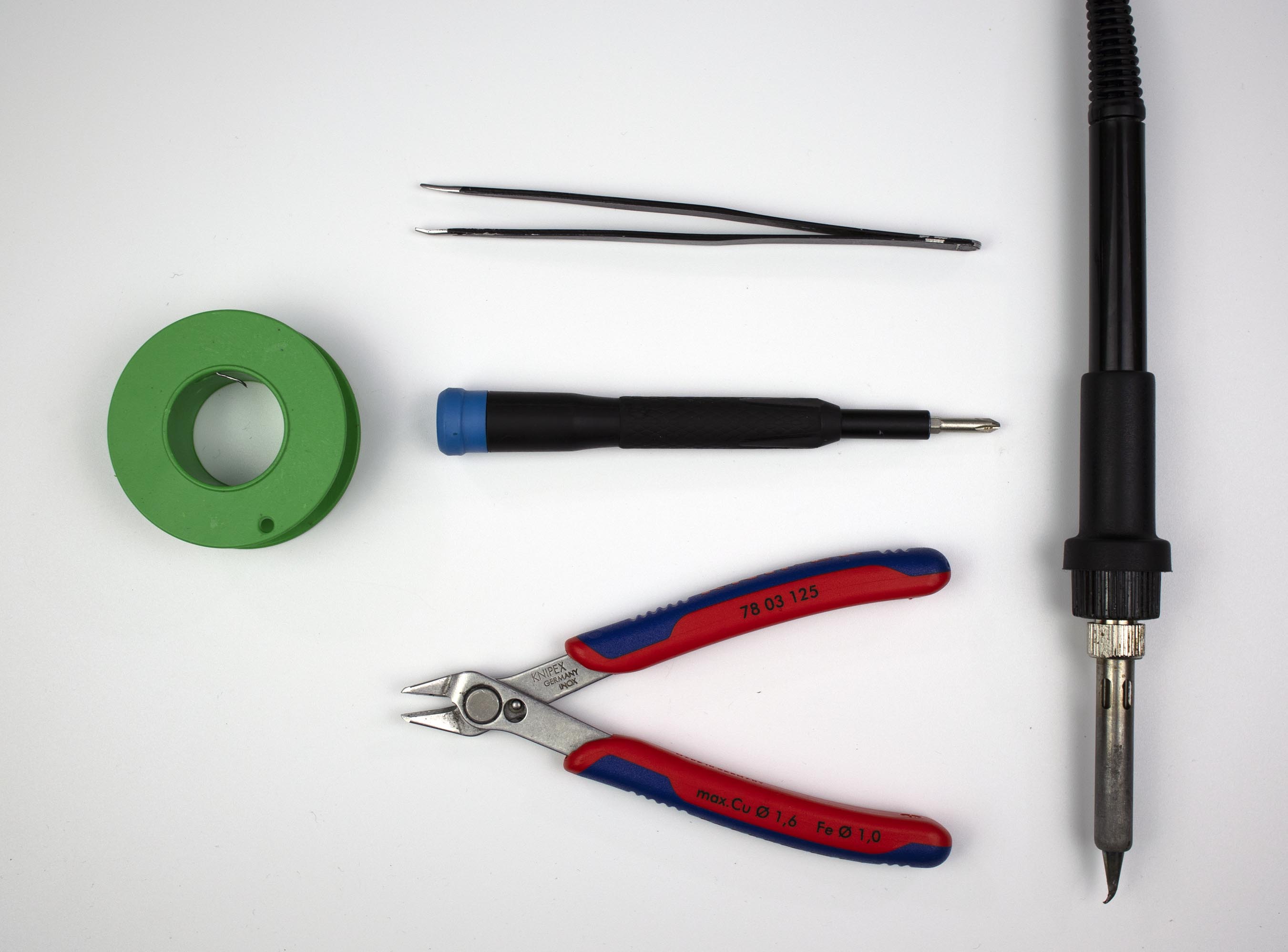
| Soldering iron | Phillips head screwdriver (M2) | Tweezers |
| Solder         | Snippers/Cutters               |          |

<figure><img src="/files/eevozEnfA6Fyc8FG9fGn" alt=""><figcaption><p>IMAGE OF TOOLS</p></figcaption></figure>

## Making the Sofle V2:

### Step 1: SMD Diodes

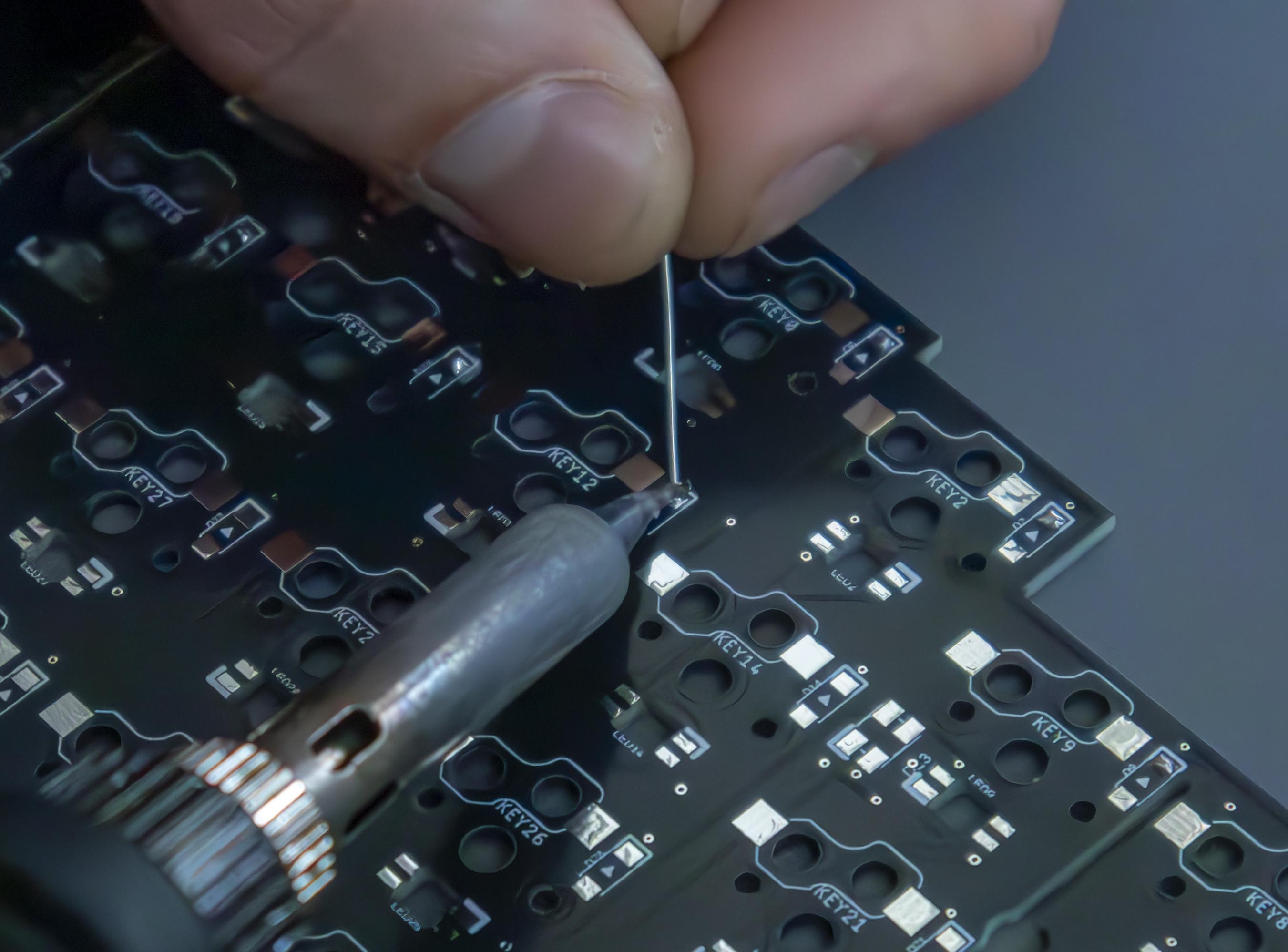
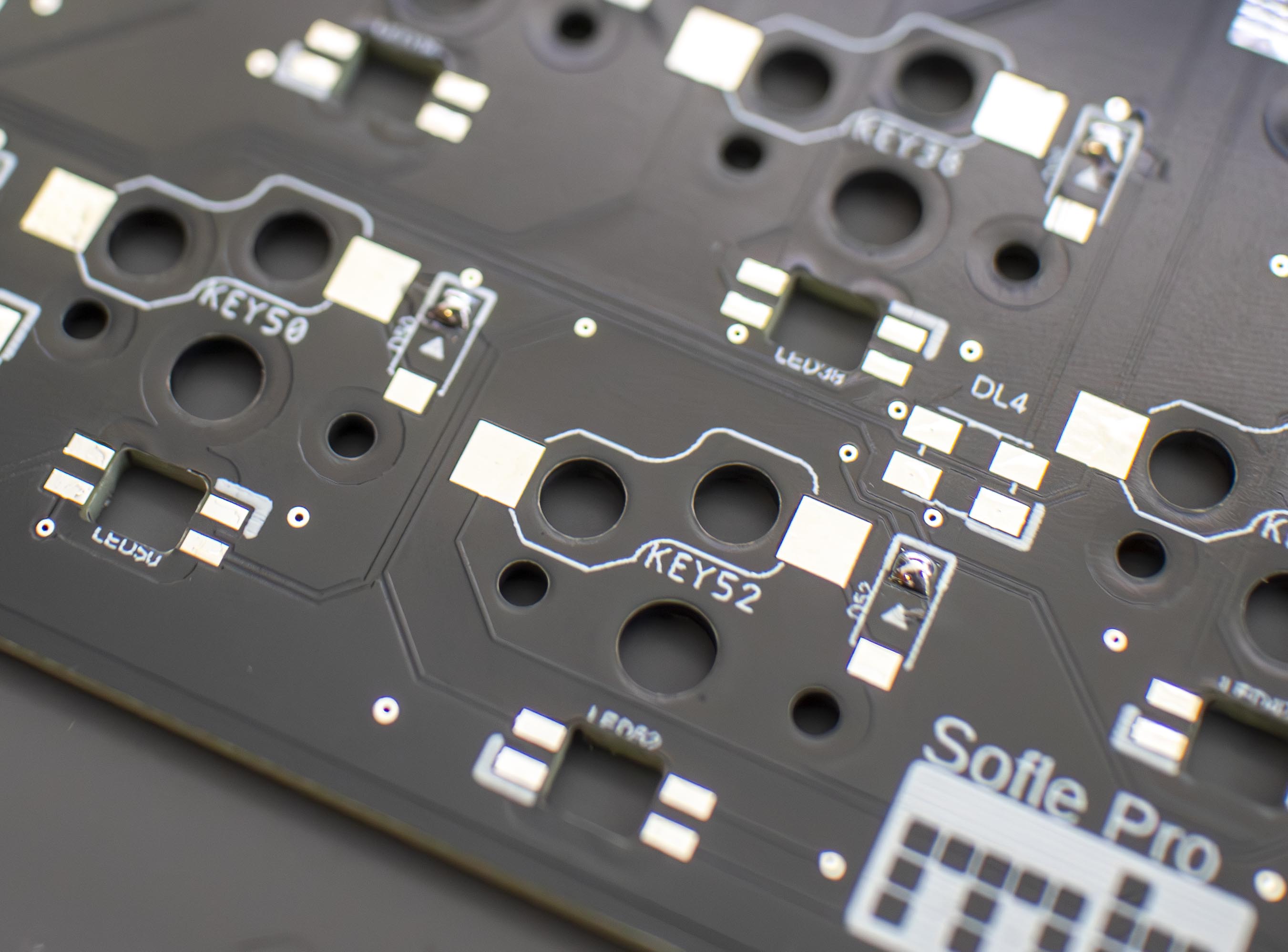
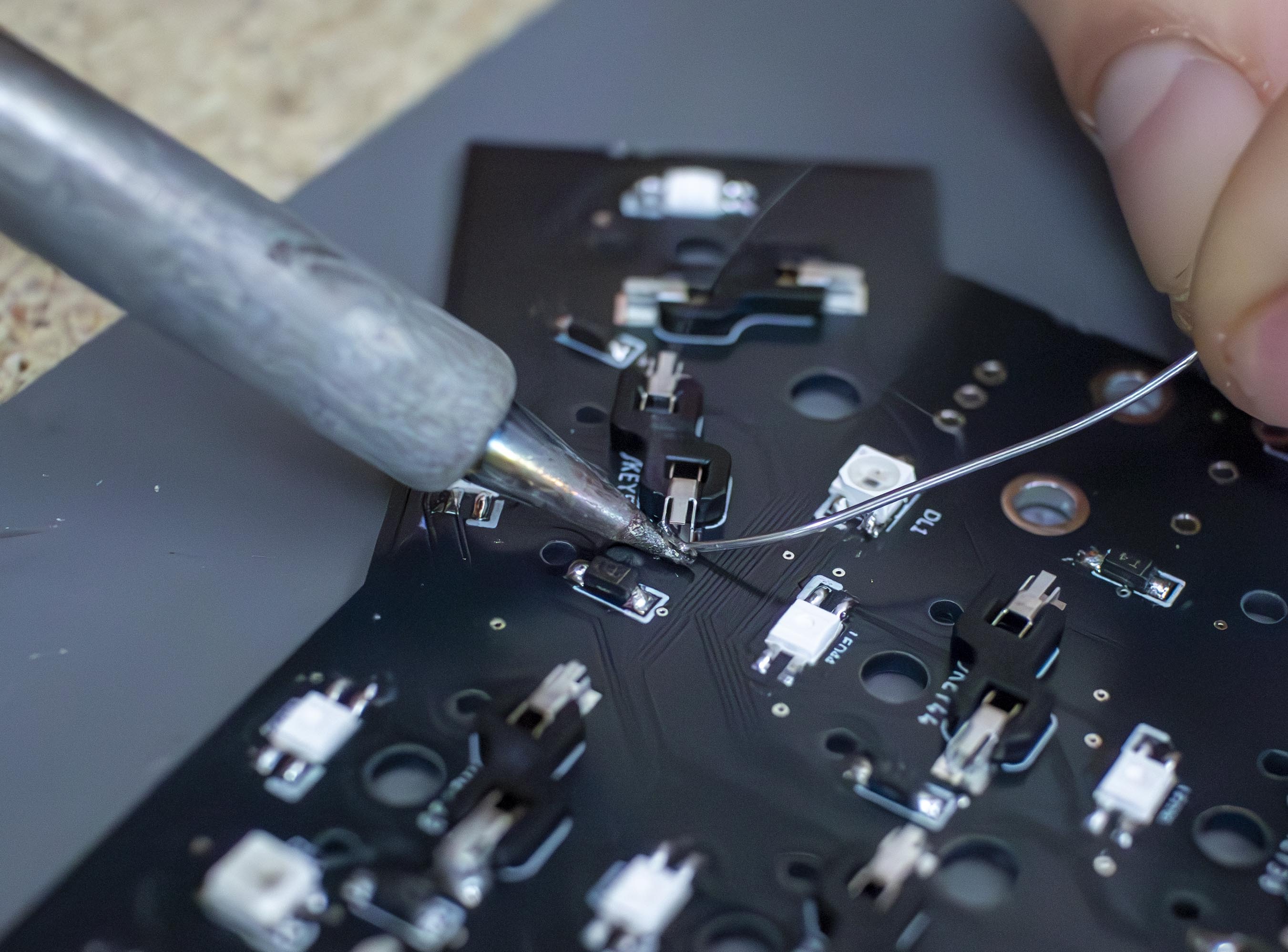
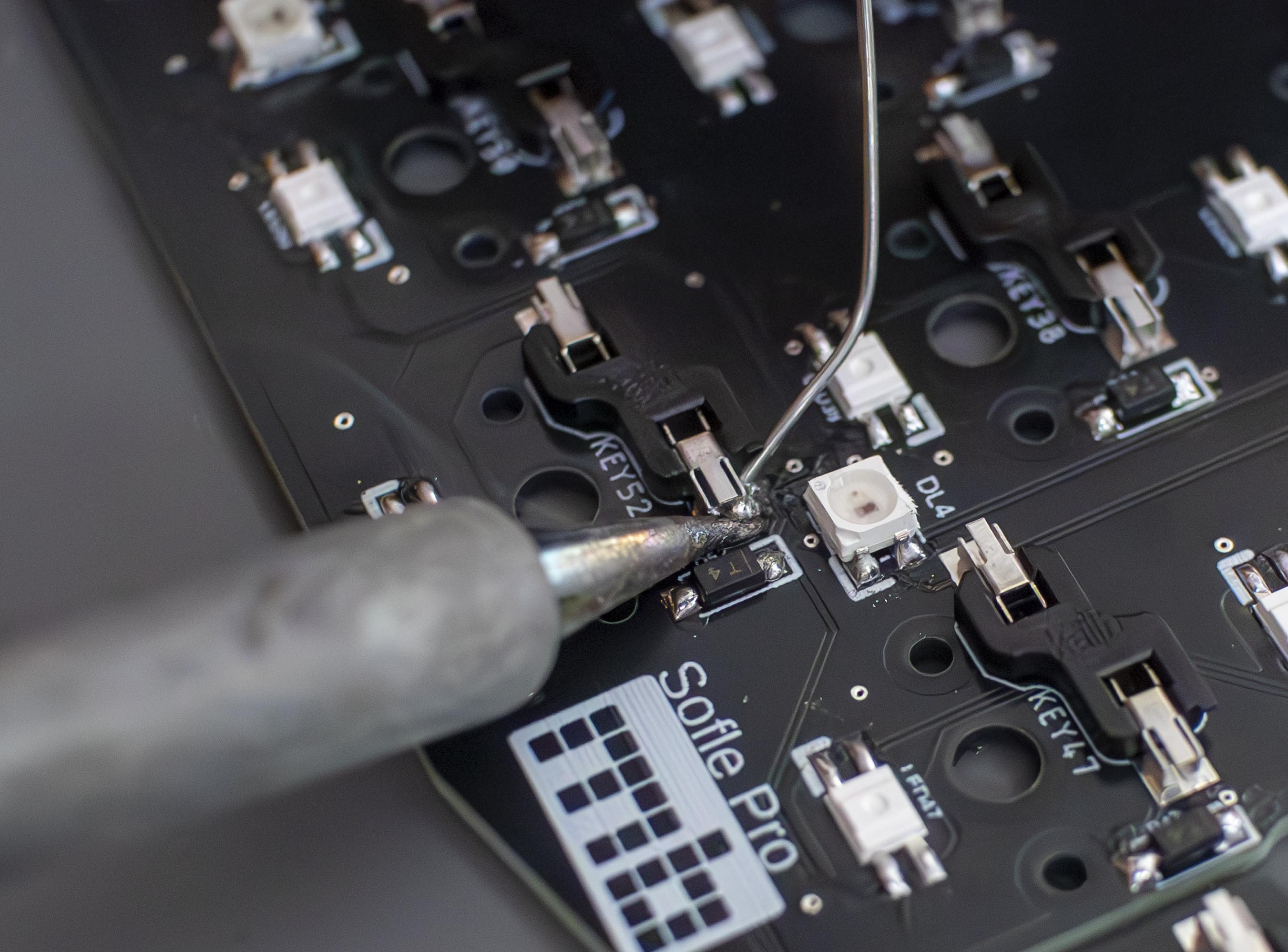
The first components to add to the PCB are the SMD diodes. We can get started by applying a small amount of solder to one of the pads we're attaching the diodes to, as shown below:

<figure><img src="/files/JQVRvr1Wa1bVNymTiQvI" alt=""><figcaption><p>IMAGE OF 1 DIODE PAD (BEING) SOLDERED</p></figcaption></figure>

<figure><img src="/files/EBwCq7pS59eXZ1z5ChY4" alt=""><figcaption><p>SOLDER ADDED TO DIODE PAD</p></figcaption></figure>

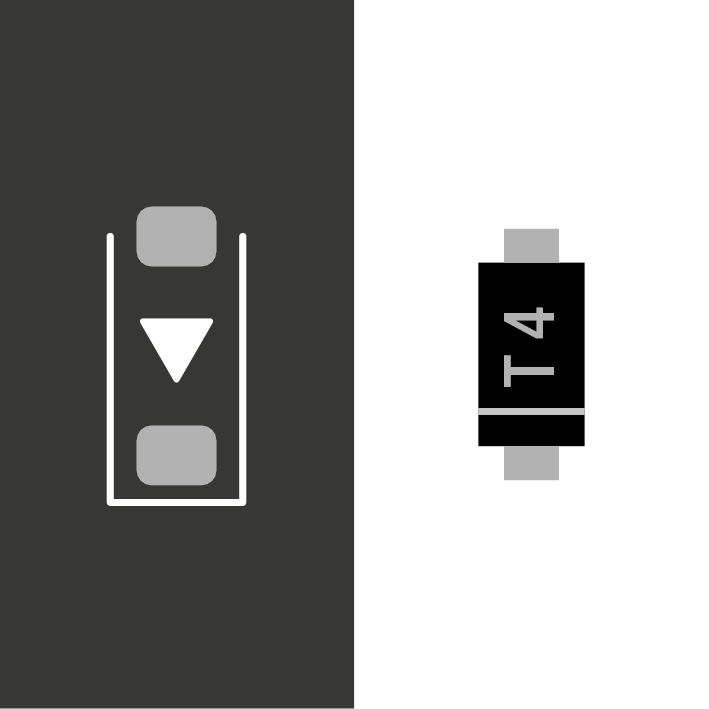
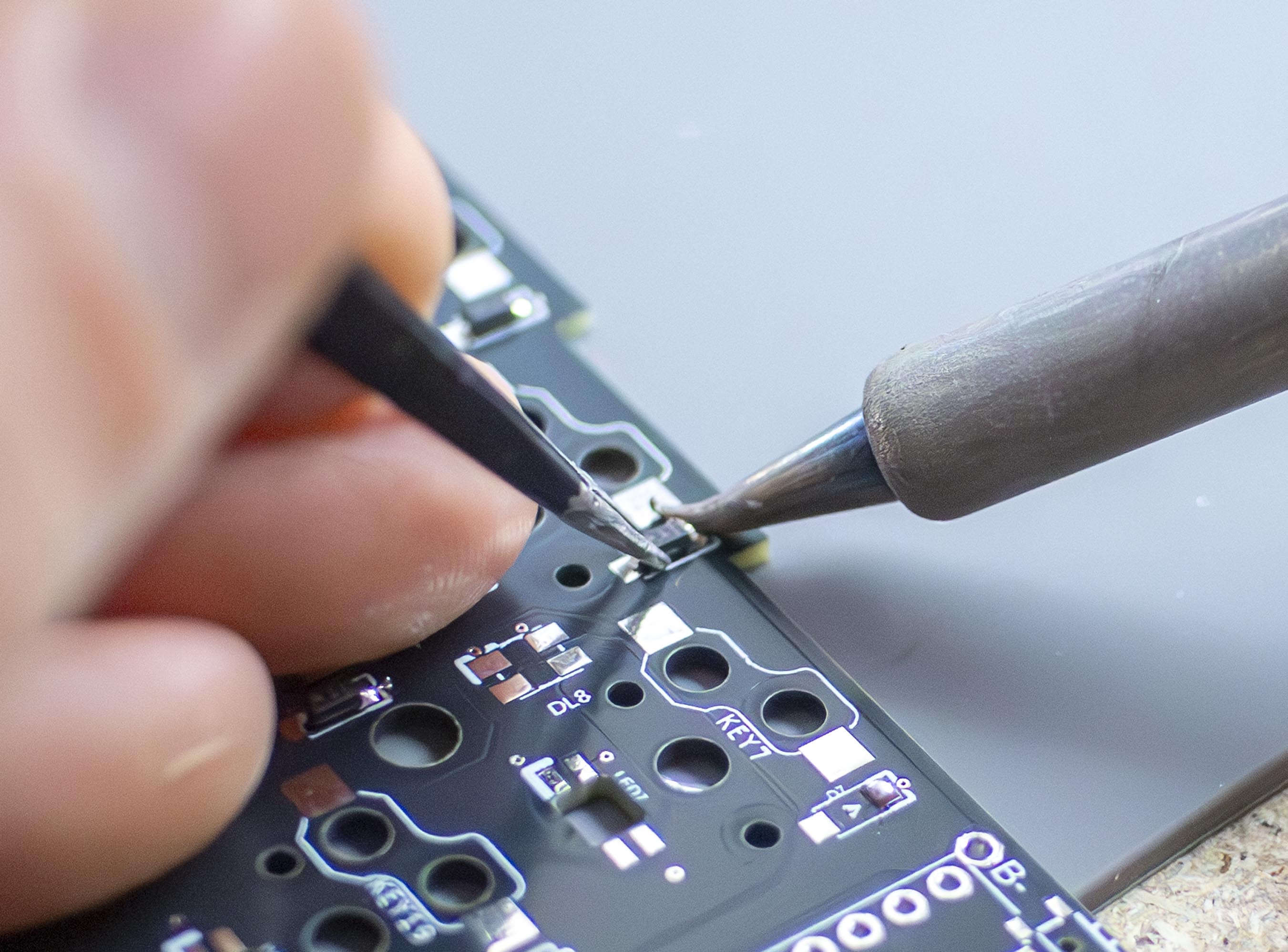
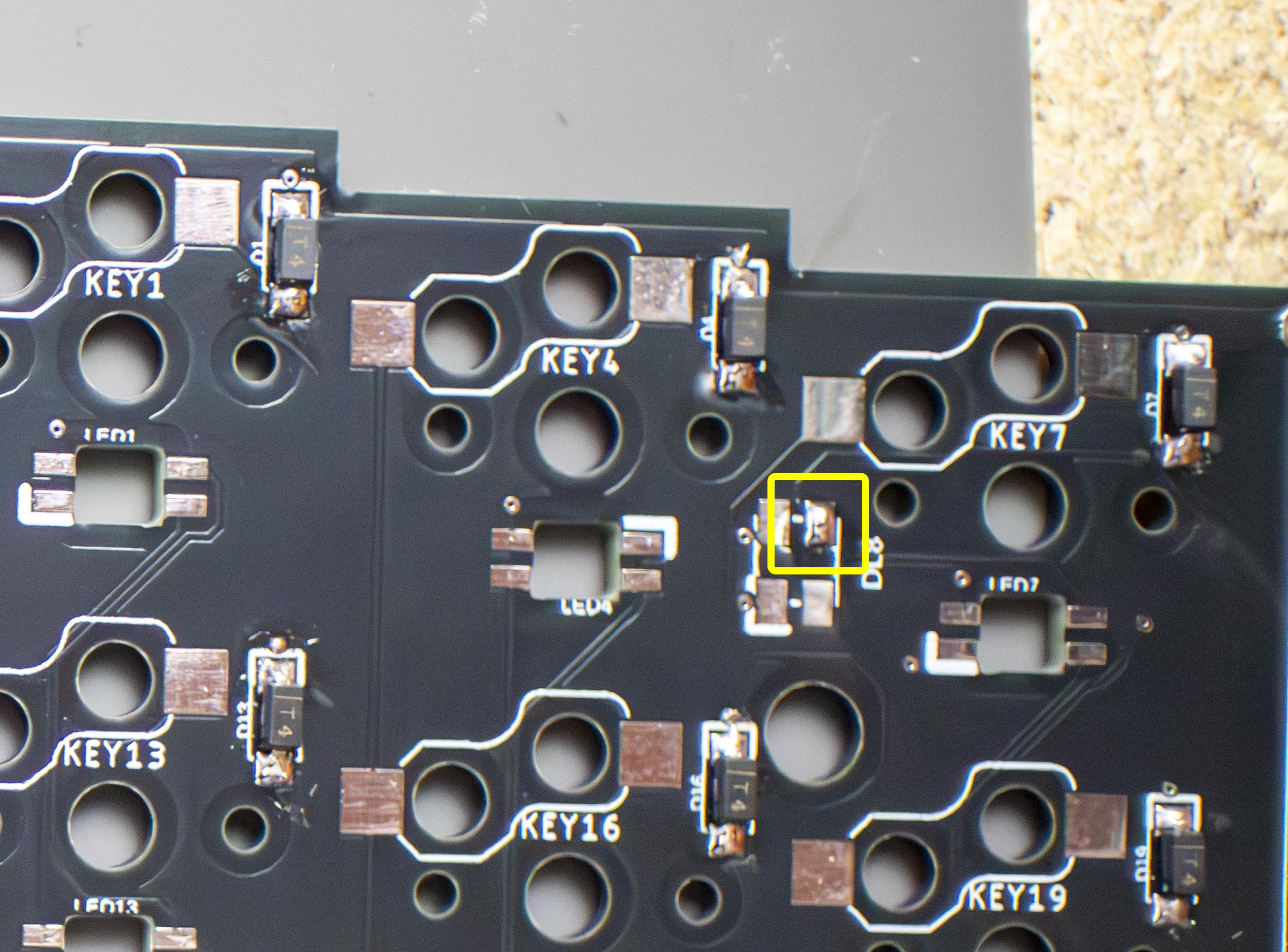
Once the pads all tinned (soldered), we can add the diodes by melting the already placed solder with our iron and gently placing a diode leg into the solder and then leaving it to harden in place. The line on the diode should be facing the same side as the line on the PCB, as pictured below:

<figure><img src="/files/T9iIFsmOwBRjN8VRKP5U" alt=""><figcaption><p>IMAGE OF DIODE ORIENTATION</p></figcaption></figure>

<figure><img src="/files/bYZqiLI5jSqJnpbfRw6B" alt=""><figcaption><p>IMAGE OF PLACING/SOLDERING DIODE</p></figcaption></figure>

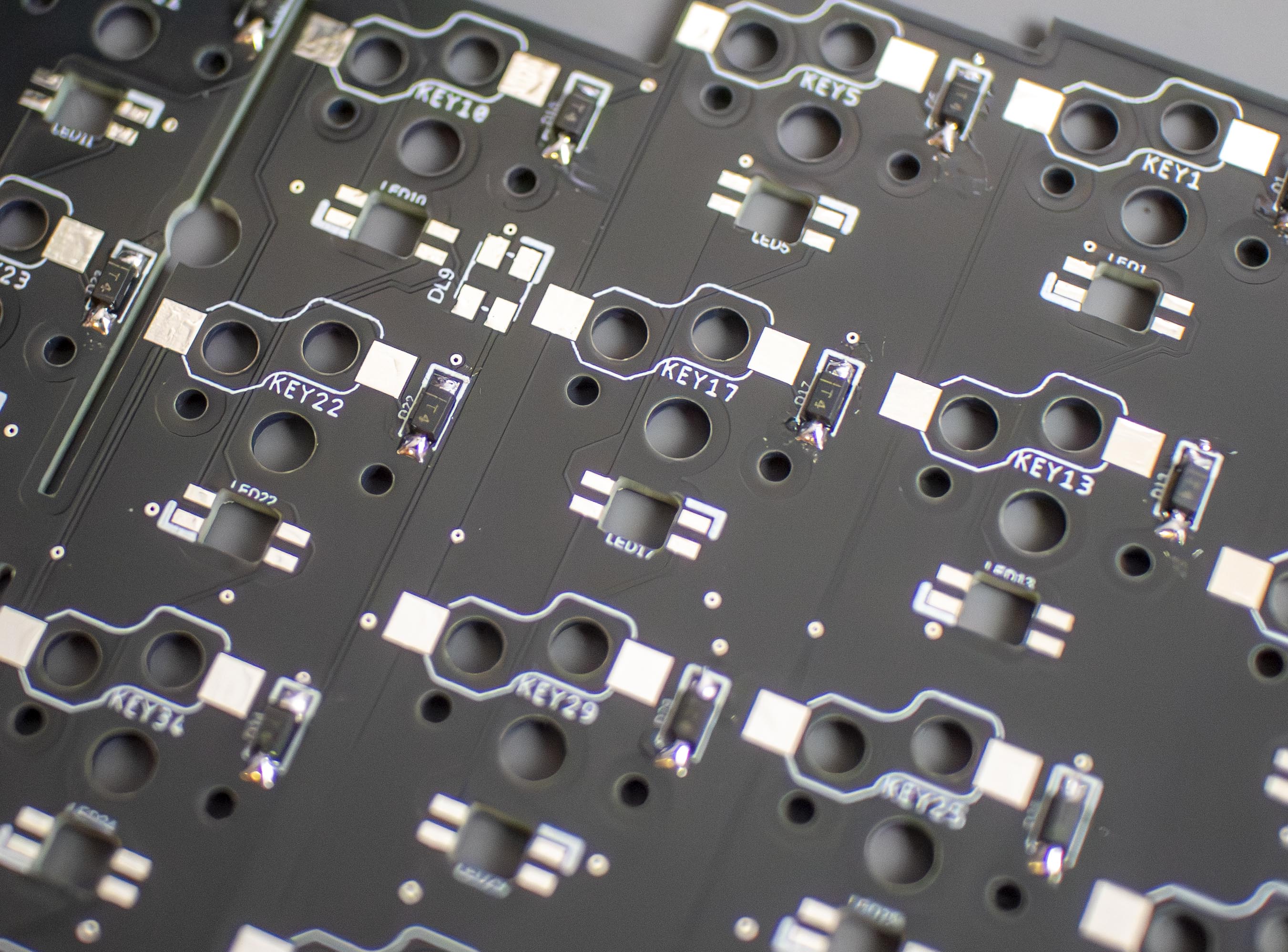
Now we just have to solder the remaining diode legs to their pads:

<figure><img src="/files/QJGPQDNpDNTtCtrJZcop" alt=""><figcaption><p>IMAGE OF FINISHING DIODE SOLDERING</p></figcaption></figure>

### Step 2: Underglow LEDs

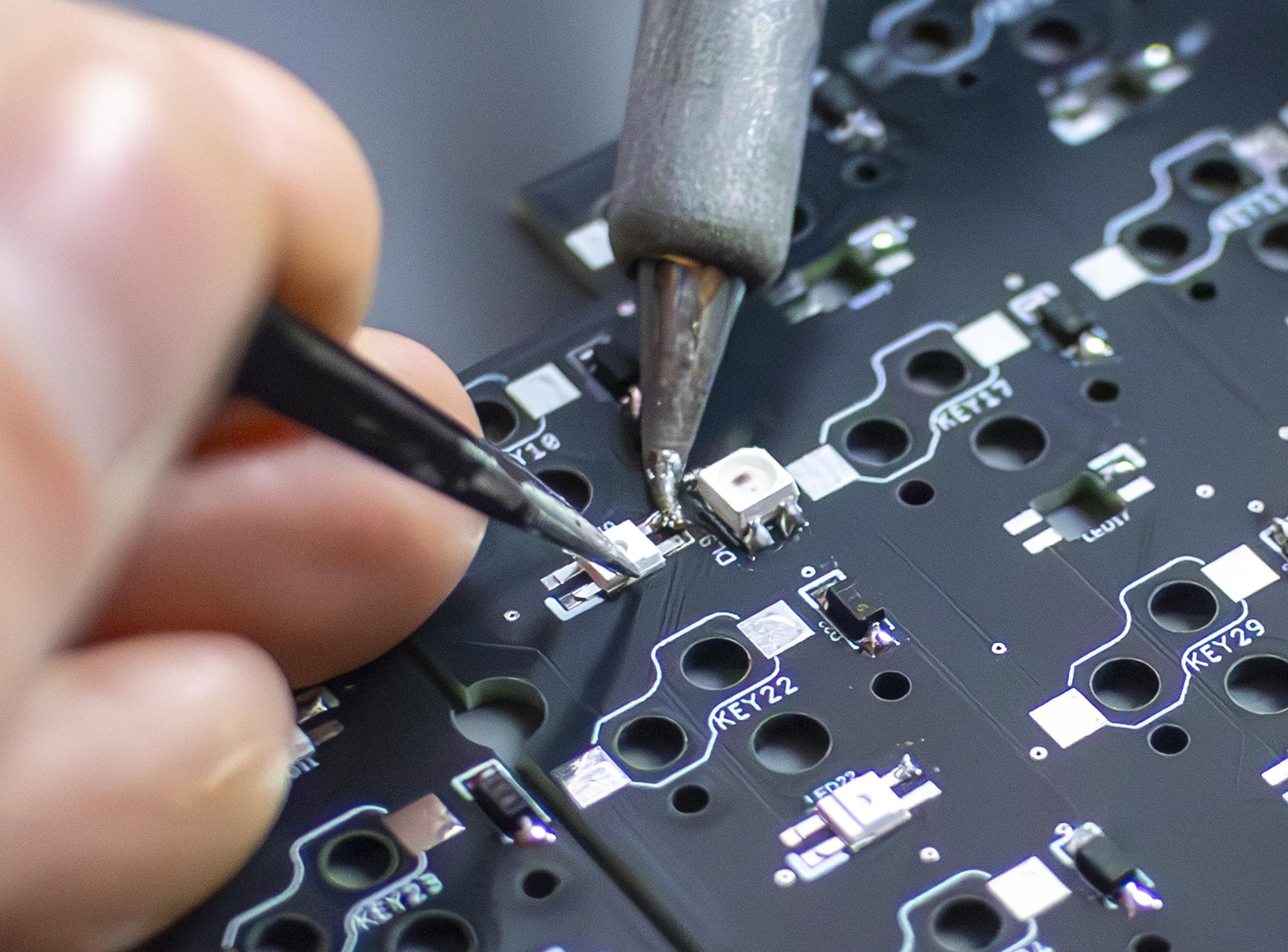
The second components we're adding are the underglow LEDs, these are bit more sensitive to heat, so <mark style="color:red;">I'd recommend keeping your iron at or below 300°C</mark>, this way it'll be a little bit harder to melt them! We'll begin by again, applying a small amount of solder to one of the pads as shown below:

<figure><img src="/files/dXzg2B0ne1Qh20qEsqpn" alt=""><figcaption><p>IMAGE OF SOLDERING UNDERGLOW LED PADS</p></figcaption></figure>

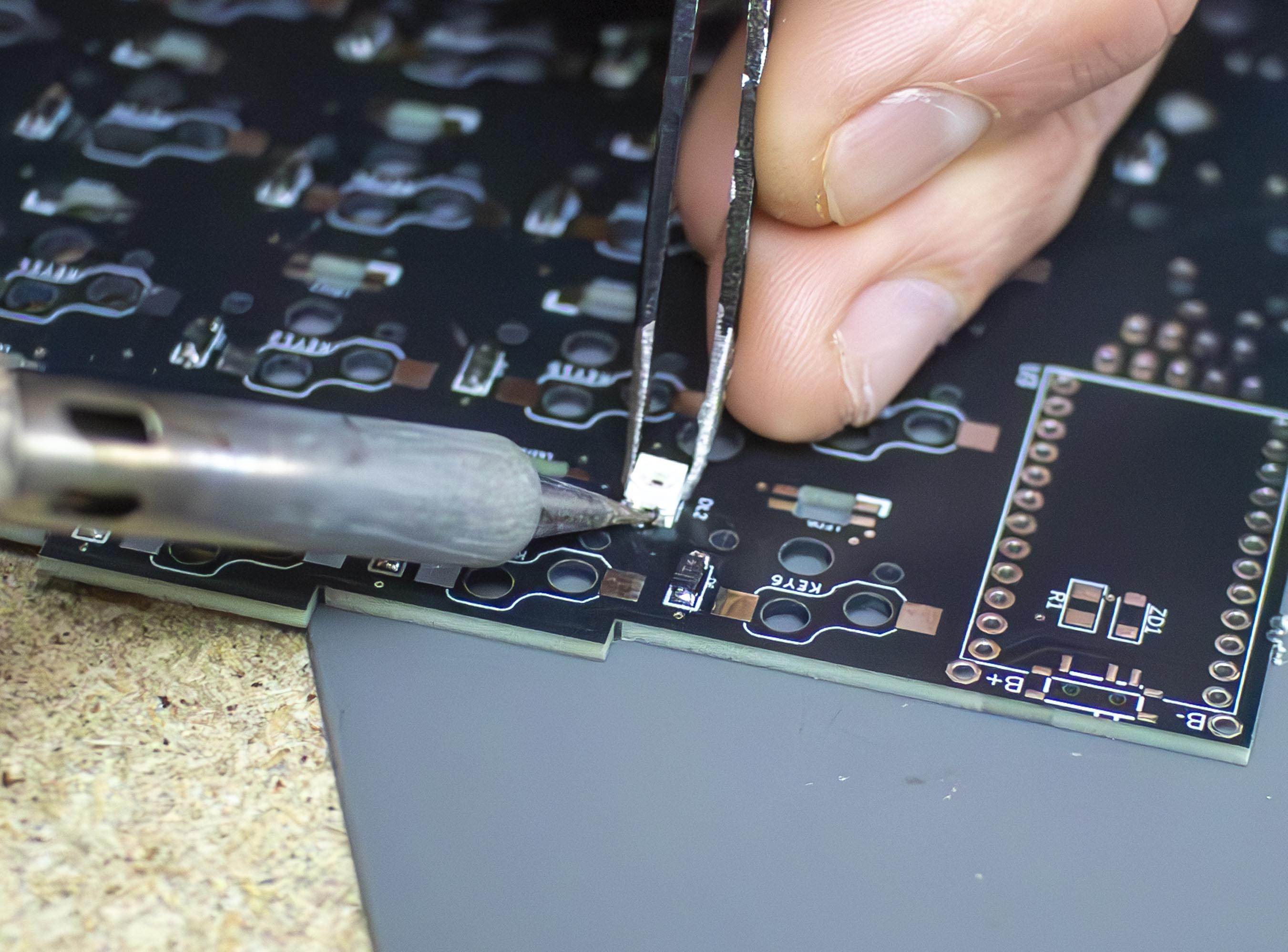
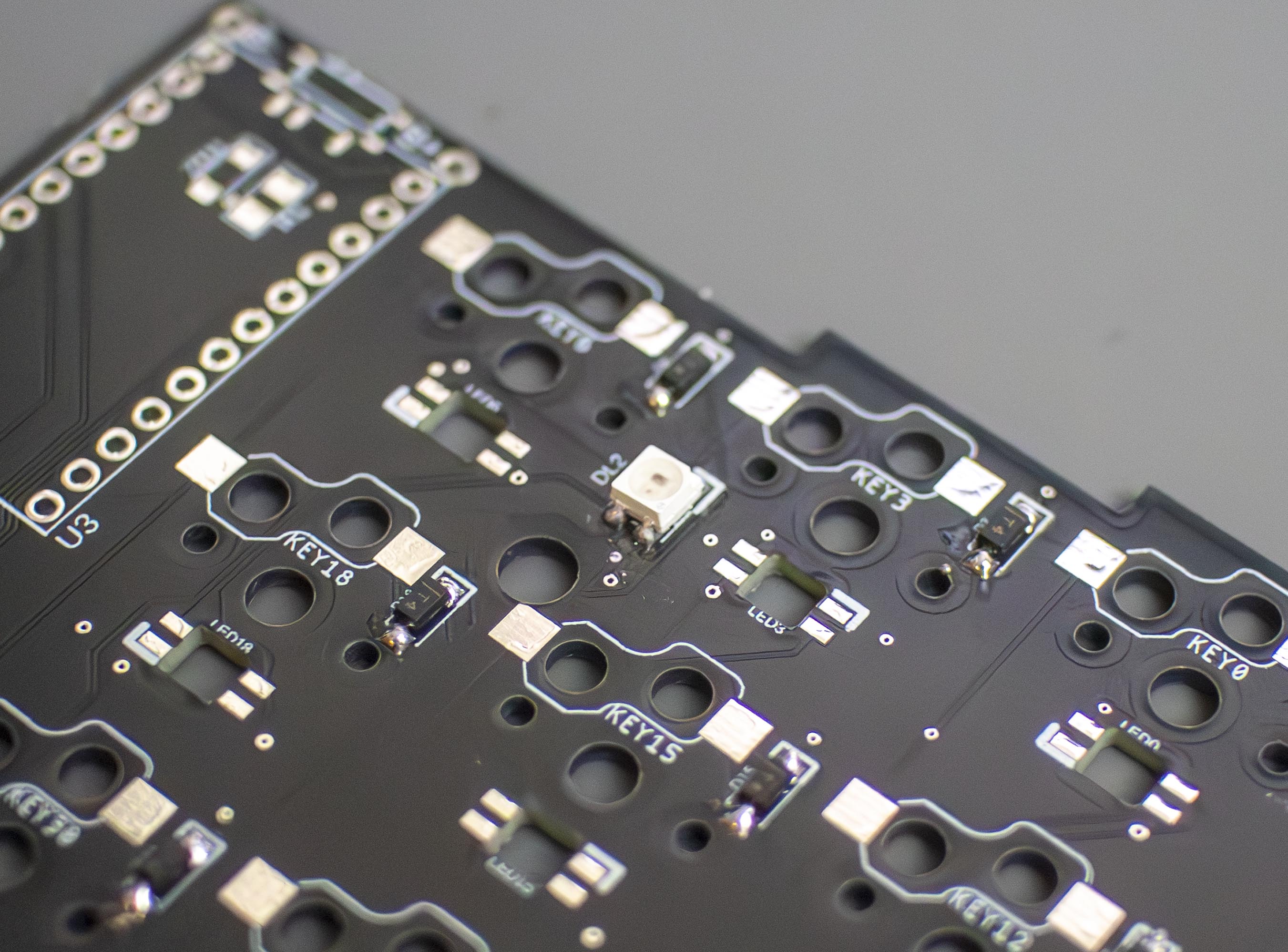
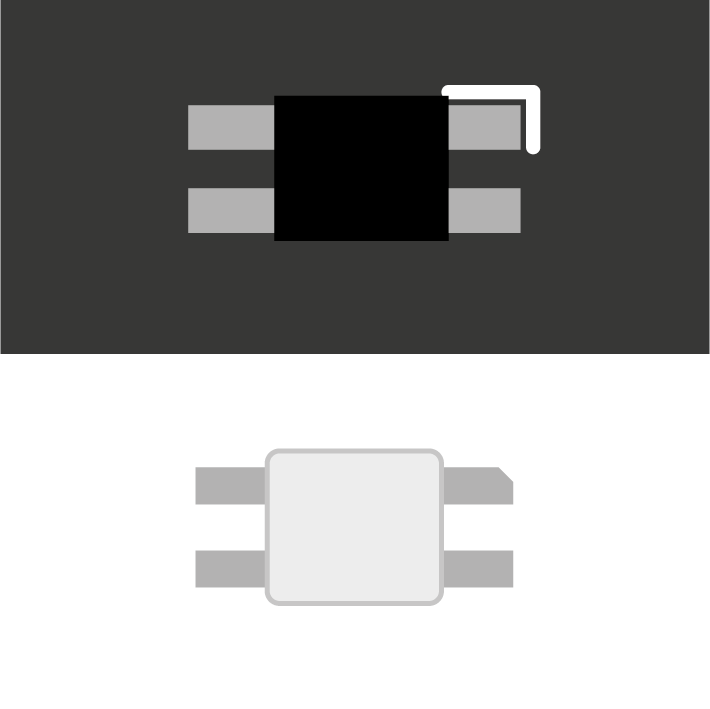
Once the pads are soldered, we can repeat the same process used for the diodes; heating one pad, placing the LED pad onto the solder, and then allowing the solder to harden. (Avoid touching the LED with your soldering iron) Be sure that the small cut out on the front of the LED matches the markings on the PCB, like this:

<figure><img src="/files/djj8NRxOfdv5muISrSRE" alt=""><figcaption><p>IMAGE OF UNDERGLOW LED</p></figcaption></figure>

<figure><img src="/files/s35gJ9EWjIpRM5OqS1Jh" alt=""><figcaption><p>IMAGE OF PLACING/SOLDERING UNDERGLOW LED</p></figcaption></figure>

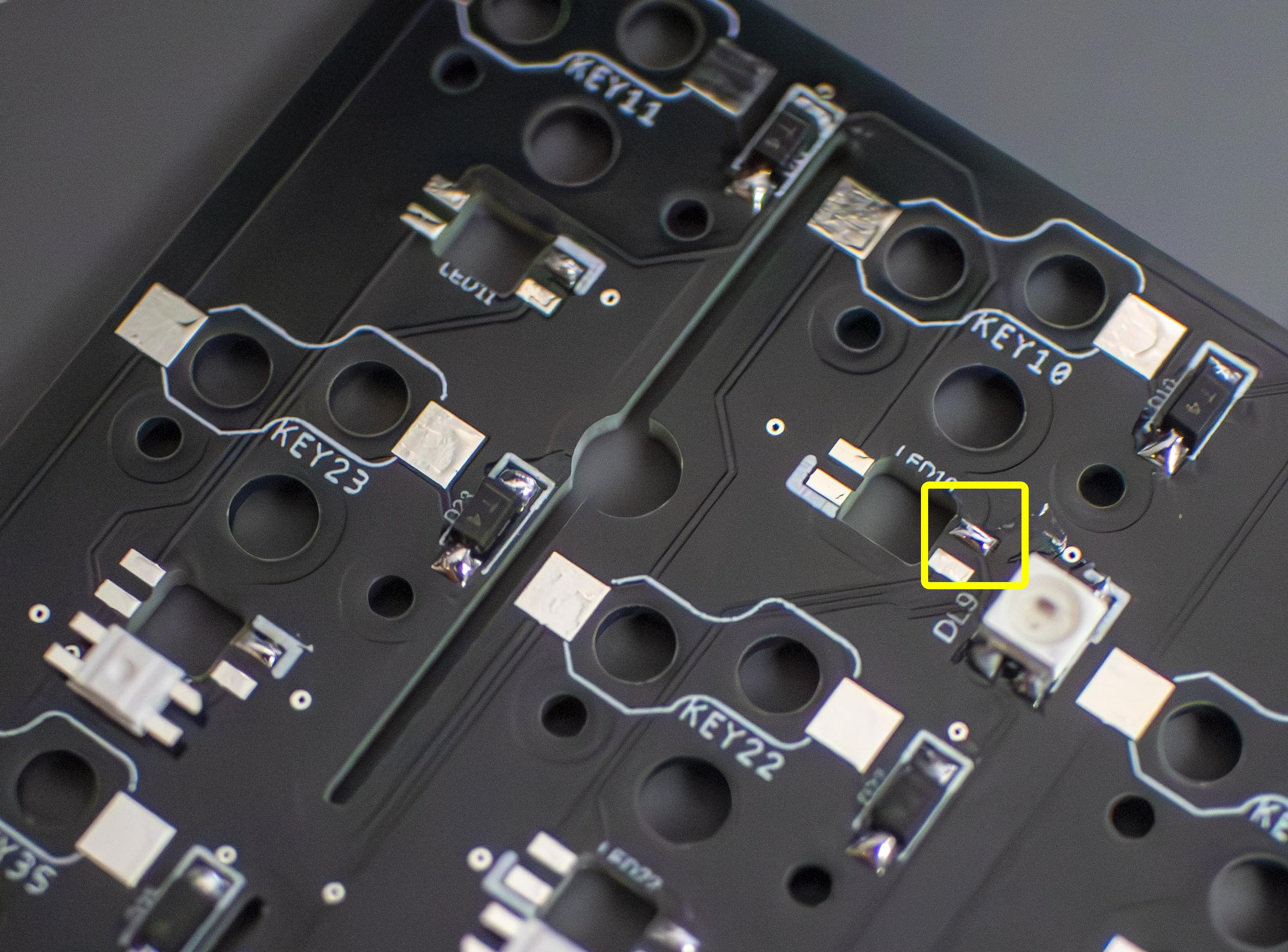
Once they're all in place, we can solder the remaining pads:

<figure><img src="/files/C3uYuaJAdsbz2aDHYUuw" alt=""><figcaption><p>IMAGE OF SOLDERING REMAINING UNDERGLOW LED PADS</p></figcaption></figure>

### Step 3: Per-key LEDs

Next up are the per-key (Mini-E) LEDs, just like the underglow LEDs, these are sensitive to heat.\
We'll begin by again, applying a small amount of solder to one of the pads as shown below:

<figure><img src="/files/a59Nw4YSqQ0ENkValxFL" alt=""><figcaption><p>IMAGE OF SOLDERING MINI LED PADS</p></figcaption></figure>

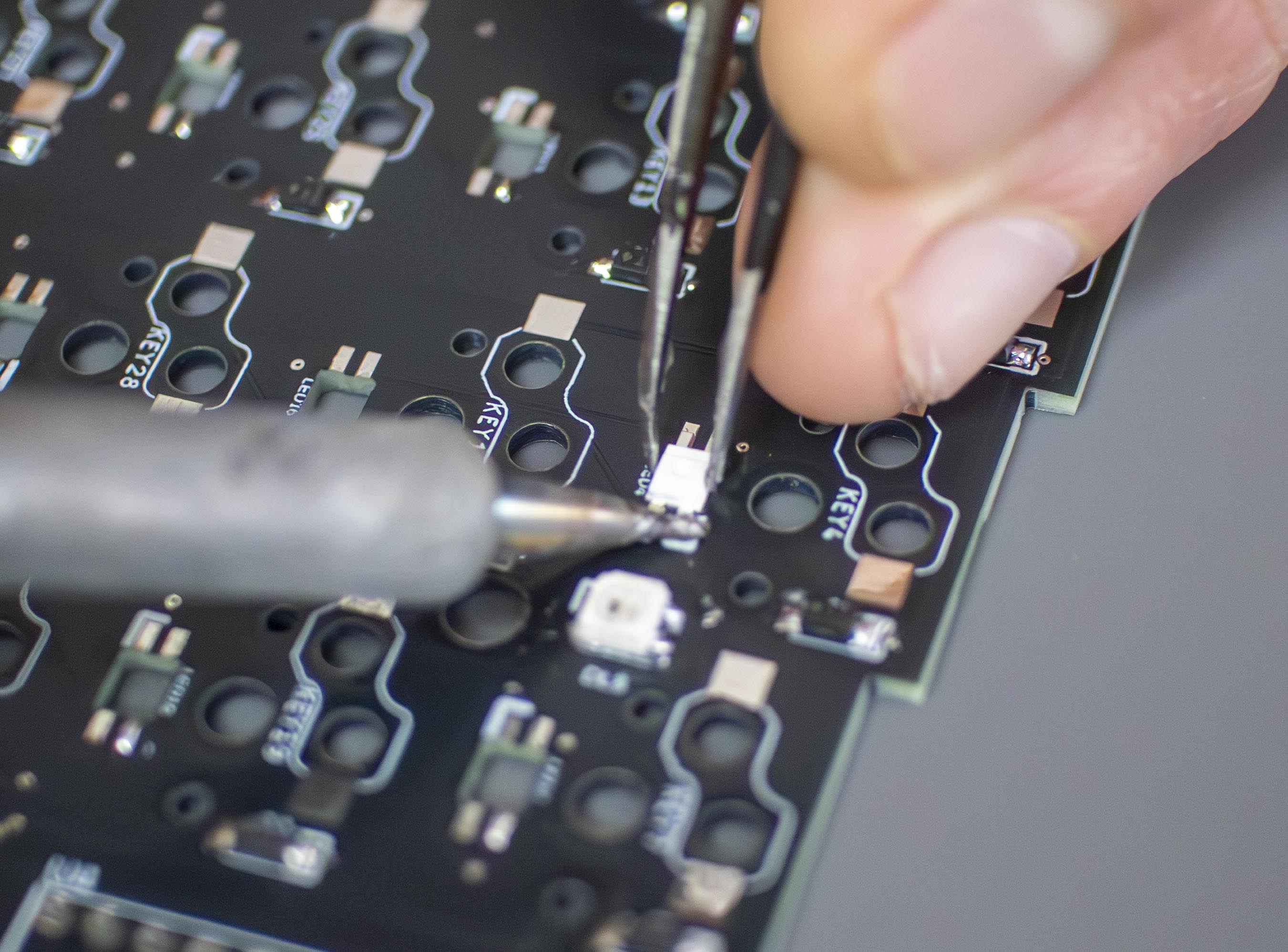
Now that the pads are ready, we can again, gently heat one pad, place the LED leg into the solder, and then allow the solder to set.\
Make sure the small cut-out on one of the legs matches the marking on the PCB, like this:

<figure><img src="/files/1p2idxCpX73HLCNN48mo" alt=""><figcaption><p>IMAGE OF PER-KEY LED ORIENTATION</p></figcaption></figure>

<figure><img src="/files/M7e1toVigZYCbKeHP112" alt=""><figcaption><p>IMAGE OF PLACING/SOLDERING PER-KEY LED</p></figcaption></figure>

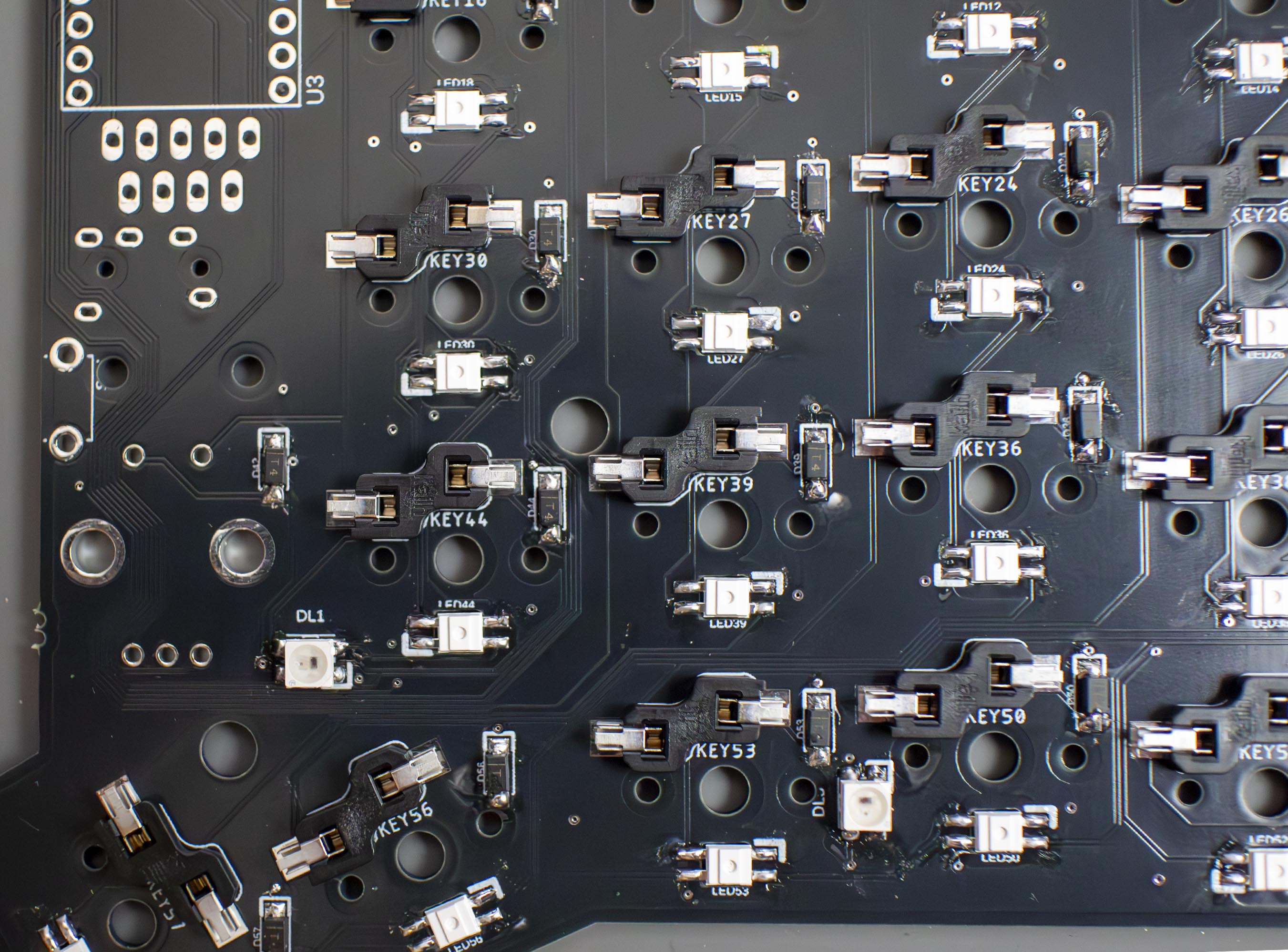
Once the LEDs are all in place, we can go ahead and solder the remaining legs to their respective pads:

<figure><img src="/files/1ydVGDe2lG8hOv85OoTD" alt=""><figcaption><p>IMAGE OF SOLDERING REMAINING PER-KEY LED LEGS</p></figcaption></figure>

### Step 4: Hotswap Sockets

Now for the hotswap sockets, I tend to find it easiest to place all of the sockets in their outlined positions and then solder them into place one side at a time.

<figure><img src="/files/rTg2CyGpOpUP7NcbmYEL" alt=""><figcaption><p>IMAGE OF SOCKETS PLACED</p></figcaption></figure>

<figure><img src="/files/WfwvNXfhO8SI6VB8zVVK" alt=""><figcaption><p>IMAGE OF SODKETS SOLDERED ON ONE SIDE</p></figcaption></figure>

<figure><img src="/files/fSwuq6GtaJobPdsYZV8U" alt=""><figcaption><p>IMAGE OF SOCKETS SOLDERED ON OTHER SIDE</p></figcaption></figure>

### Step 5: Socketing Controller and OLED screen

{% hint style="info" %}
**We recommend flashing your controller before beginning this step, just to check it's in a working condition. If you're unsure how to do this, check out our wired pre-build page, this has instructions on how to flash your controller:** [**Wired Pre-Builds**](/guides/getting-started/wired-pre-builds.md#things-to-know)
{% endhint %}

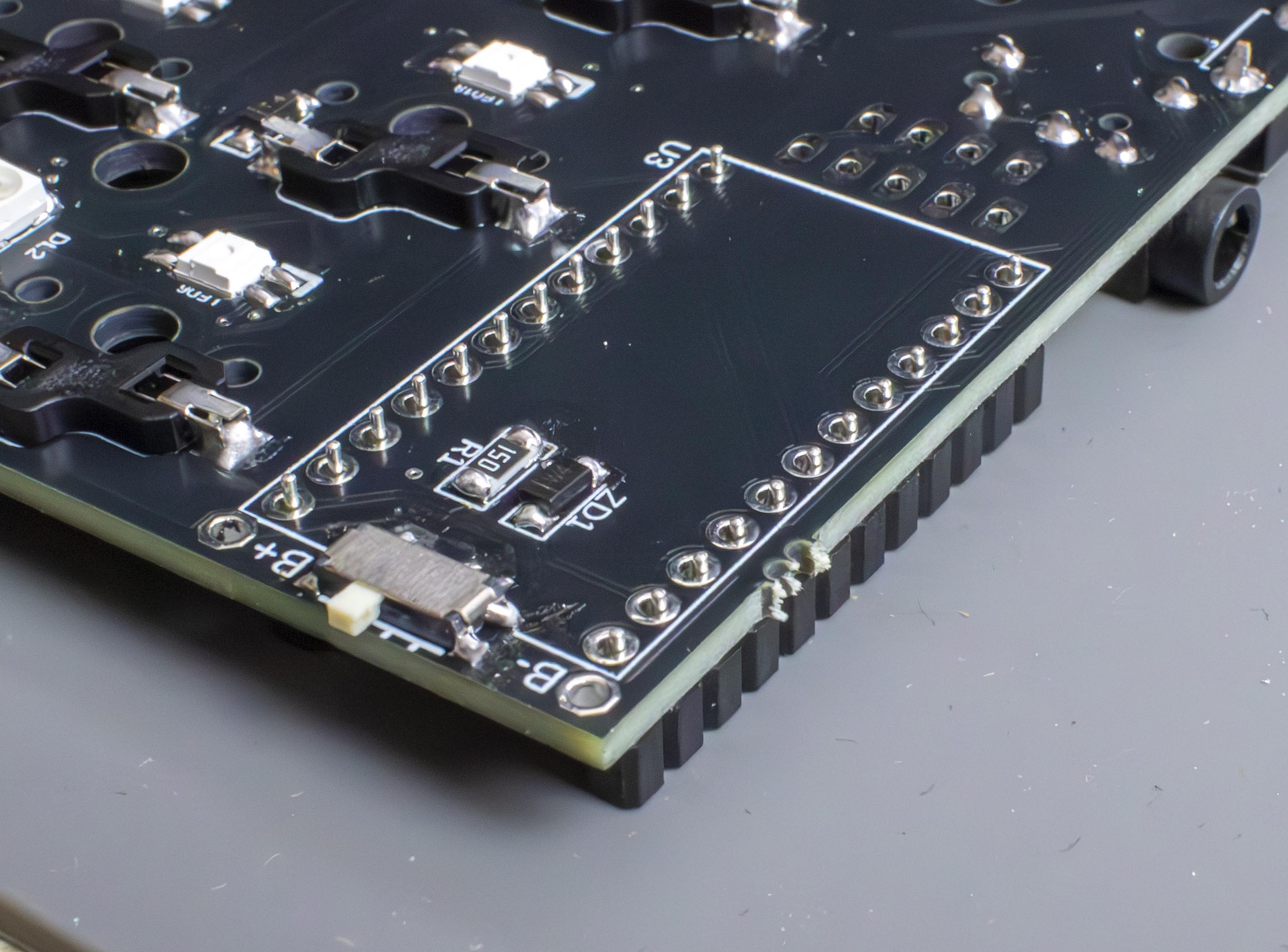
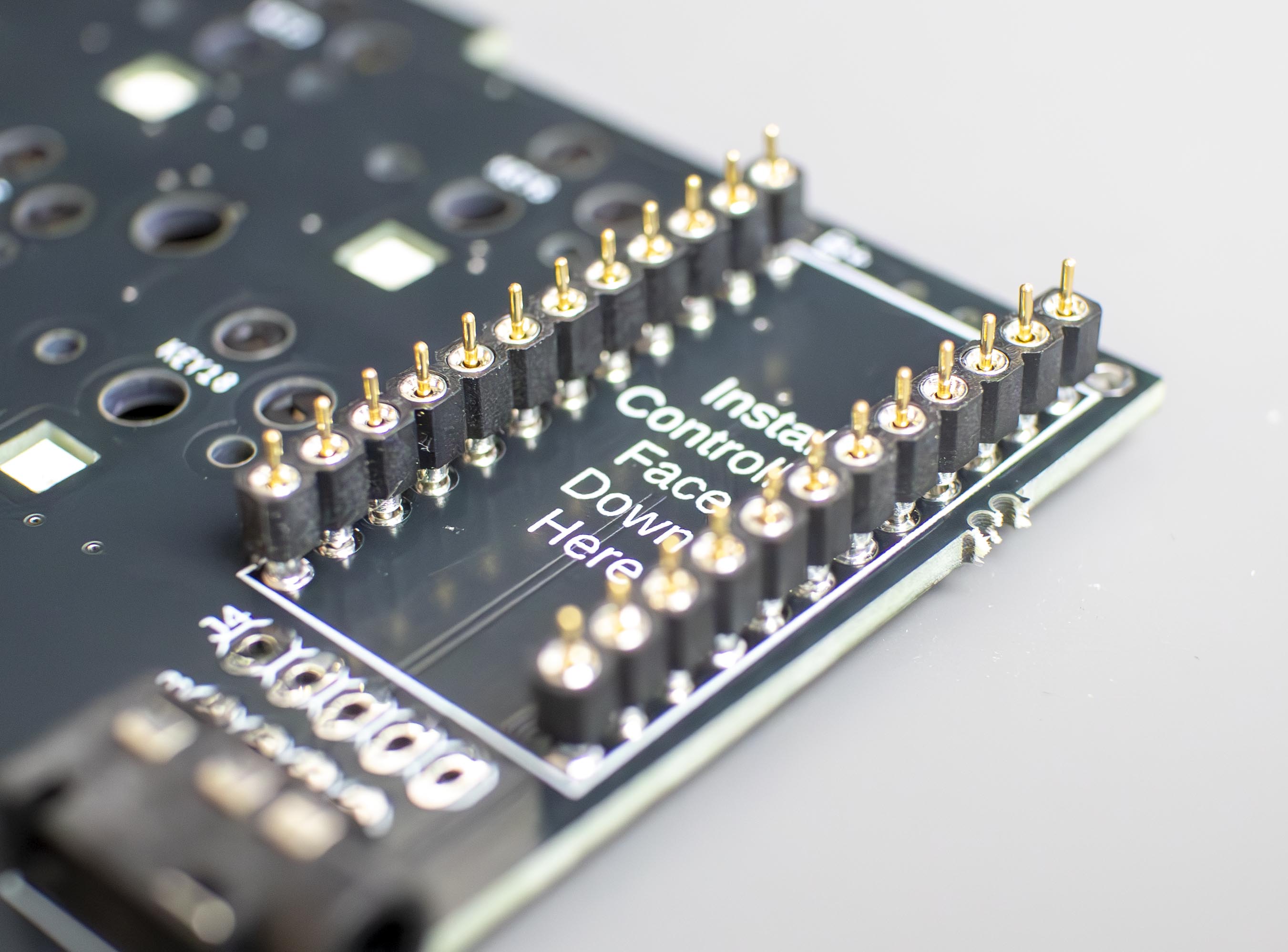
Next is getting our controllers onto the board. The new Sofle V2 kits include machine pin sockets and pins, we recommend using them to make replacing/upgrading your controllers easy. \
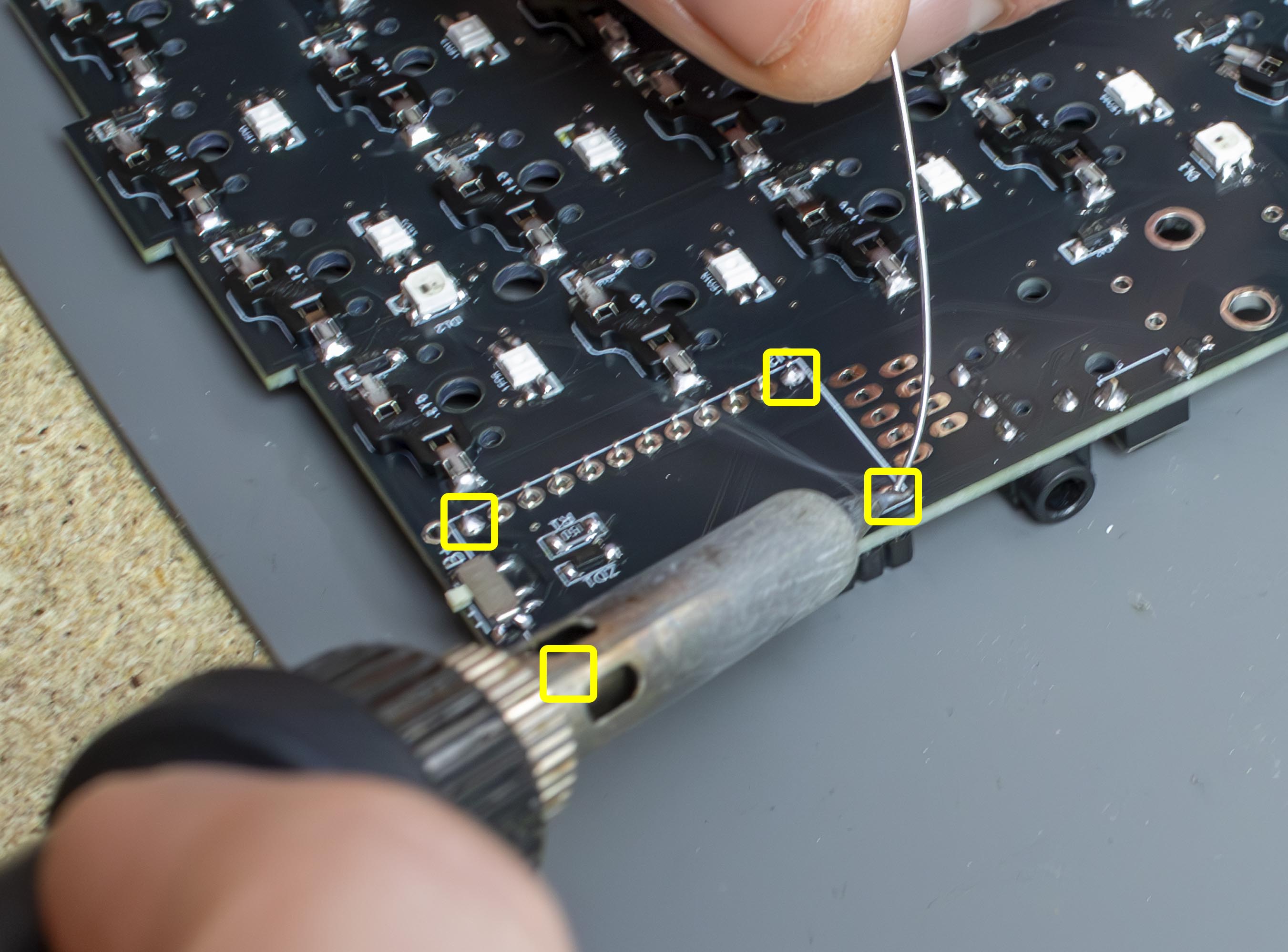
First off, insert the sockets into the top side of the PCB  (opposite to the side with the hotswap sockets), soldering the top and bottom pins to secure them.&#x20;

{% hint style="danger" %}
**Be careful to only adjust using the middle of the sockets, heating the solder can cause the end pins to become very hot**
{% endhint %}

<figure><img src="/files/fHVYoTwcVmOcL0Ac3faH" alt=""><figcaption><p>IMAGE OF CONTROLLER SOCKETS BEING PLACED</p></figcaption></figure>

<figure><img src="/files/N6rSl0Ms9zmOA5LBTHxo" alt=""><figcaption><p>IMAGE OF CONTROLLER SOCKETS BEING SOLDERED</p></figcaption></figure>

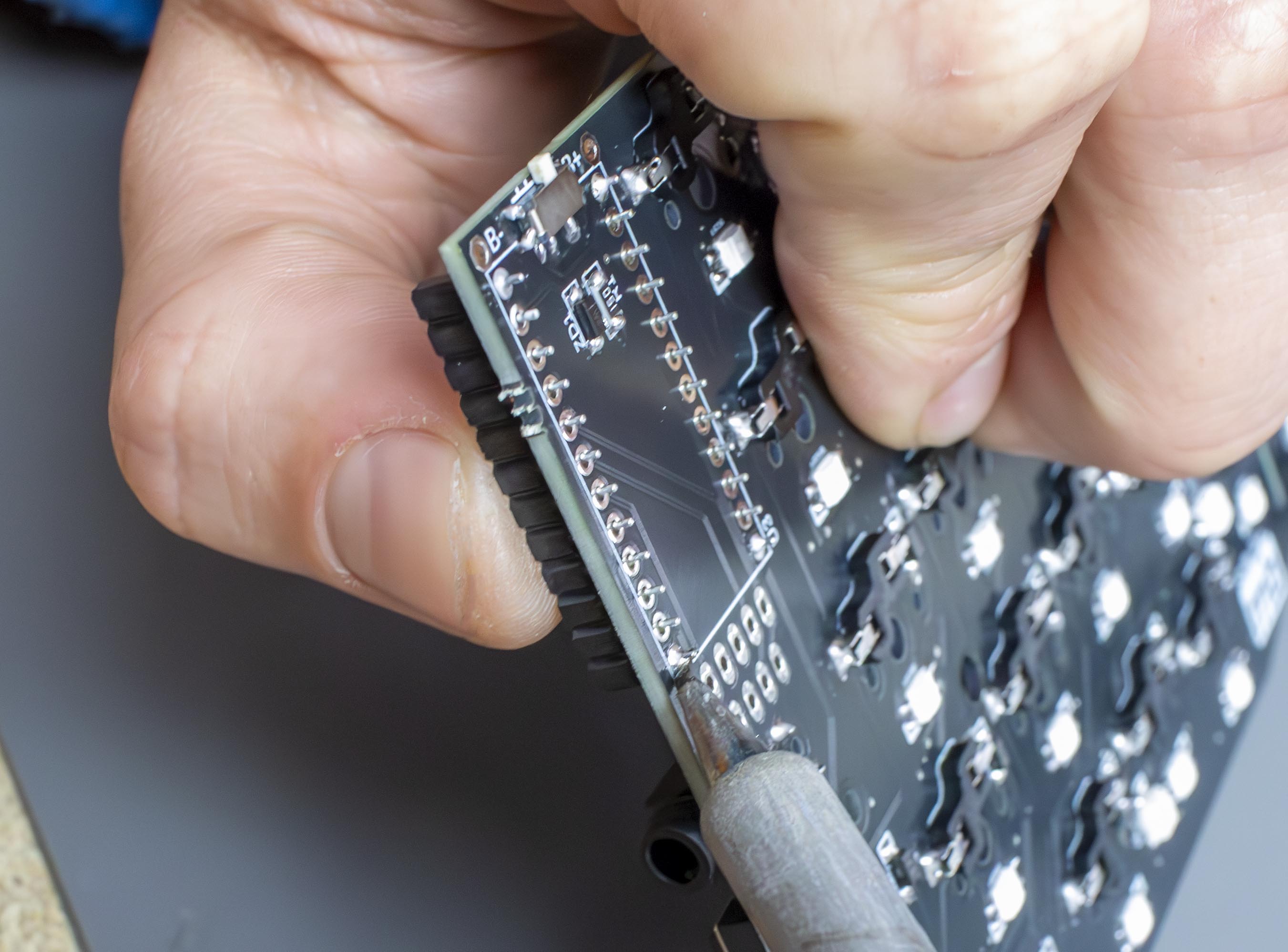
From here we can heat the solder on these pins and readjust them until they're flat and straight:

<figure><img src="/files/50pQrlEkIyLzZZbVf9LJ" alt=""><figcaption><p>IMAGE OF CONTROLLER SOCKETS BEING ADJUSTED</p></figcaption></figure>

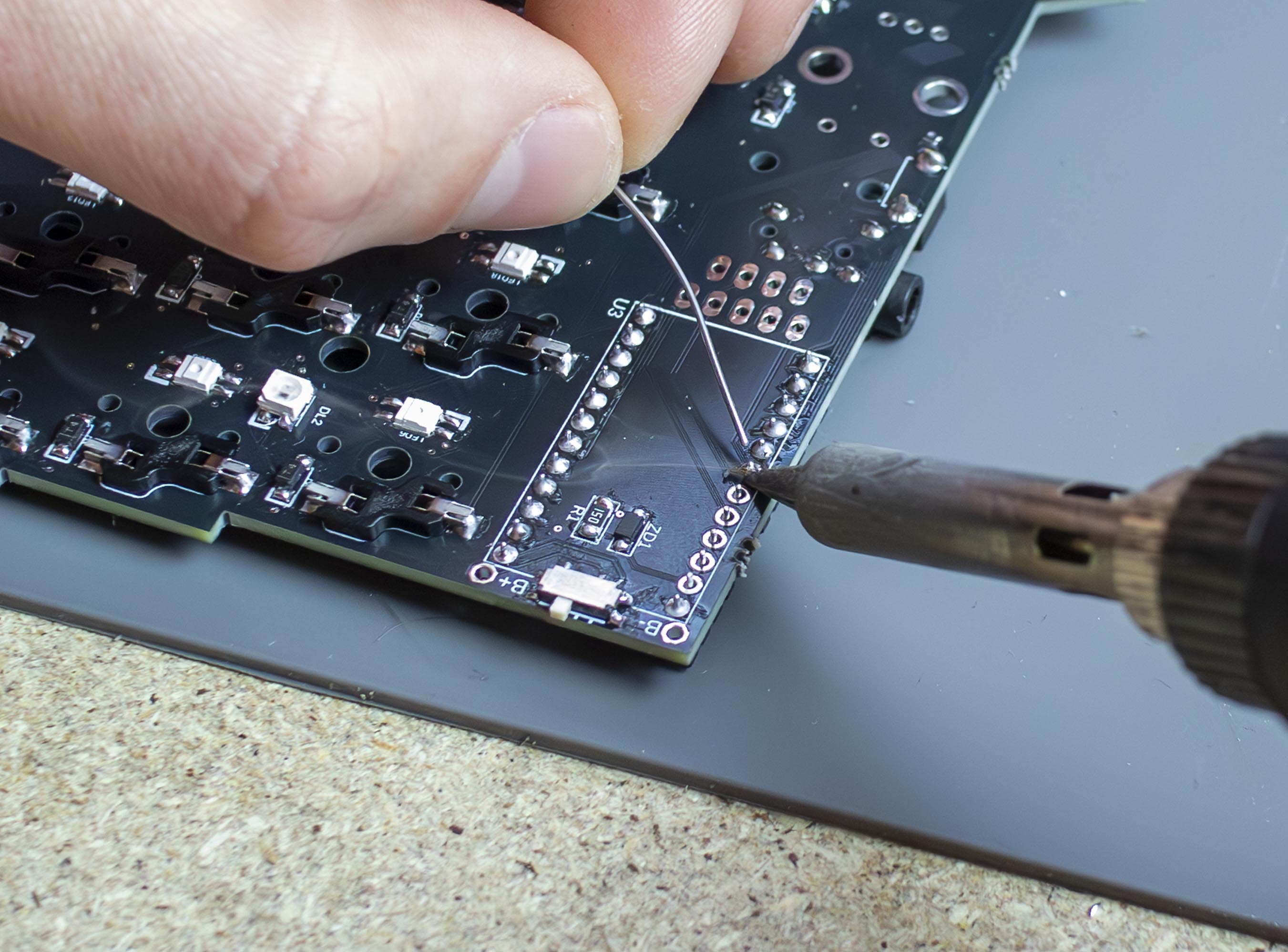
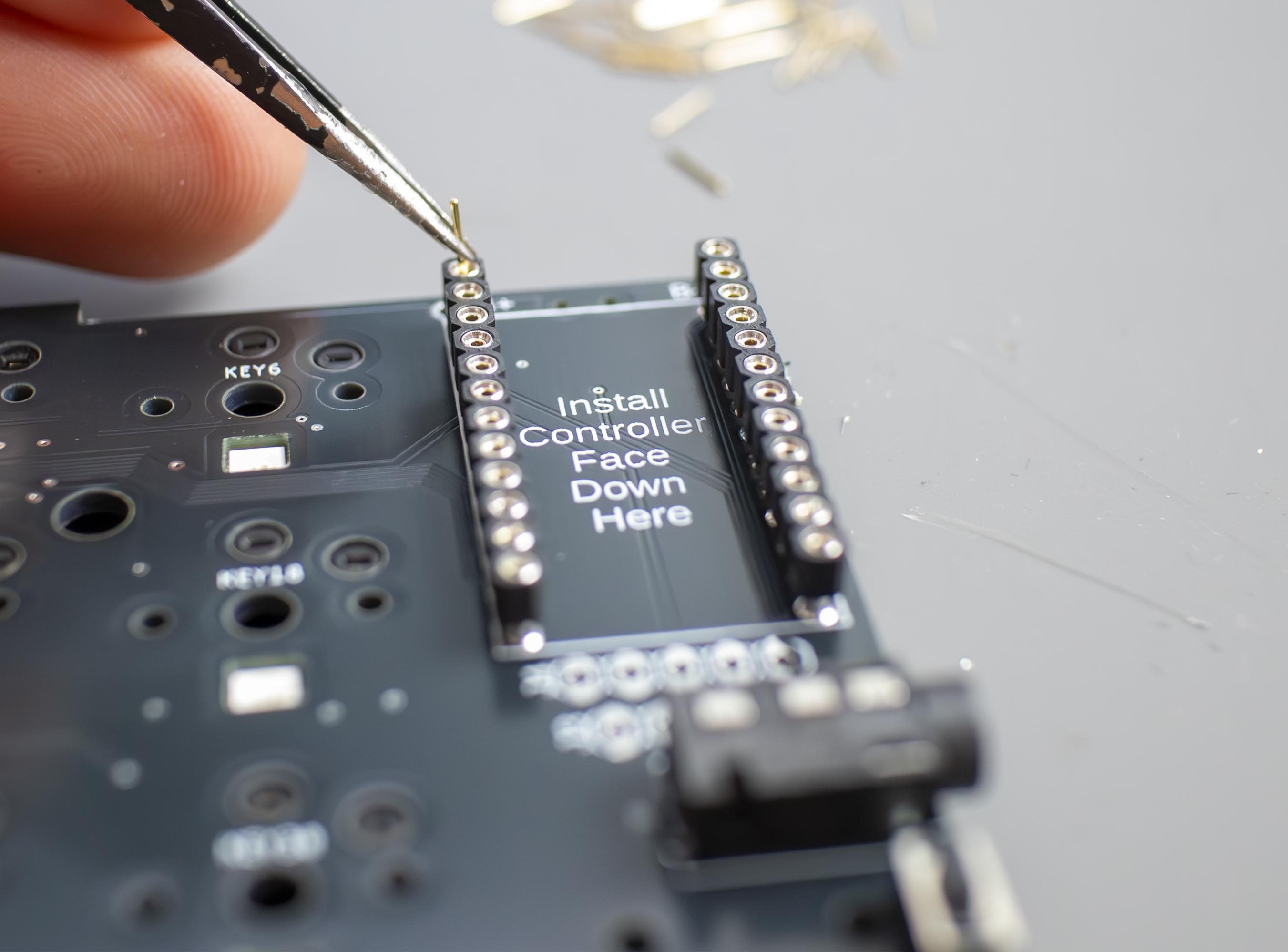
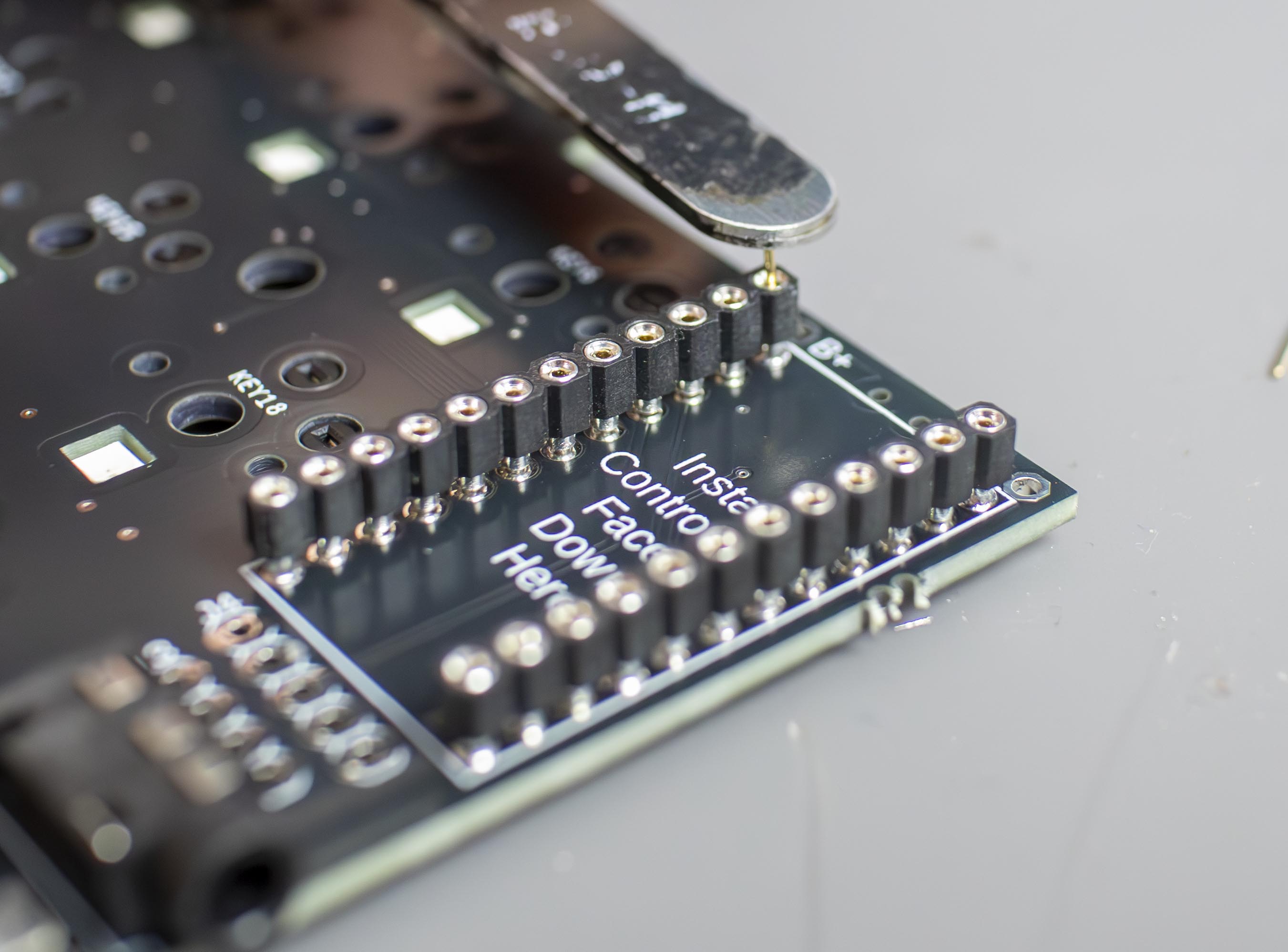
Now that we've got the sockets in position, we can solder the rest of them. Once we've secured the sockets, we can insert our socket pins. I'd recommend placing the pins into the sockets with tweezers, and then using something flat to push the pins in completely, being careful not to bend them. Here I'm using the other end of the tweezers:

<figure><img src="/files/fmygc8C0iTyjDgmIfiXr" alt=""><figcaption><p>IMAGE OF THE CONTROLLER SOCKETS FULLY SOLDERED</p></figcaption></figure>

<figure><img src="/files/isHRei9LLJT5ABGWZi0A" alt=""><figcaption><p>IMAGE OF CONTROLLER PINS BEING INSERTED</p></figcaption></figure>

<figure><img src="/files/18UL44dtsJ8N5zZrPzGw" alt=""><figcaption></figcaption></figure>

<figure><img src="/files/3Kp494Yd68NemfjsquFg" alt=""><figcaption></figcaption></figure>

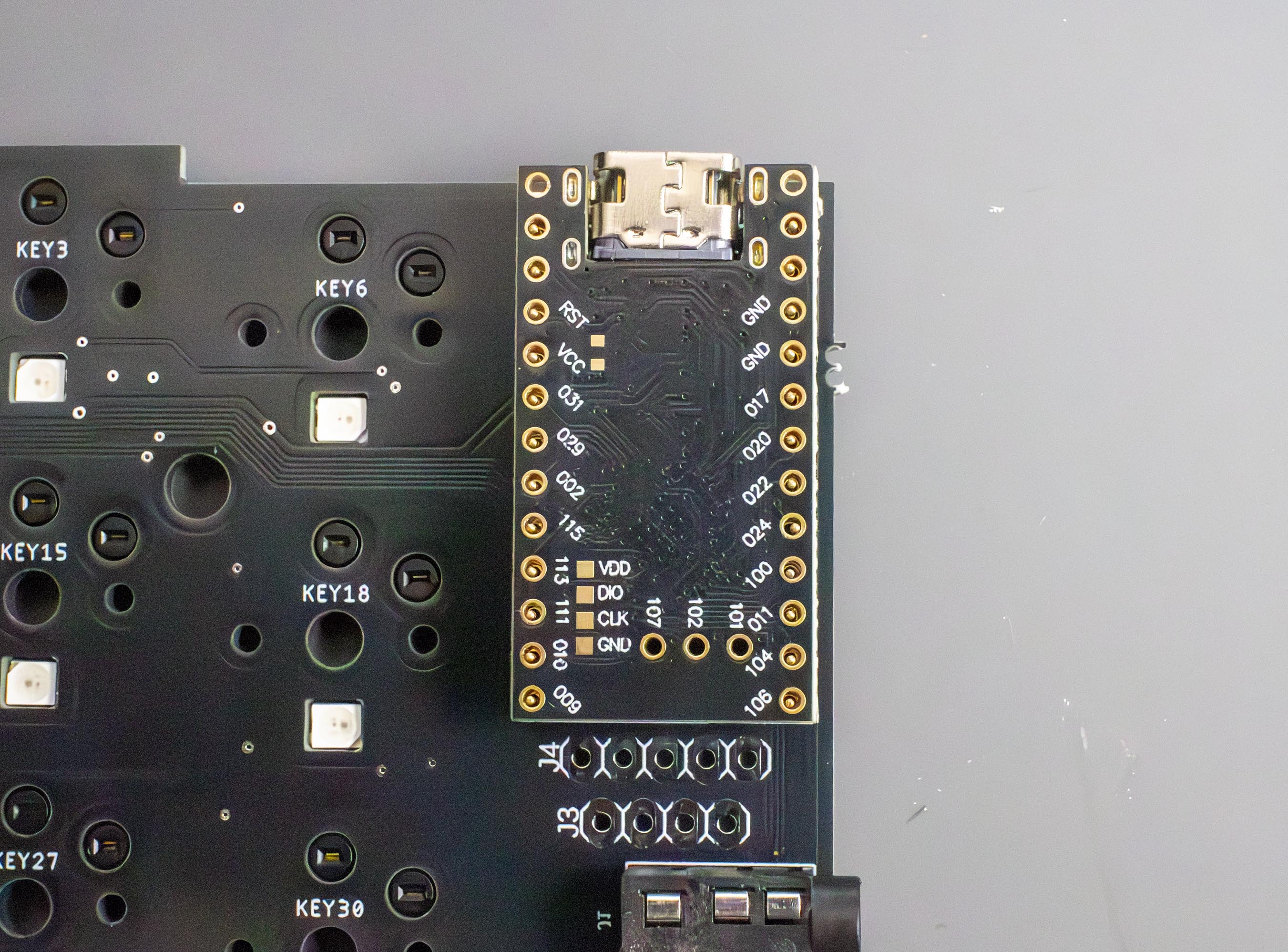
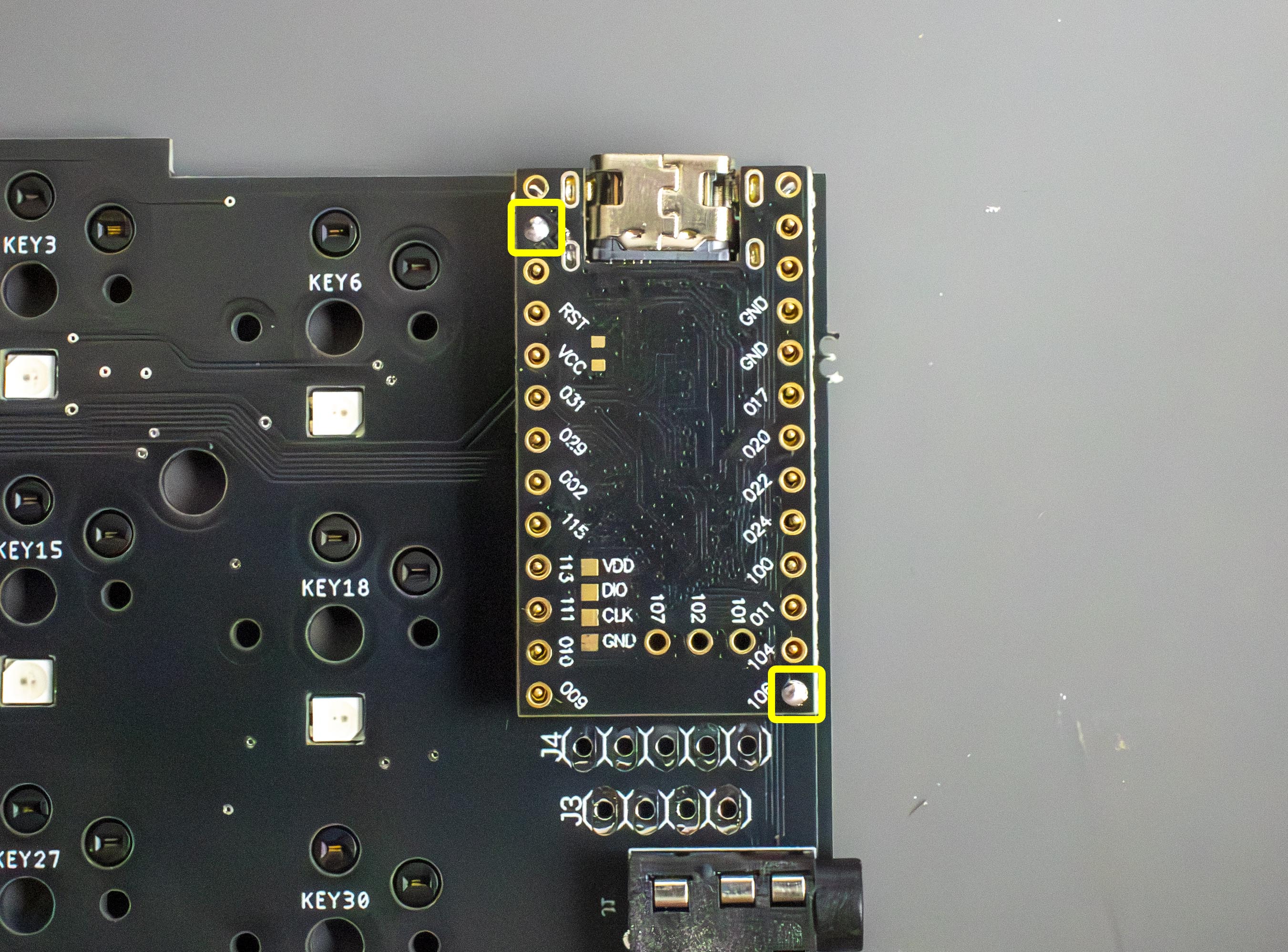
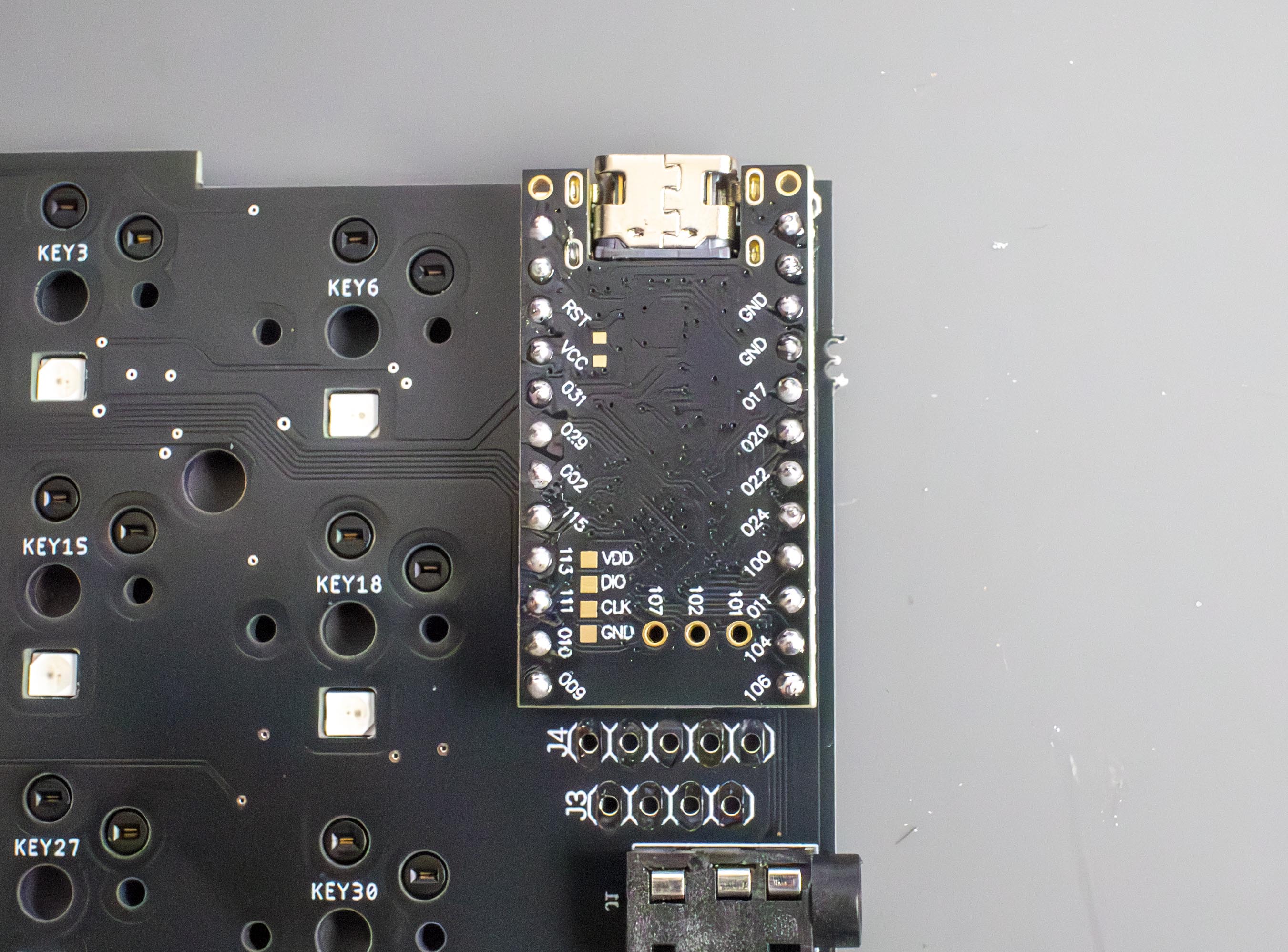
Once we've got the pins into position we can place the controllers component side down onto the pins/sockets, from here we can solder the controller to the pins (being careful not to heat them for too long, as this can cause the solder to travel down the pin and flood the socket):

{% hint style="warning" %}
When using our controllers, make sure the pins start at the bottom of the controller, leaving the top ones empty!
{% endhint %}

<figure><img src="/files/m1tDcdA743gIKmUeDyns" alt=""><figcaption><p>IMAGE OF CONTROLLER SOLDERED TO PINS</p></figcaption></figure>

<figure><img src="/files/K0U3X21x4gVVBITUtcS9" alt=""><figcaption></figcaption></figure>

<figure><img src="/files/7mjFHhGxMpjyVN0RccKz" alt=""><figcaption></figcaption></figure>

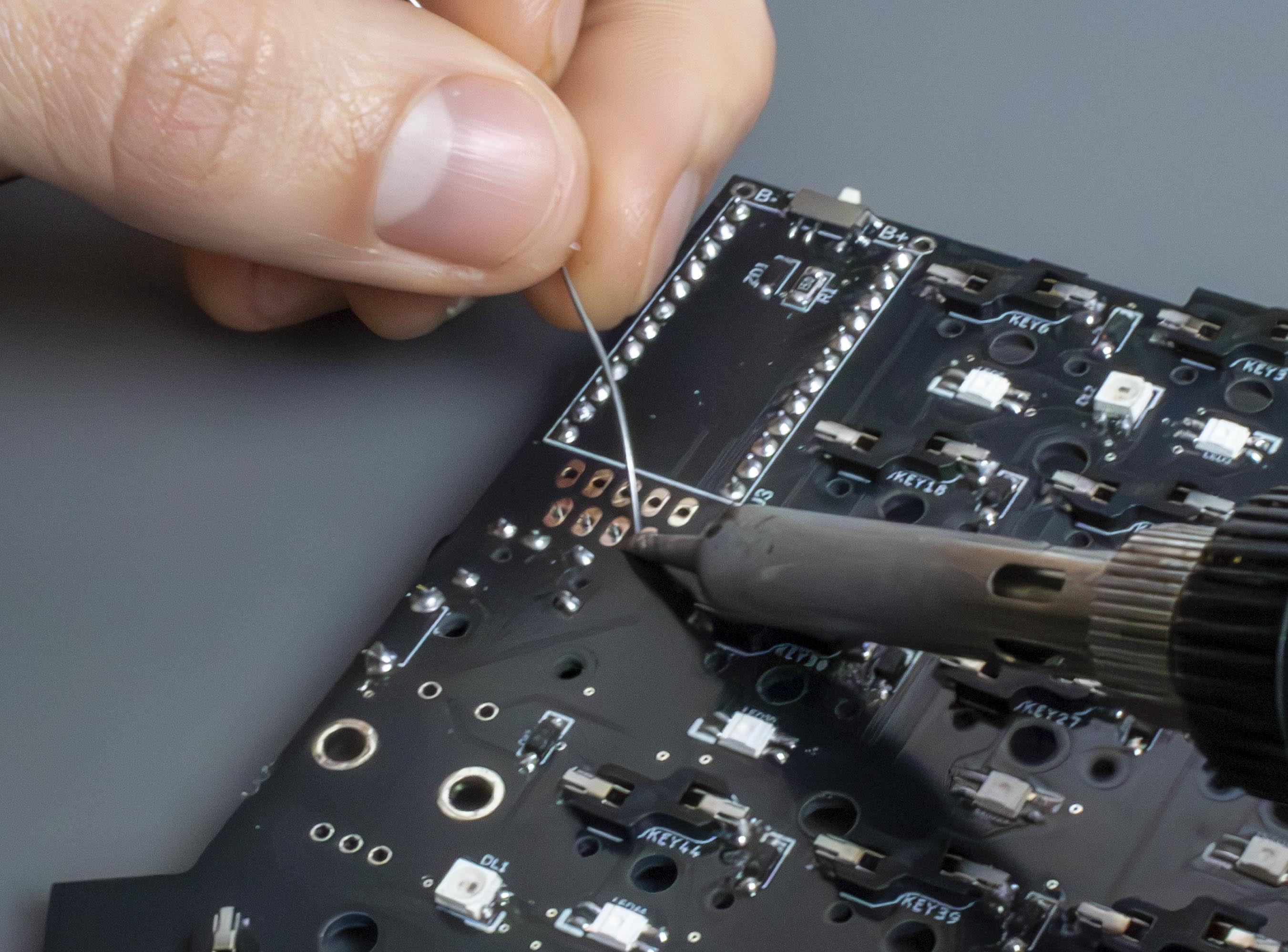
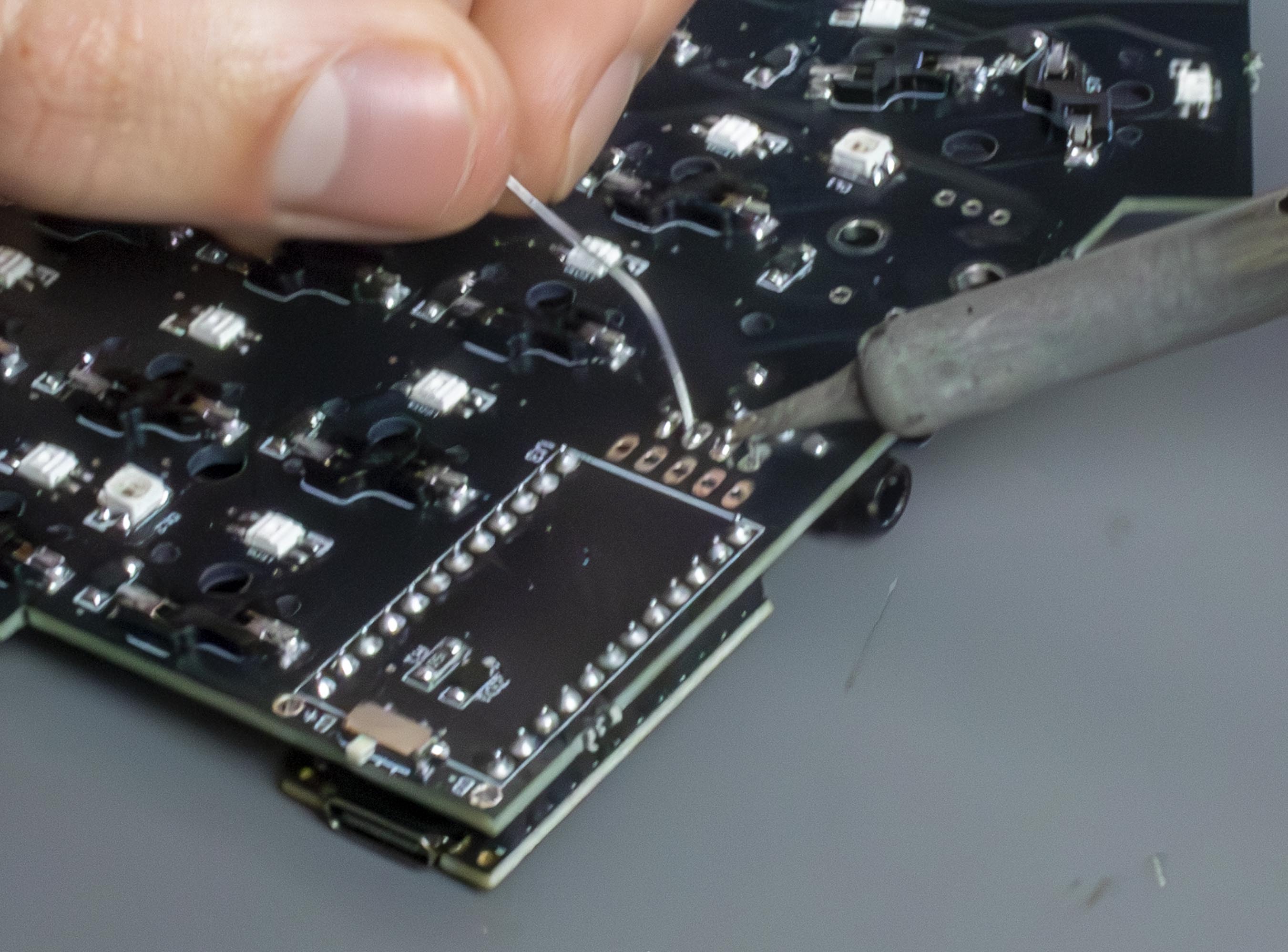
The OLED sockets are a similar process to the controller sockets, soldering one pin, heating/adjusting, and soldering the remaining pins:

<figure><img src="/files/aYDKHXHpIRAIq4OdS1sX" alt=""><figcaption><p>IMAGE OF OLED SOCKET BEING ADJUSTED</p></figcaption></figure>

<figure><img src="/files/AYJvdiICdv1OxV12HGrP" alt=""><figcaption><p>IMAGE OF OLED SOCKET SOLDERED(?)</p></figcaption></figure>

<figure><img src="/files/GkZqQBausoDP5XANkcpT" alt=""><figcaption></figcaption></figure>

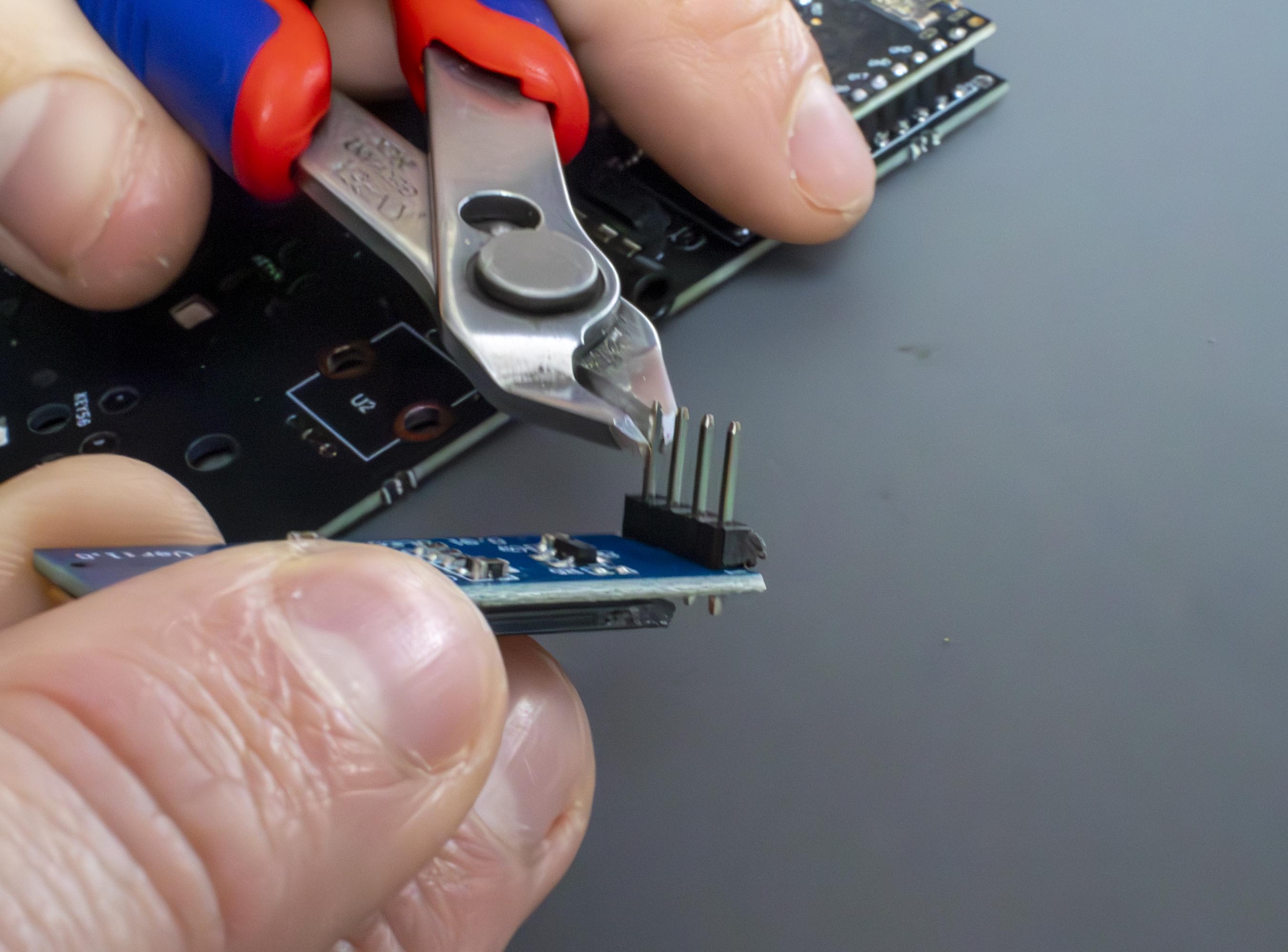
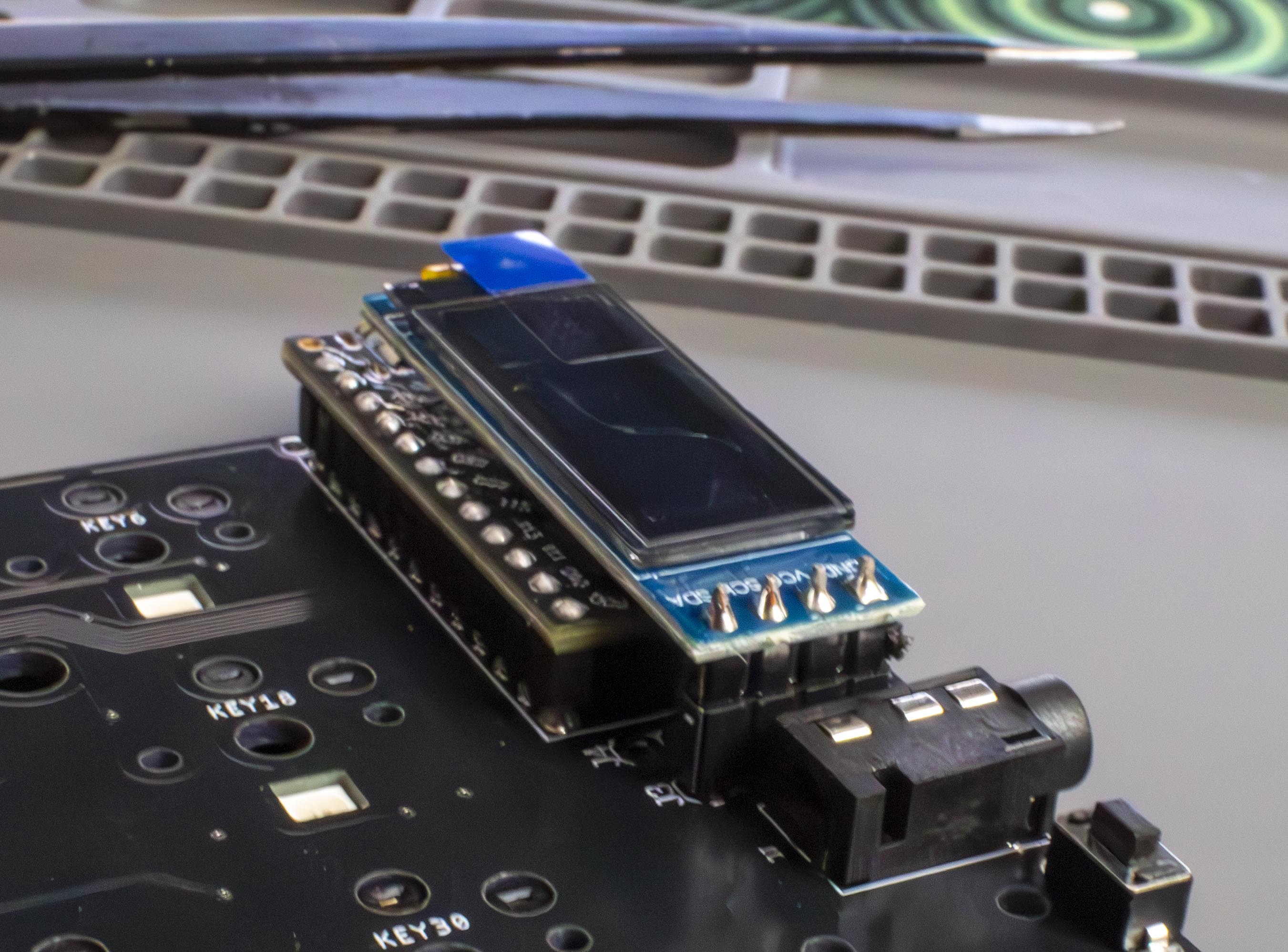
Once the OLED sockets are installed, we can insert the OLED screen. To make it a flush fit, we'll need to trim the pins with some flush cutters:

<figure><img src="/files/u06j9GpHBINb4SD4ZIqH" alt=""><figcaption><p>SNIPPING OLED PINS</p></figcaption></figure>

<figure><img src="/files/C4suRb2pC5RiVD0qx23s" alt=""><figcaption><p>OLEDS INSTALLED</p></figcaption></figure>

{% hint style="warning" %}
**Now is a good time to give your build a test, so you can troubleshoot any issues before screwing the case together. Feel free to get in contact if you run into any issues.**&#x20;
{% endhint %}

### Step 6: Other Components

Now we've got a few different components to add on, the process for all of these will be similar to the previous steps!\
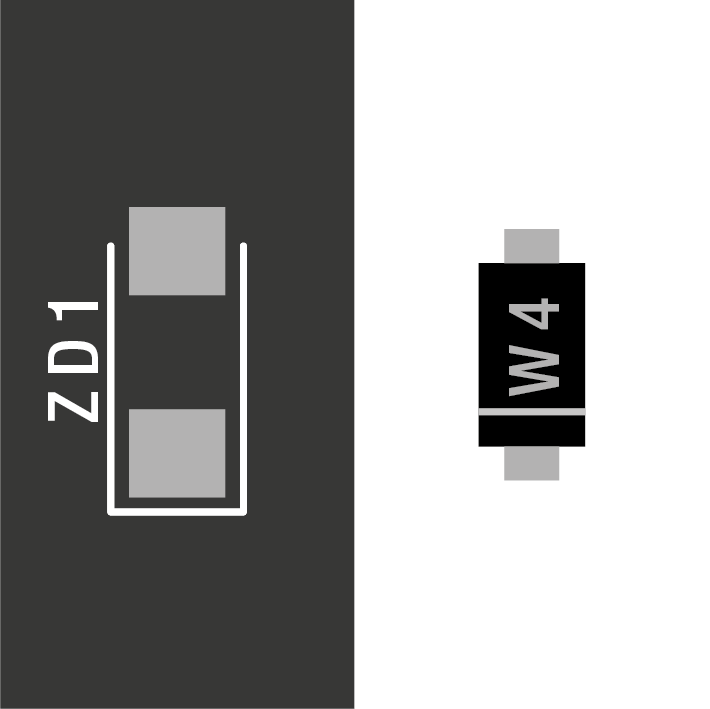
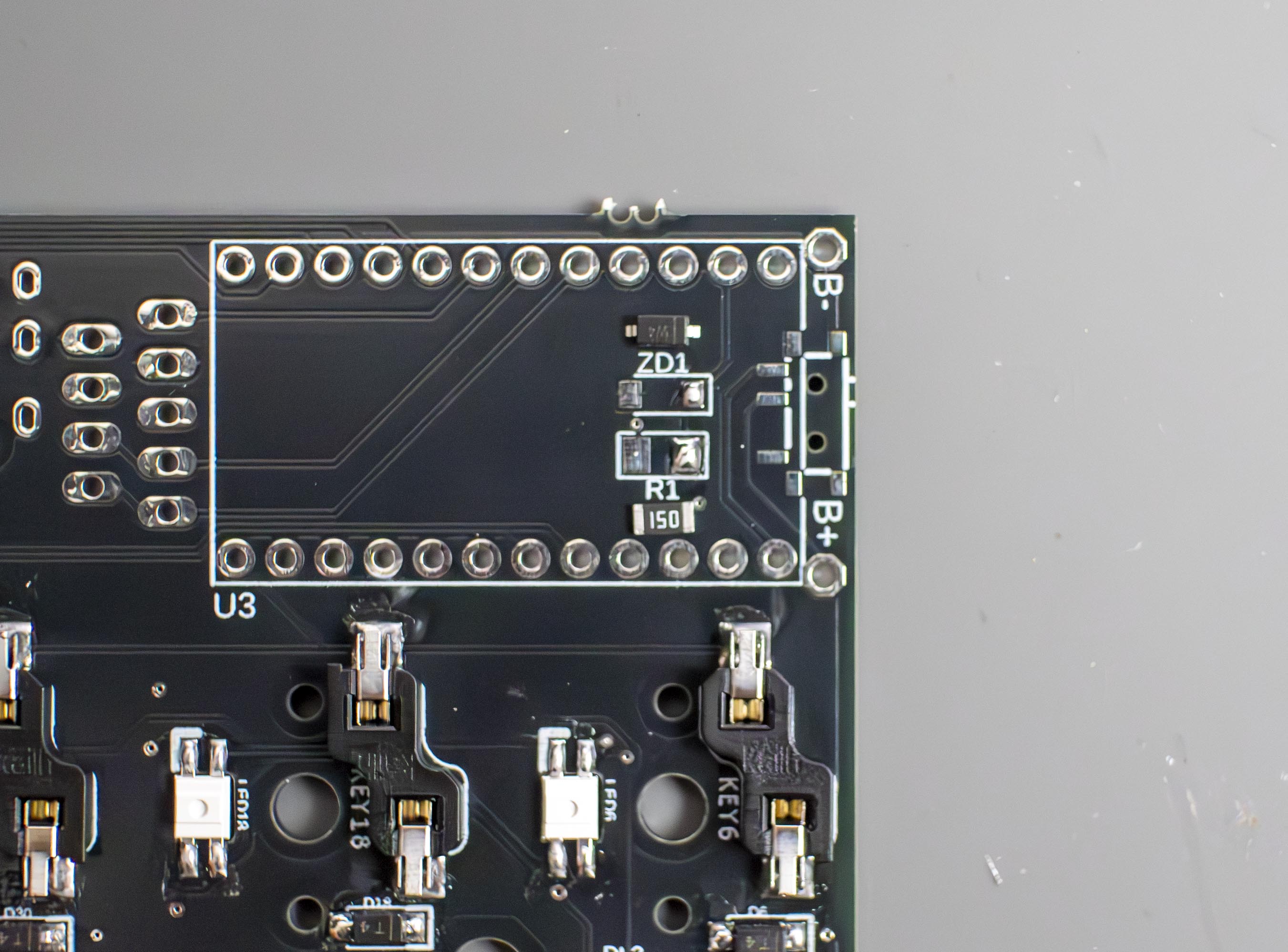
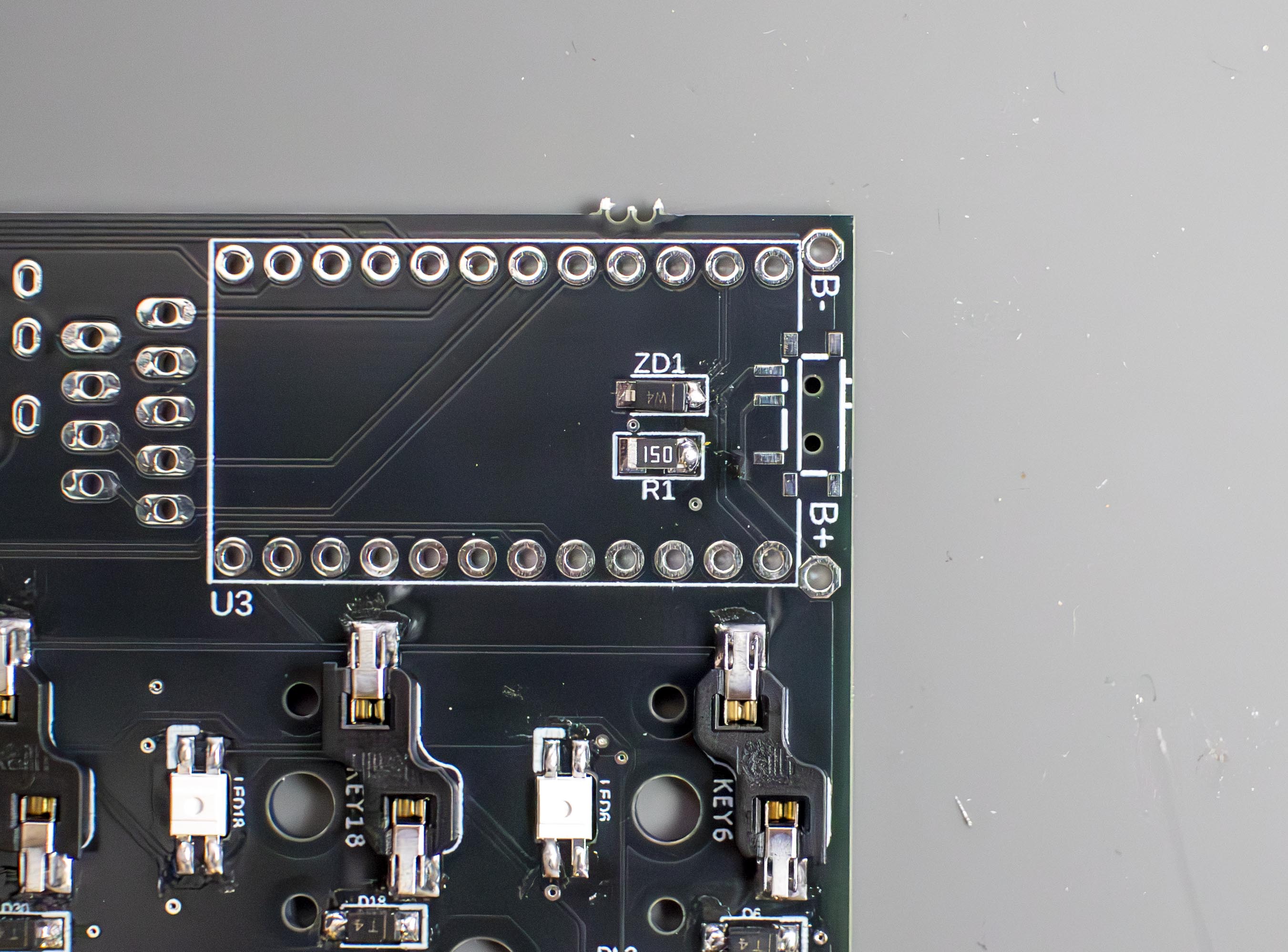
First up the zener diode and resistor, this is the same process as the diodes, although we don't have to worry about the resistor orientation, so it has slightly different PCB markings (The line on the zener diode should be facing the line on the PCB)

{% hint style="warning" %}
The orientation of the resistor can be in either direction
{% endhint %}

<figure><img src="/files/i3Tbzs1krzr4XZw6H2xy" alt=""><figcaption></figcaption></figure>

<figure><img src="/files/JieGhq6MUh5OuCo8Sdfj" alt=""><figcaption><p>IMAGE OF ZENER AND RESISTOR ORIENTATION</p></figcaption></figure>

<figure><img src="/files/32PYkVgy8UaRIdeV9LKa" alt=""><figcaption><p>IMAGE OF ZENER AND RESISTOR SOLDERED (IF YOU THINK IT'S NECESSARY &#x3C;3)</p></figcaption></figure>

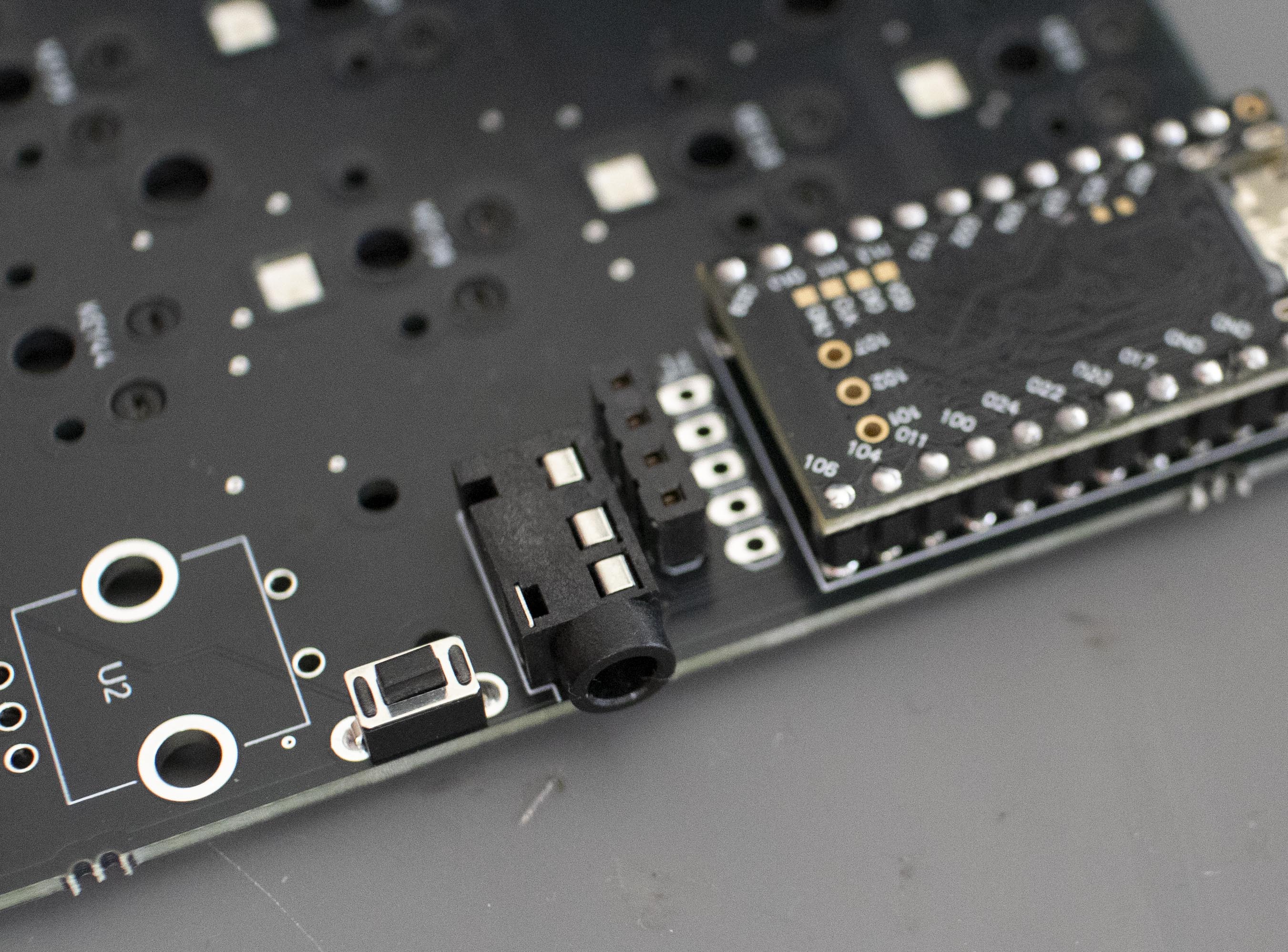
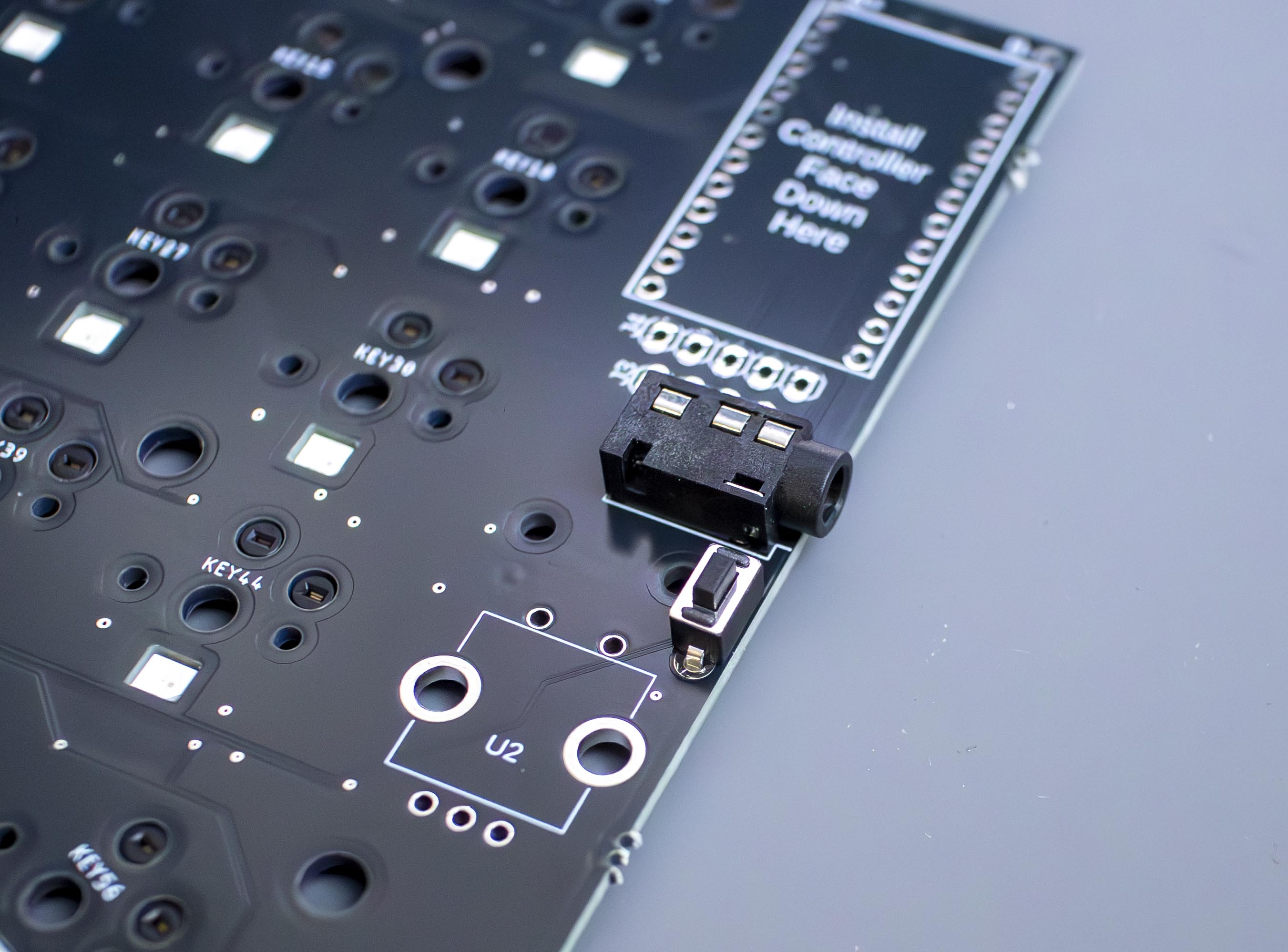
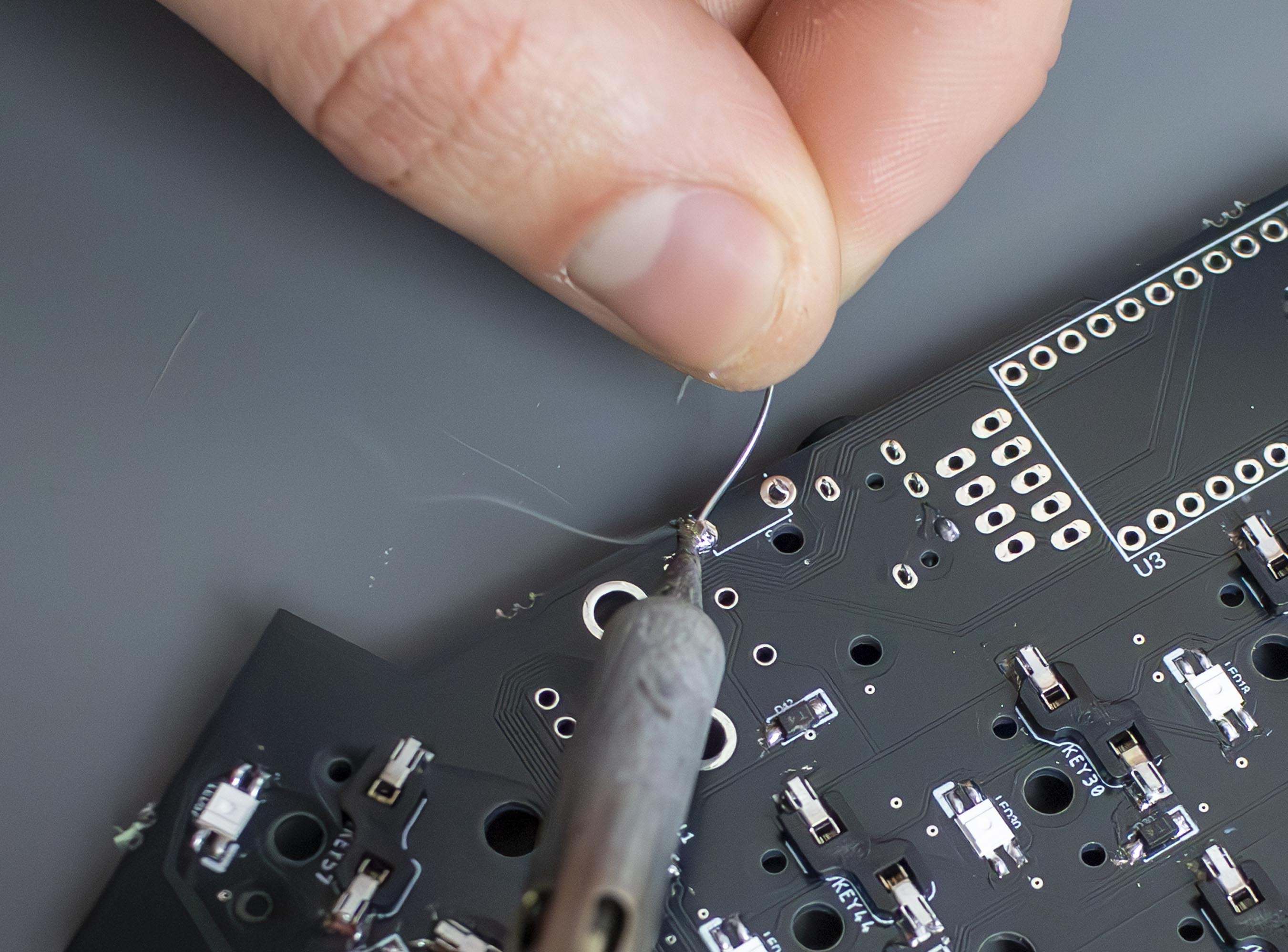
Next are the TRRS Jacks and reset switches. For the jacks, we can solder one pin and adjust them to make sure they're flush, be careful to avoid the pin you're heating though. And for the reset switches, these tend to stay in place with the friction from the pins once inserted:

<figure><img src="/files/hDwSwpQUH5c4508ki6ok" alt=""><figcaption><p>IMAGE OF TRRS JACK AND RESET SWITCH PLACED</p></figcaption></figure>

{% hint style="danger" %}
**Please note - Do not insert or remove your TRRS cable while the keyboard is powered on!**
{% endhint %}

<figure><img src="/files/6UH6ZVbsdIqF70Rz0FTA" alt=""><figcaption><p>RESET AND JACK SOLDERED ONE PIN</p></figcaption></figure>

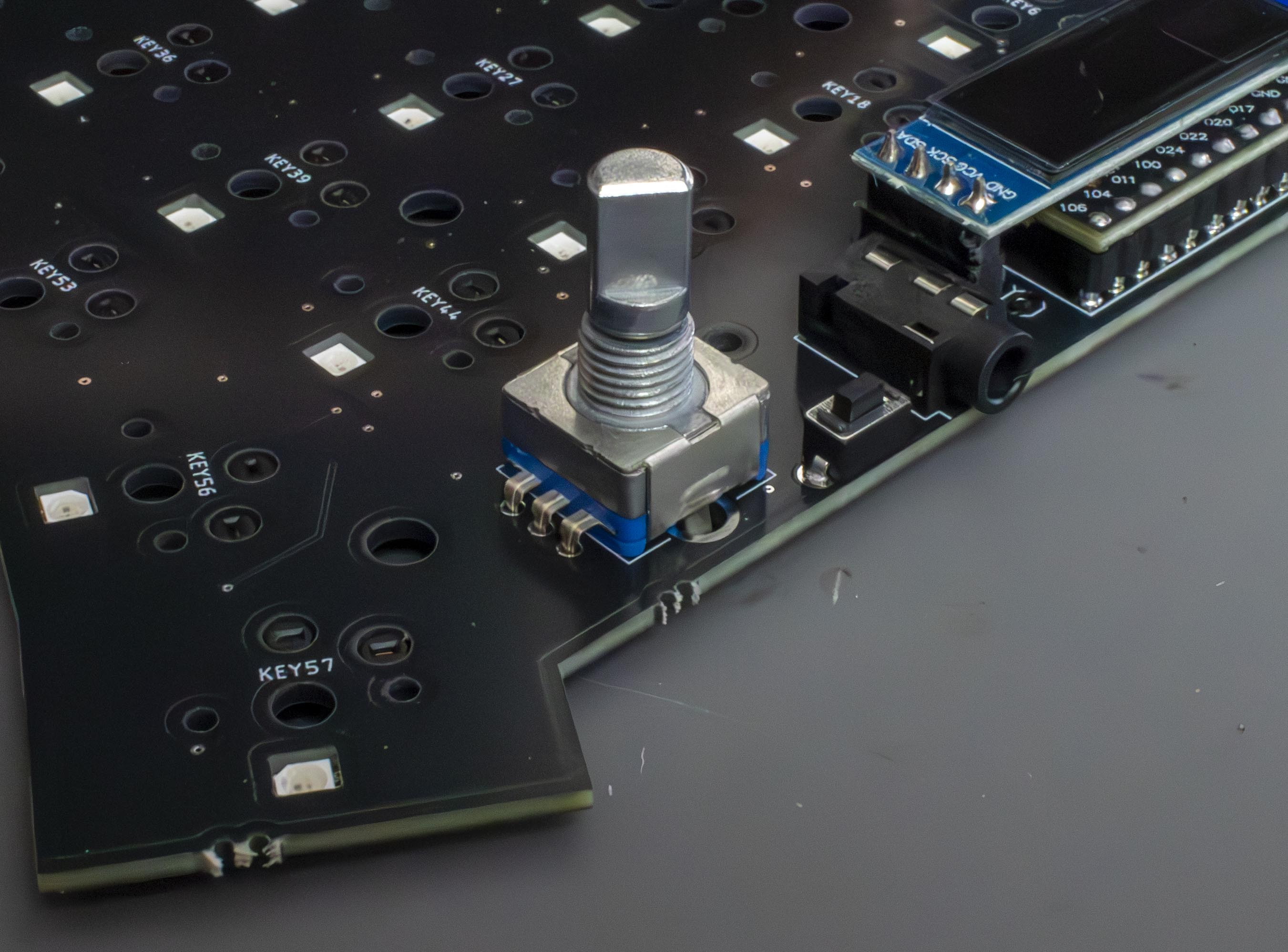
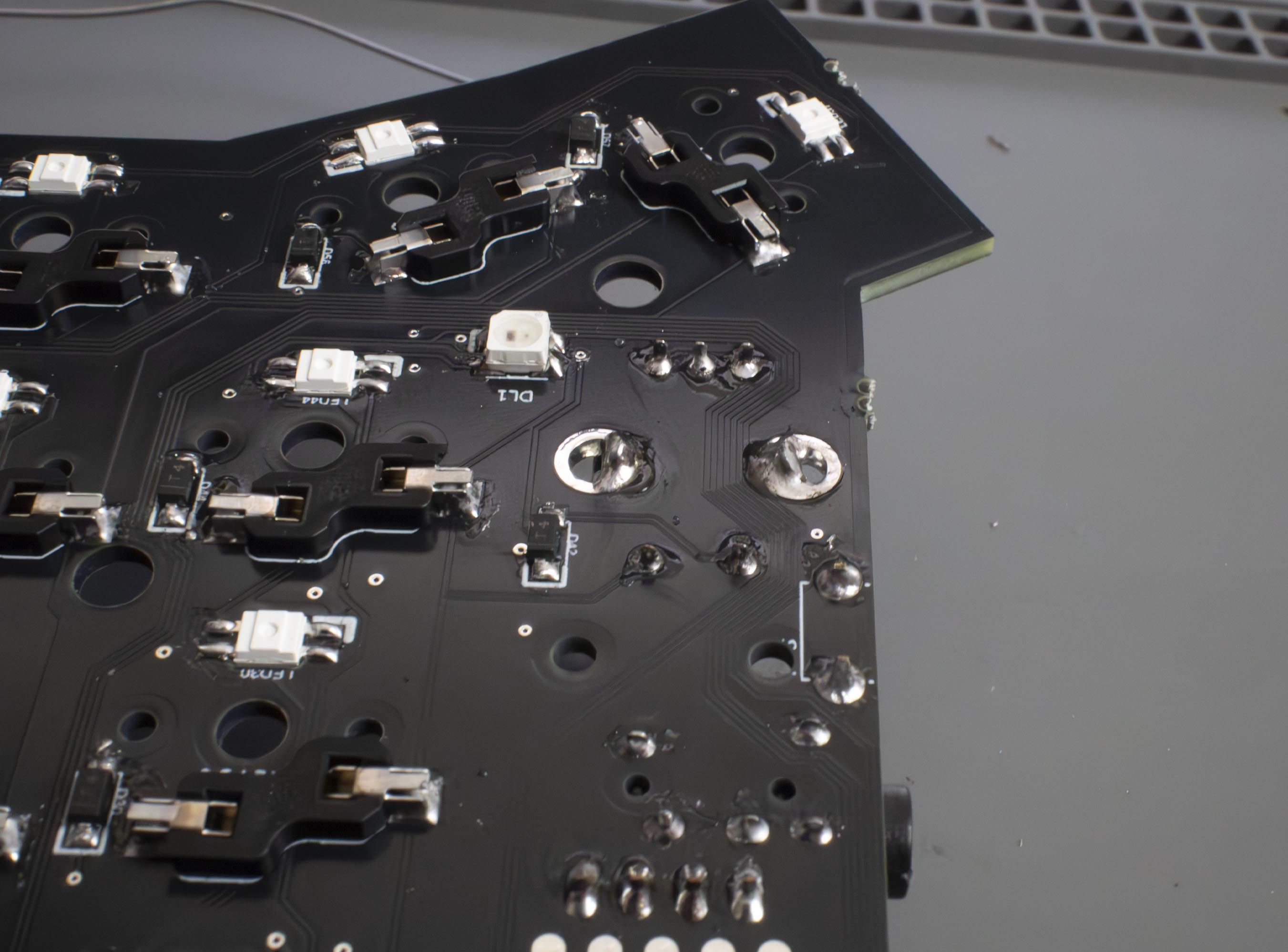
Finally, we can solder the rotary encoders, using the same method as above. It's worth noting the bigger pins are purely for support, so they don't have to be soldered perfectly:

<figure><img src="/files/bzmCm3FzZpw9ywRGCYlH" alt=""><figcaption><p>IMAGE OF ROTARY ENCODER BEING ADJUSTED</p></figcaption></figure>

<figure><img src="/files/EEQ2yuFO62U9aLkpSvaO" alt=""><figcaption><p>IMAGE OF ROTARY ENCODER SOLDERED</p></figcaption></figure>

Once they're soldered, we can push on the rotary encoder cap!

### Step 7: Installing Switches and Assembling Case

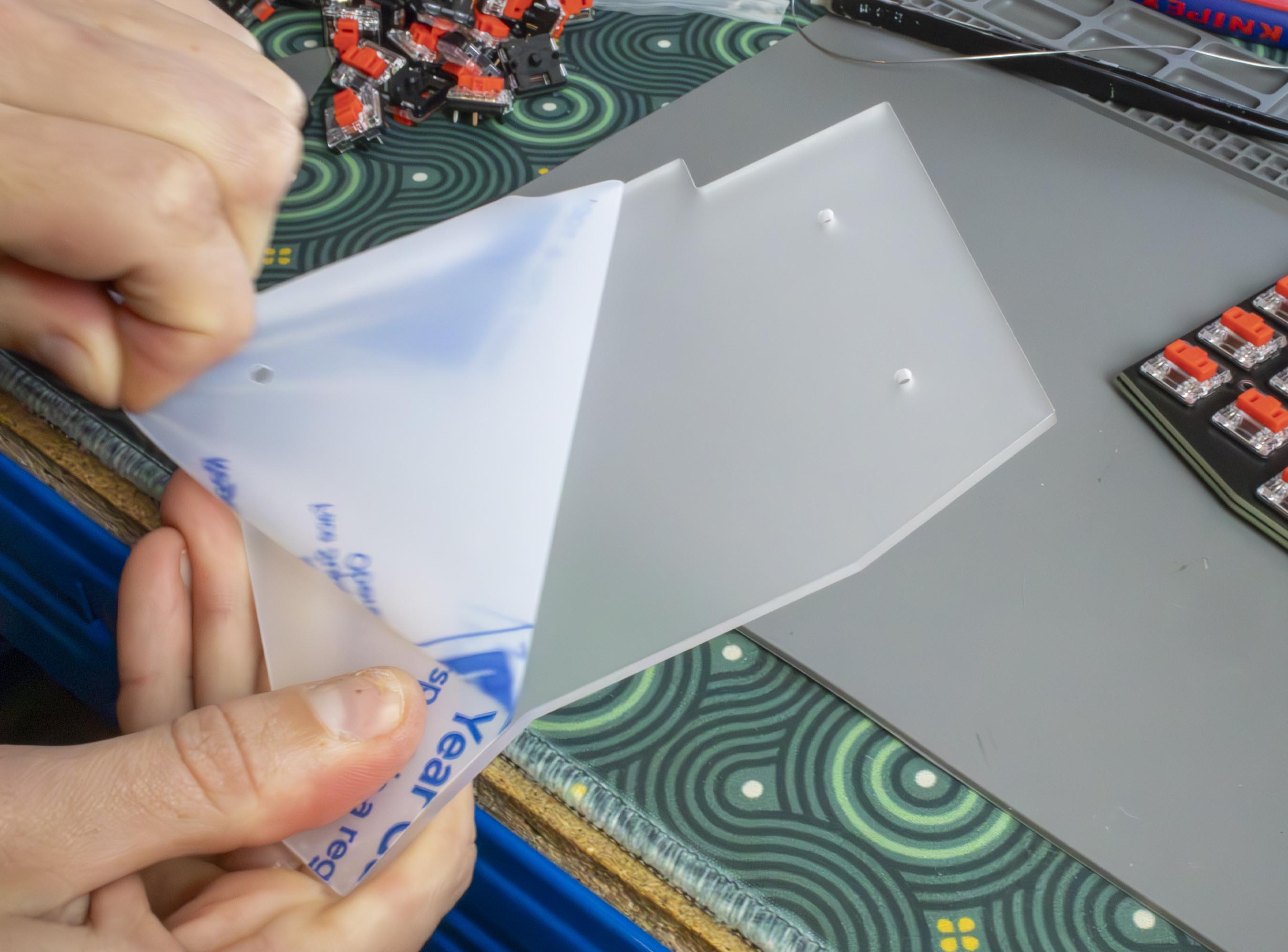
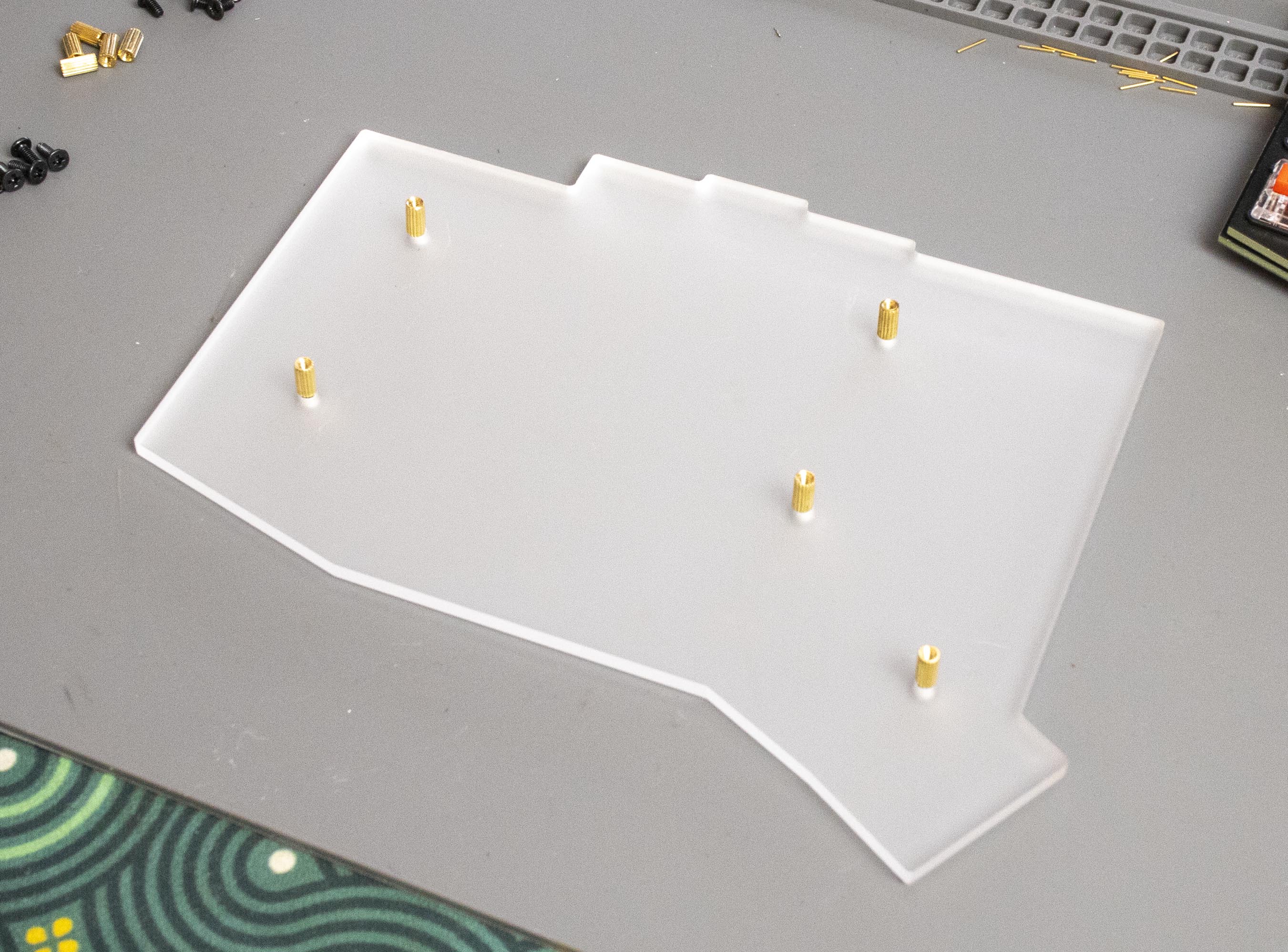
Almost there now, just a couple more steps to go! We're going to start by screwing our 6mm (choc) or 8mm (MX) standoffs onto the frosted acrylic bottom plate, using the 6mm screws.

<figure><img src="/files/VUoGm1Y8kpnRKAyIU9di" alt=""><figcaption></figcaption></figure>

<figure><img src="/files/vqXmkSQ37sfOiCpGLnod" alt=""><figcaption><p>IMAGE OF BOTTOM PLATES WITH STANDOFFS INSTALLED</p></figcaption></figure>

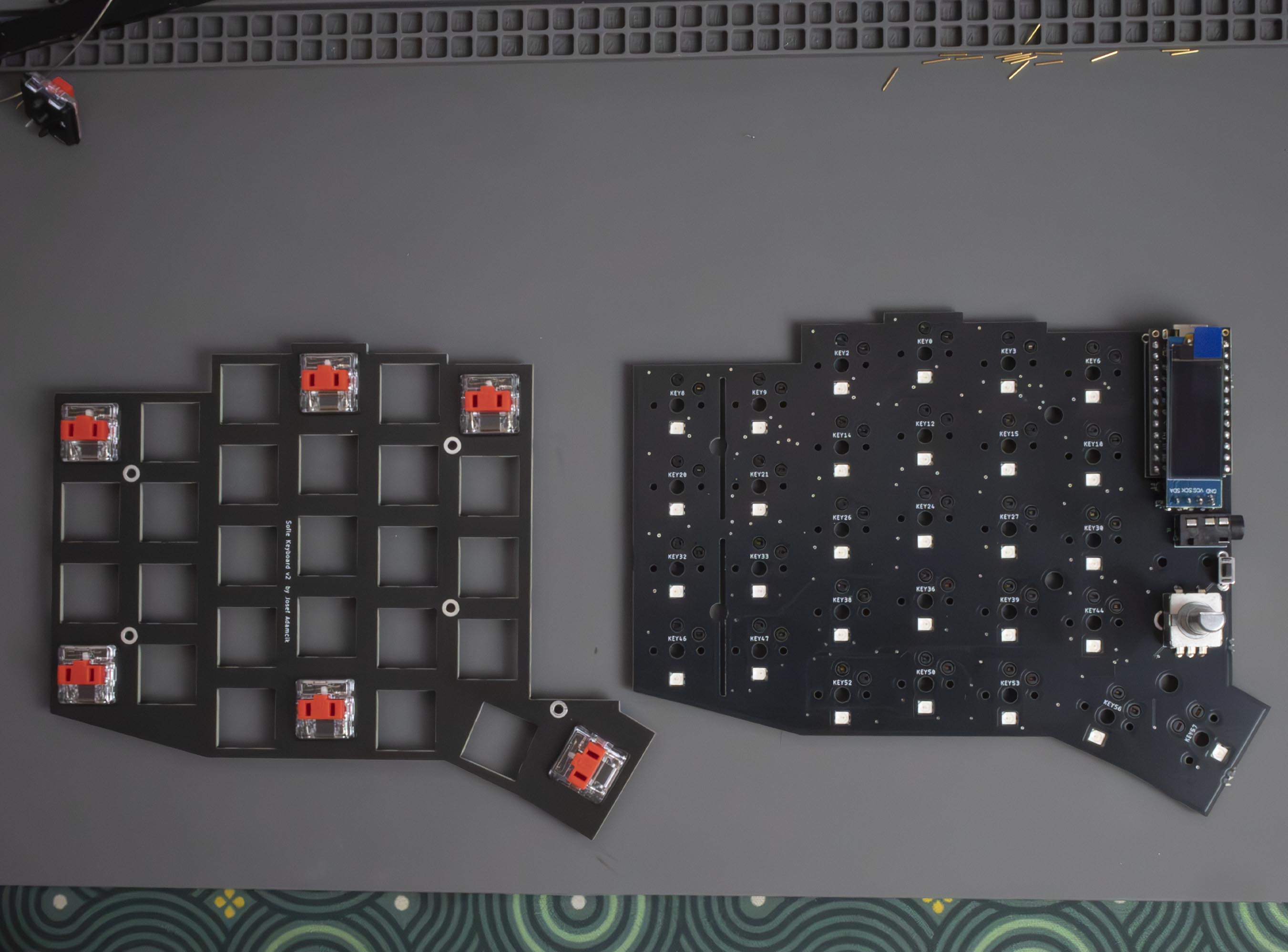
Now we can grab our switch plates and pop a few switches into the plate, and then insert these switches into the PCB, being sure to check the pins are straight and aligned with the hotswap sockets:

{% hint style="info" %}
Be aware of the thumb key orientation, if they're the wrong way you can stab the per-key LED.
{% endhint %}

<figure><img src="/files/2h62X41RPmfcsO88D9lv" alt=""><figcaption><p>IMAGE OF A FEW SWITCHES IN PLATE</p></figcaption></figure>

<figure><img src="/files/6sygc2KFOoD4dvV69bLq" alt=""><figcaption><p>PUTTING PLATE WITH SWITCHES ON PCB/CHECKING ALIGNMENT</p></figcaption></figure>

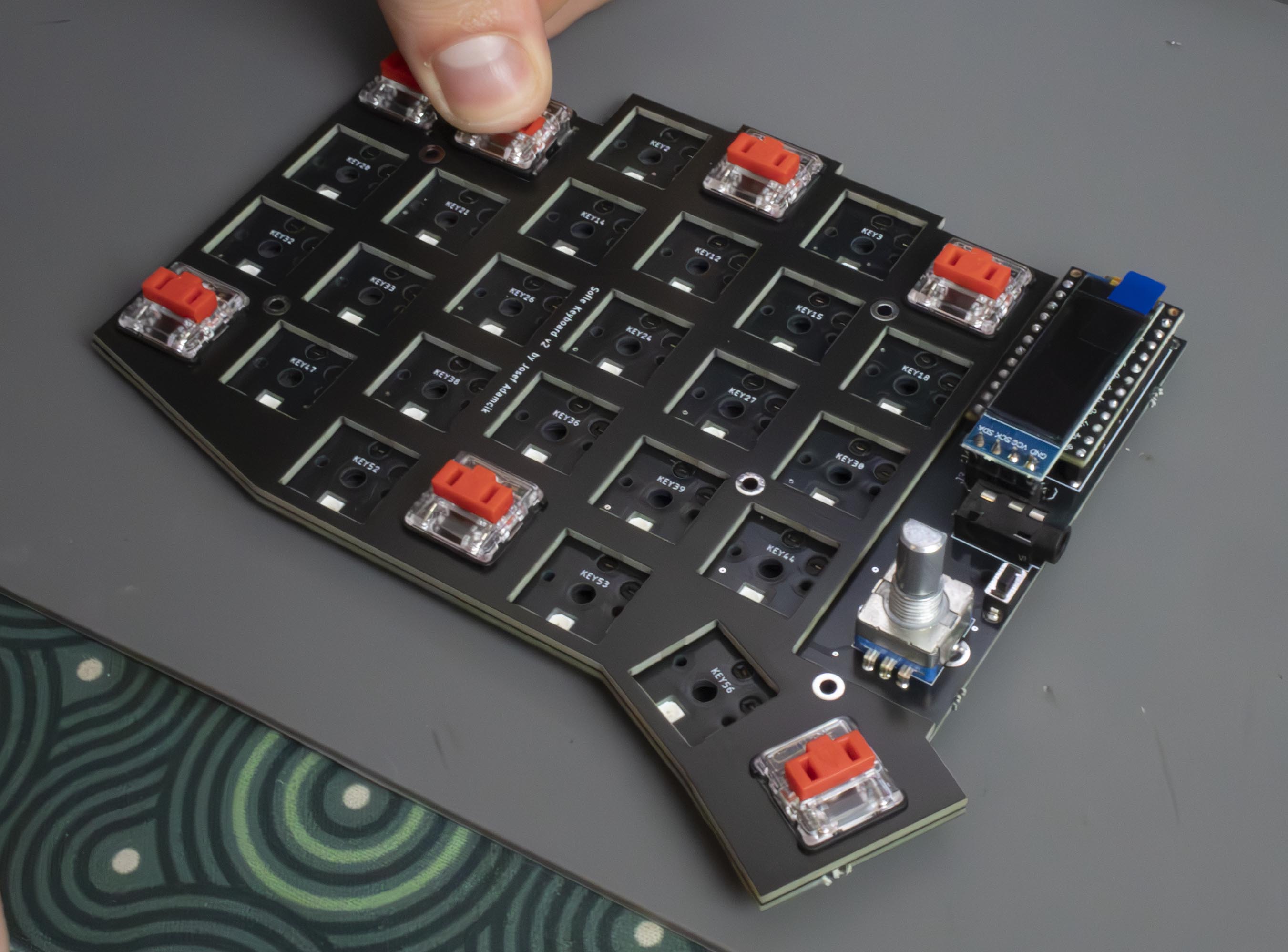
Once we've got our plate in place, we can begin to insert the rest of the switches. Sometimes the plate can drop in this process (mainly choc builds), but that's no worry, the plate tends to come back up when installing the keycaps, or we can use something thin to pop the plate back up into position:

<figure><img src="/files/4wxGYpaqI0wVvMN3tipg" alt=""><figcaption><p>INSTALLING REMAINING SWITCHES</p></figcaption></figure>

<figure><img src="/files/dXuxuZw1jLAirySV1alB" alt=""><figcaption><p>LIFTING DROPPED PLATE</p></figcaption></figure>

Next up, we're putting the 12mm standoffs with 4mm screws onto the PCB, these will be what we're attaching our acrylic OLED covers with at the end of this step.

<figure><img src="/files/aS0HEwyUlXOwps4EC3mU" alt=""><figcaption><p>IMAGE OF OLED STANDOFFS INSTALLED</p></figcaption></figure>

We can now finish assembling the case by placing the PCB and switch plates onto our pre-prepared bottom plates, and screw them together from the top, with 4mm screws.

<figure><img src="/files/1giwA9TLpUX1YgMSNia5" alt=""><figcaption><p>IMAGE OF SCREWING BOTTOM AND TOP TOGETHER</p></figcaption></figure>

<figure><img src="/files/PyJ6Y6A4p39ON73KNYDU" alt=""><figcaption></figcaption></figure>

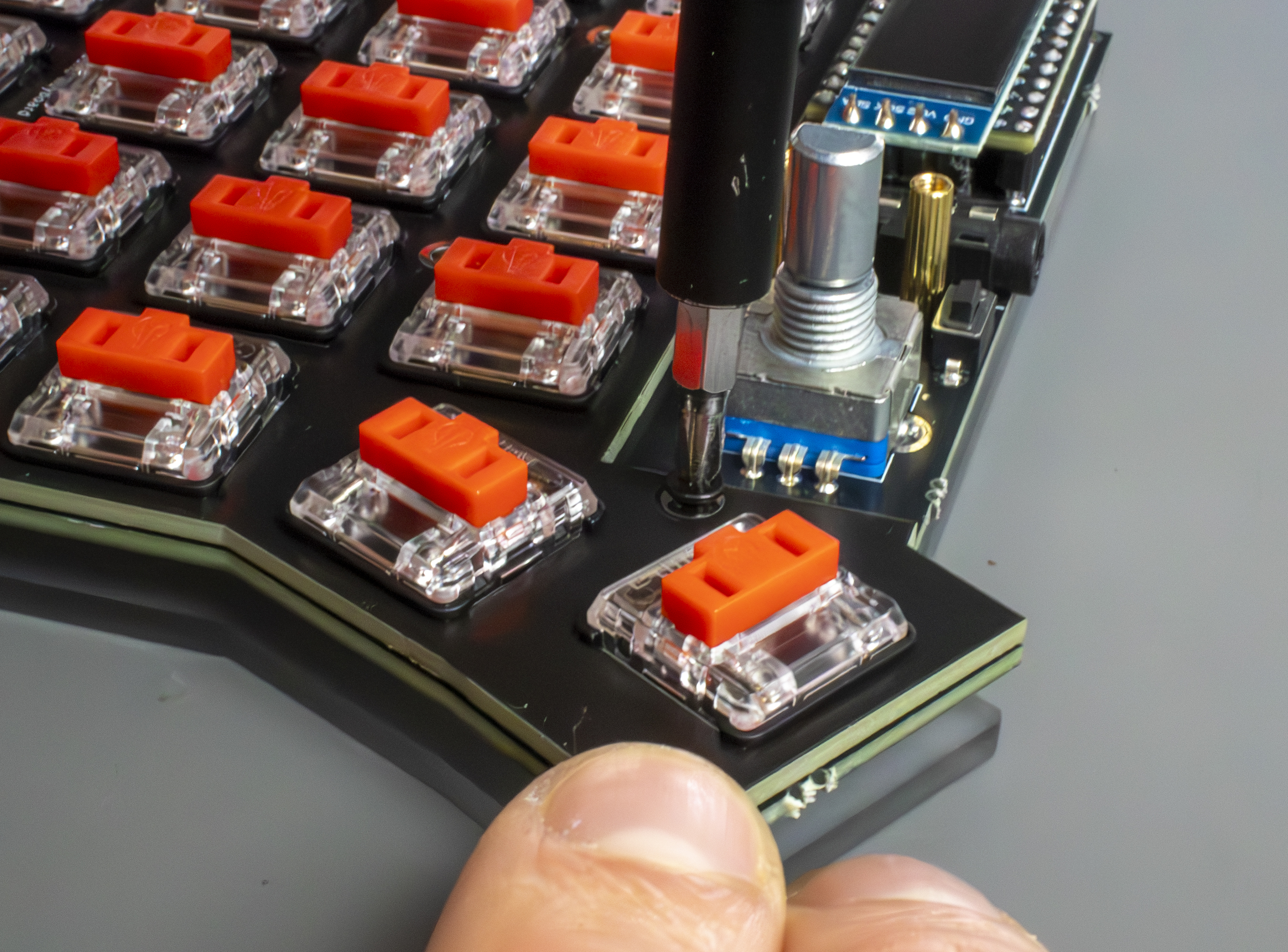
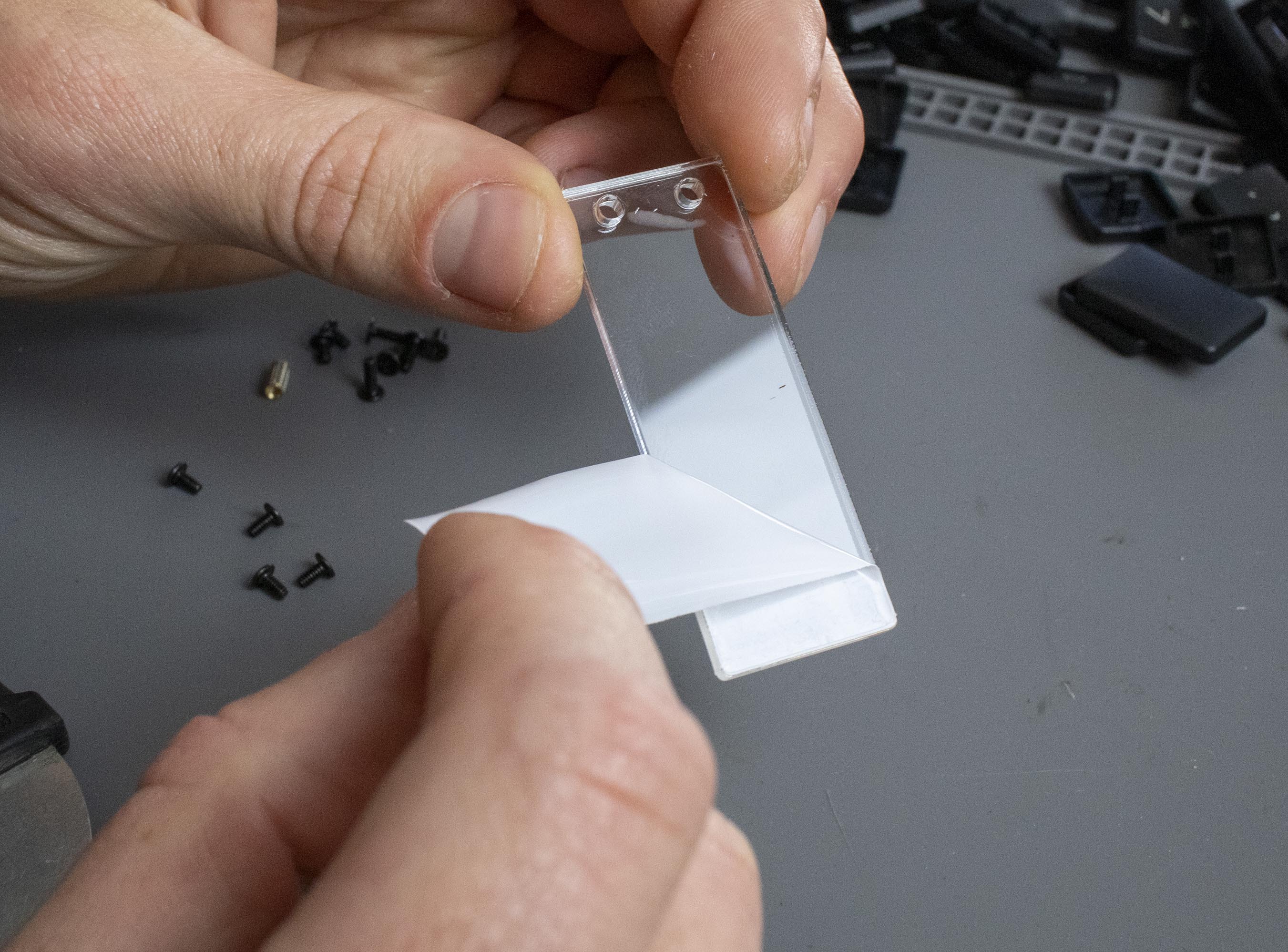
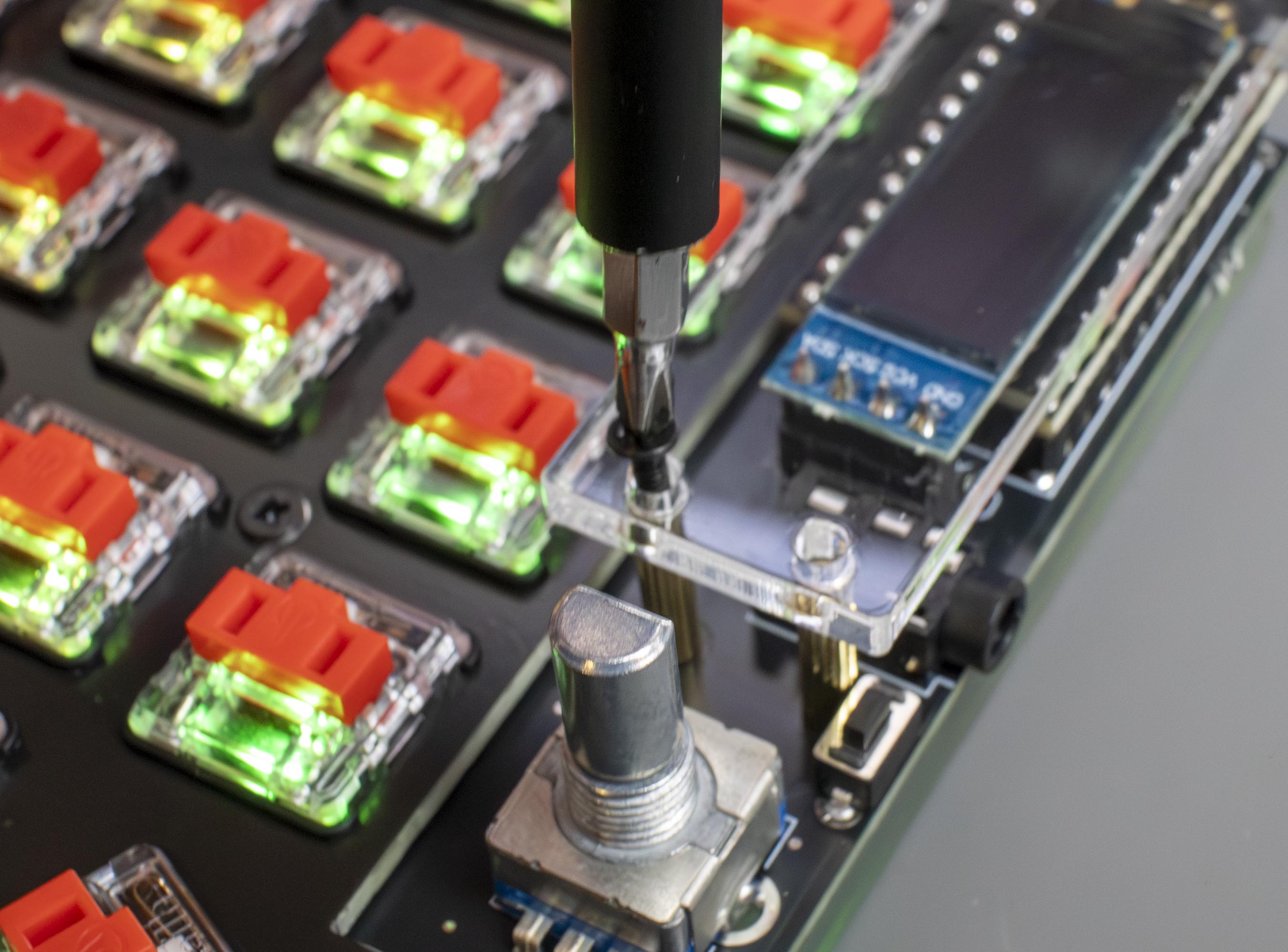
Finally, we can screw on our acrylic OLED covers with the remaining 6mm screws:

{% hint style="warning" %}
Be careful not to screw these too tightly, acrylic is fragile!
{% endhint %}

<figure><img src="/files/iQl78vYKElxZhj494qeB" alt=""><figcaption></figcaption></figure>

<figure><img src="/files/x8ri5kDOJiSuGPVirPfd" alt=""><figcaption><p>INSTALLING OLED COVERS</p></figcaption></figure>

### Step 8: Installing Keycaps and Changing Layout

Our final step here is a nice and easy one, we can now install our preferred set of keycaps!\
This is as simple as matching the keycaps to our layout of choice, and pushing them onto our switches.\
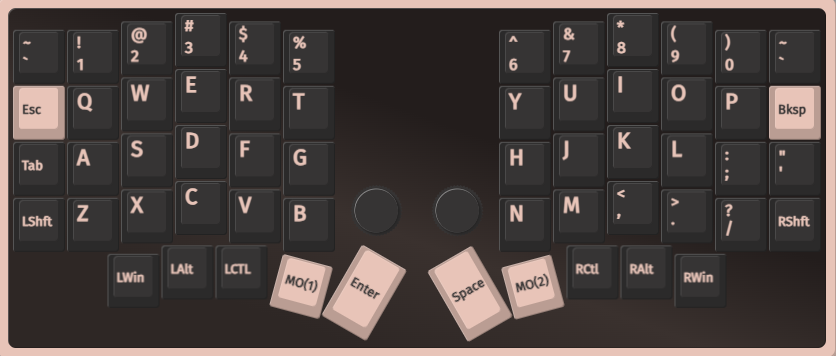
If you're using [our default firmware](/guides/getting-started/wired-pre-builds.md) (or any that's via compatible), you can view/alter the layout here: <https://usevia.app/#/>

<figure><img src="/files/AJEuR3e6kEWSNIVLc7xr" alt=""><figcaption><p>VIA DISPLAYING LAYOUT</p></figcaption></figure>

<figure><img src="/files/4mVzRBNjMDFmwitoHeiJ" alt=""><figcaption><p>KEYCAPS BEING INSTALLED</p></figcaption></figure>

And that's it, you should now have a complete Sofle V2 to get typing on!

<figure><img src="/files/m7SsSeDlS5uQ6pvXqEQF" alt=""><figcaption><p>FINISHED SOFLE</p></figcaption></figure>


---

# Agent Instructions: Querying This Documentation

If you need additional information that is not directly available in this page, you can query the documentation dynamically by asking a question.

Perform an HTTP GET request on the current page URL with the `ask` query parameter:

```
GET https://guides-mechboards.gitbook.io/guides/mbuk-build-guides/wired-sofle-v2-build-guide.md?ask=<question>
```

The question should be specific, self-contained, and written in natural language.
The response will contain a direct answer to the question and relevant excerpts and sources from the documentation.

Use this mechanism when the answer is not explicitly present in the current page, you need clarification or additional context, or you want to retrieve related documentation sections.