> For the complete documentation index, see [llms.txt](https://guides-mechboards.gitbook.io/guides/llms.txt). Markdown versions of documentation pages are available by appending `.md` to page URLs; this page is available as [Markdown](https://guides-mechboards.gitbook.io/guides/mbuk-build-guides/lily58-r2g-build-guide-3d-printed-case.md).
# Lily58 R2G Build Guide (3D Printed Case)
In this guide, we will teach you everything you need to know to get up and typing!
## Required to Build:
First things first, let’s check we've got everything included in the kit. If there’s anything missing, send us a message [here](https://mechboards.co.uk/pages/faq) so we can get you back to the build ASAP! (Spares are included in the contents below)
| | | |
| ------------------------------------ | ------------------------------ | ----------------------------------- |
| 1 x Lily58 R2G PCB | 1 x Set of Acrylic Back Plates | 1 x Set of 3D Printed Screen Frames |
| 1 x Set of 3D Printed Screen Spacers | 15 x 6mm M2 Screws | 10 x Rubber Feet |
| 1 x C to C Cable | 58 x Switches of your choice | Keycaps of your choice |
As for tools, all you'll need is a Phillips Head Screwdriver, it's as simple as that!
## Making the Lily58 R2G:
All of the below steps should be repeated for both halves, no difference in which side you're making up!
### Step 1: Breaking Out the PCB
The PCBs are in an FR4 frame, we'll first need to break these out. It's worth being careful here, we recommend breaking them towards the front side of the PCB.
{% hint style="danger" %}
Please be extra careful while breaking the PCBs out, there are some traces that are close to the edges of the PCB that can be damaged.
{% endhint %}
### Step 2: Installing the PCB into the Case
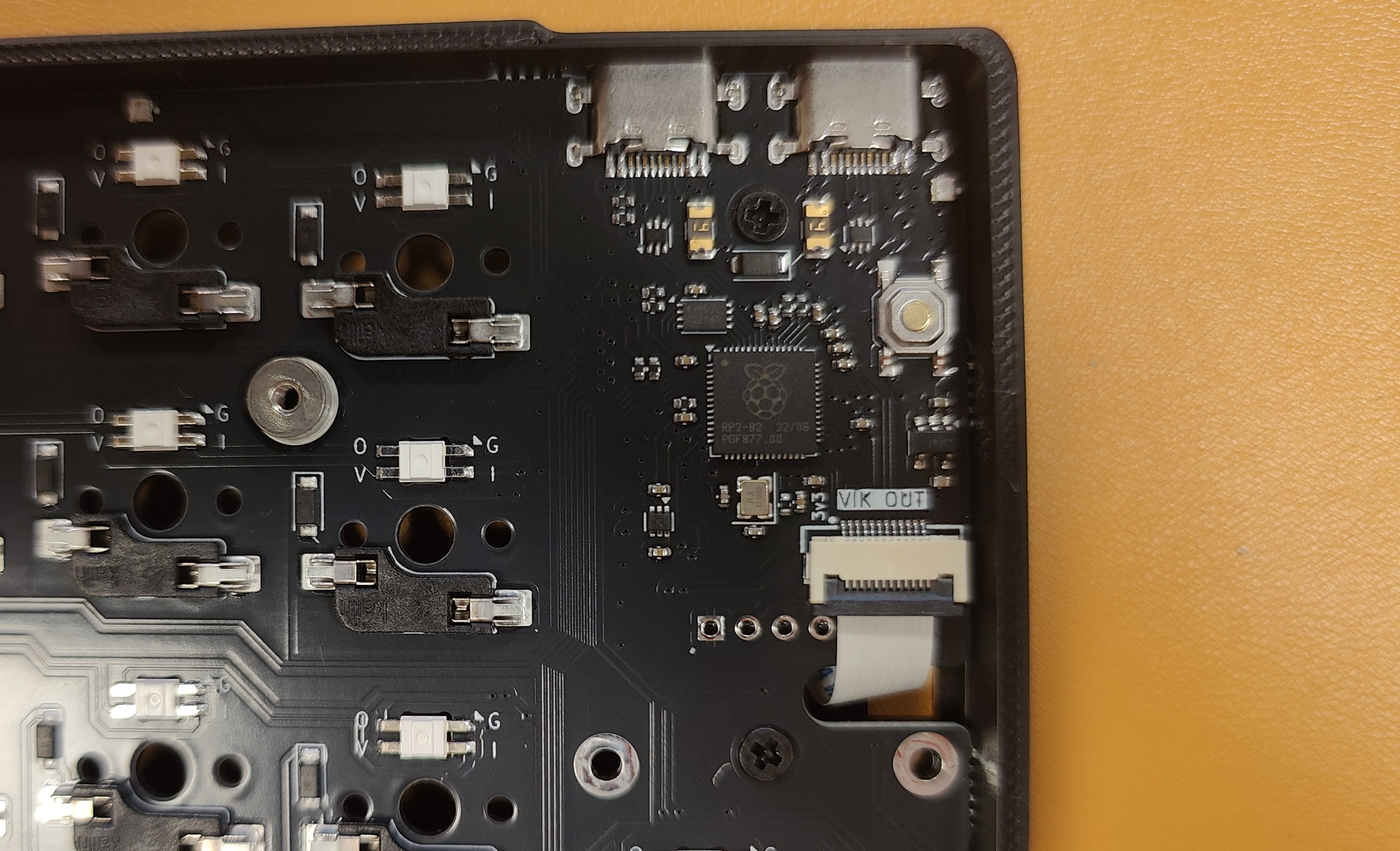
Our second step is to place the 3D printed spacers into the case, they can lay in the space where the screens go, with the cut-out facing inside like this:
Next, we can insert the PCBs into the case, making sure to insert the USB ports into their respective holes first. If you're having trouble inserting the PCB, try filing/snipping down the break points on the PCB
### Step 3: Installing the Screens
Once the PCB is inserted, we can screw on the screen module. You'll want to start off by orientating the module so that the ribbon cable is pointing upwards, with the blue part facing you, like this:
Now, keeping this orientation, we can insert he ribbon cable through the gap in the case:
Once the cable is through, you can gently lift up the small grey latch and insert the end into the slot. There shouldn't be any blue visible when it's inserted fully.
After that, we can screw through the two holes on the back of the PCB, these should lead through the spacer and standoffs on the screen module's PCB.
Finally, we can install the screen frames, by placing the top end (the thinner part of the cover) first and pressing down on the bottom (this can take a bit of force, so don't be too worried!)
### Step 4: Inserting Switches
Next up, we can install the switches, just check that the switch pins are aligned with the hotswap sockets, and press them into the case. You can check they've been inserted properly by looking in the back of the hotswap socket.
{% hint style="info" %}
If the pins on your switches are bent/misaligned, it's okay, this is a pretty common issue! You can simply bend them straight with some tweezers, or your hands if you're careful!
{% endhint %}
When all of the switches are installed, feel free to test they work here:
### Step 5: Installing the Acrylic Back, Rubber Feet and Keycaps
Now we can attach the acrylic backs by simply screwing them in on the back of the case!
Next up you can add on your rubber feet, the placement is down to personal preference, here's what we've gone for:
All that's left to do is install the keycaps, just pressing them firmly onto their respective keys, once that's done, you should have a fully built Lily58!
## Additional Info:
Use the below link to get started with your new keyboard!
{% content-ref url="/pages/YyeOfxrRRJeZV7mic7QP" %}
[Lily58 R2G](/guides/getting-started/lily58-r2g.md)
{% endcontent-ref %}