# Corne Max Build Guide

## Contents of the Kit:

{% hint style="danger" %}
Please don't hot-plug your lovely new Corne Max PCB (No connecting or disconnecting your TRRS cable whilst the keyboard is plugged in) this will likely break it!
{% endhint %}

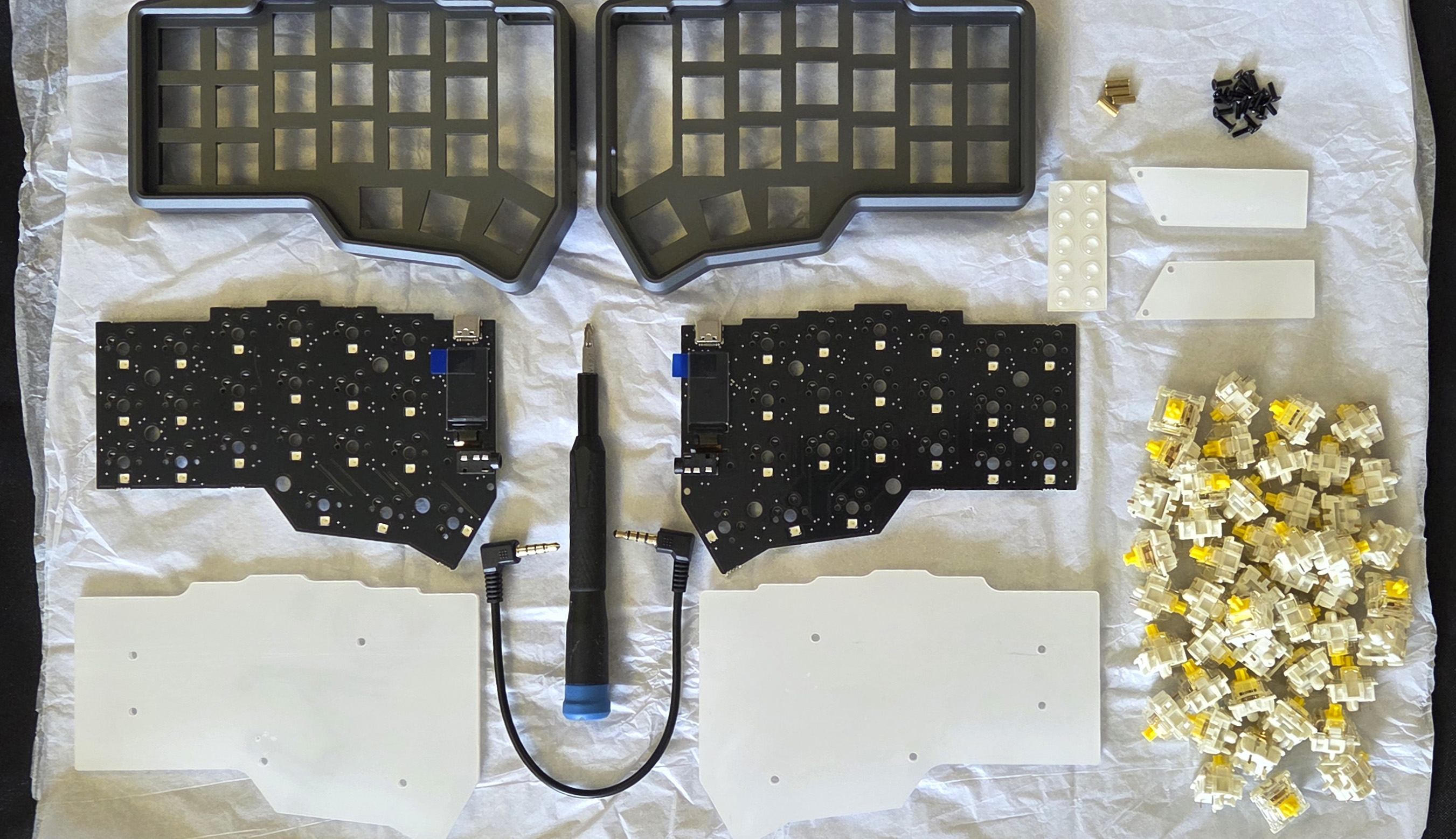
First up, check you've got everything you need to build up your kit.\
It's also good practice to check there's no faults with your PCB, by just giving it a quick plug-in first.        If there’s anything missing on our part, send us a message [here](https://mechboards.co.uk/pages/faq) and we'll get replacements sent out!

|                                      |                             |                                                    |
| ------------------------------------ | --------------------------- | -------------------------------------------------- |
| 1 x Corne Max Aluminium CNC Case     | 1 x Set of Corne Max PCBs   | 1 x Set of Acrylic Back Plates                     |
| 1 x Set of Acrylic LCD Screen Covers | 14 x 6mm M2 Screws          | 4 x 8mm Standoffs                                  |
| 1 x TRRS Cable                       | 10 x Rubber Feet (Optional) | 42 x Switches of Your Choice (Not included in kit) |

<figure><img src="https://456586235-files.gitbook.io/~/files/v0/b/gitbook-x-prod.appspot.com/o/spaces%2F6bjiReLol1HqmhjbjtT5%2Fuploads%2FFMiT9jo0uCbVV1RVvsRP%2FCorne%20Max_0011_20250620_152716.jpg?alt=media&#x26;token=af85307b-eba3-4055-8af9-b32b14e523cf" alt=""><figcaption><p>IMAGE OF CONTENTS</p></figcaption></figure>

As for tools, all you'll need is a Phillips Head Screwdriver, it's as simple as that!

## Making the Corne Max:

All of the below steps should be repeated for both halves, no difference in which side you're making up!

### Step 1: Installing the PCB

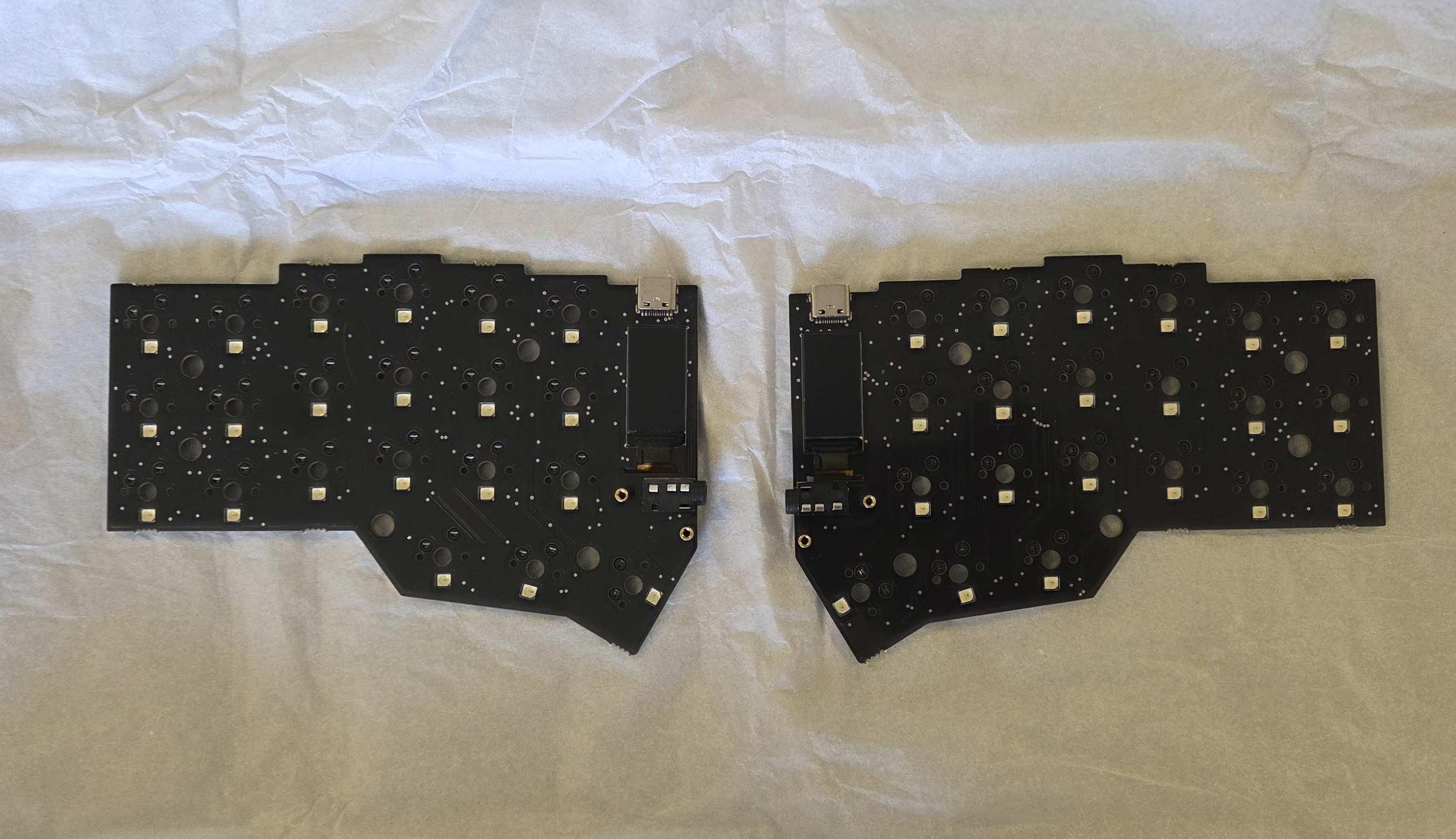
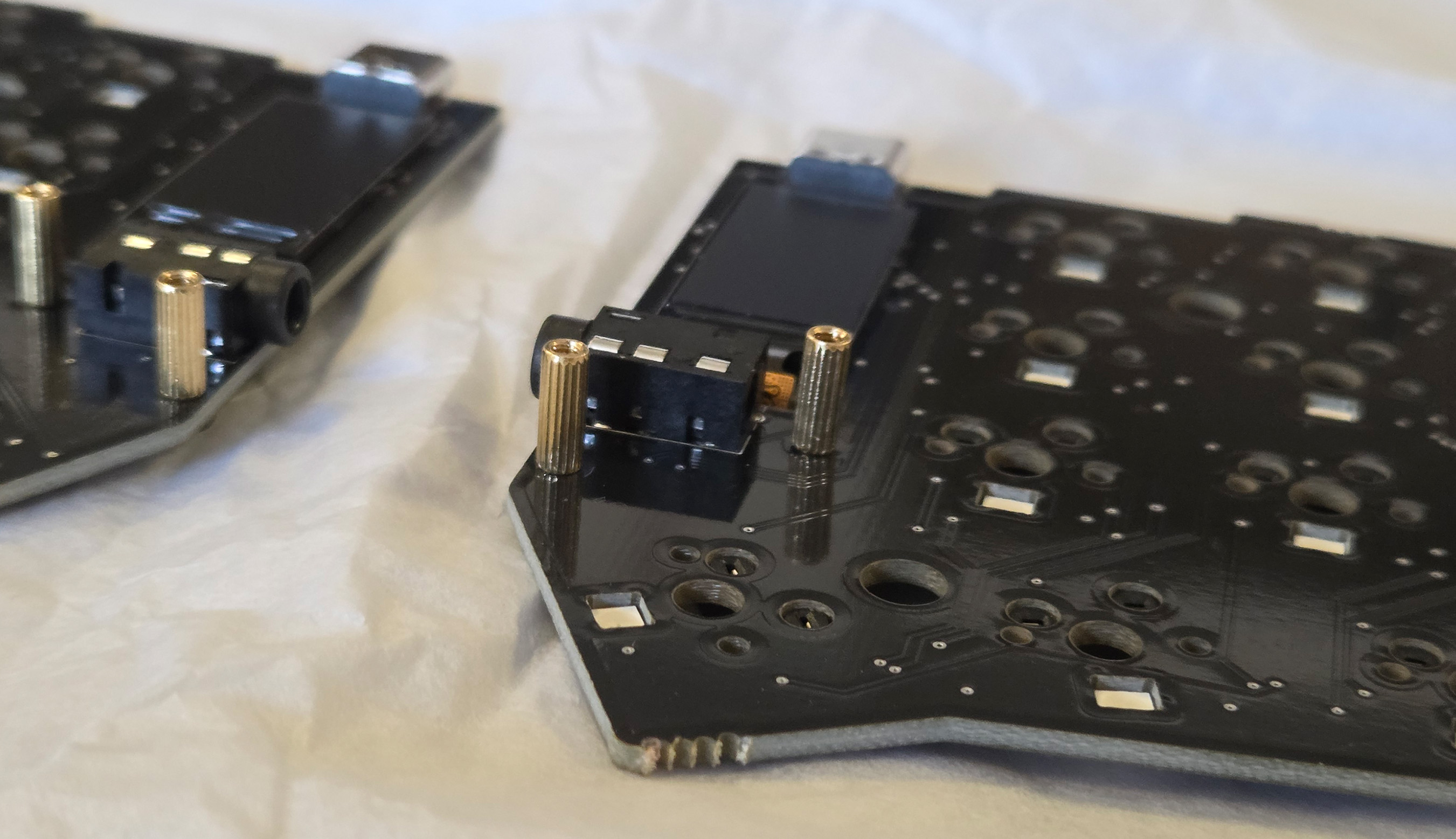
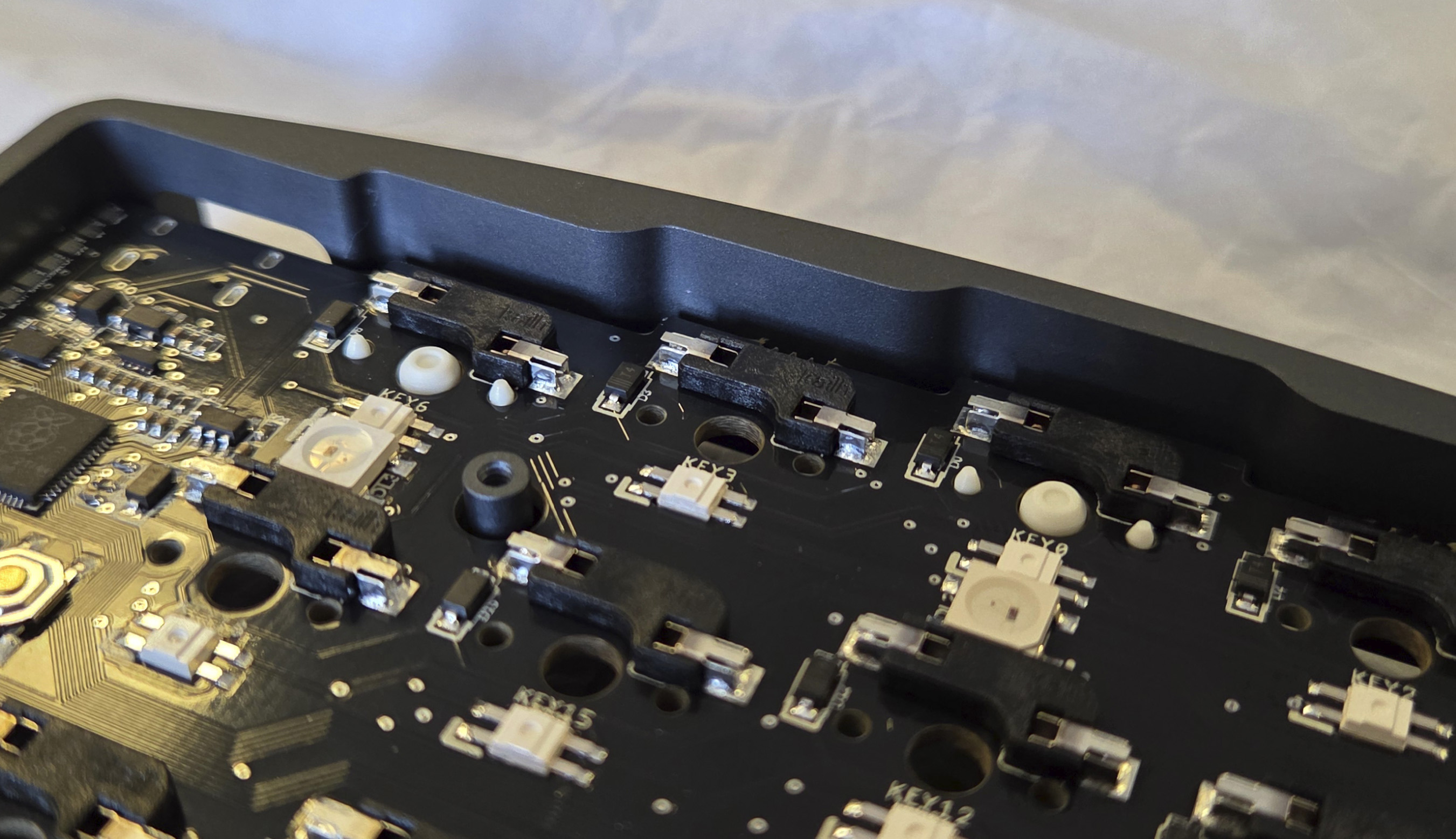
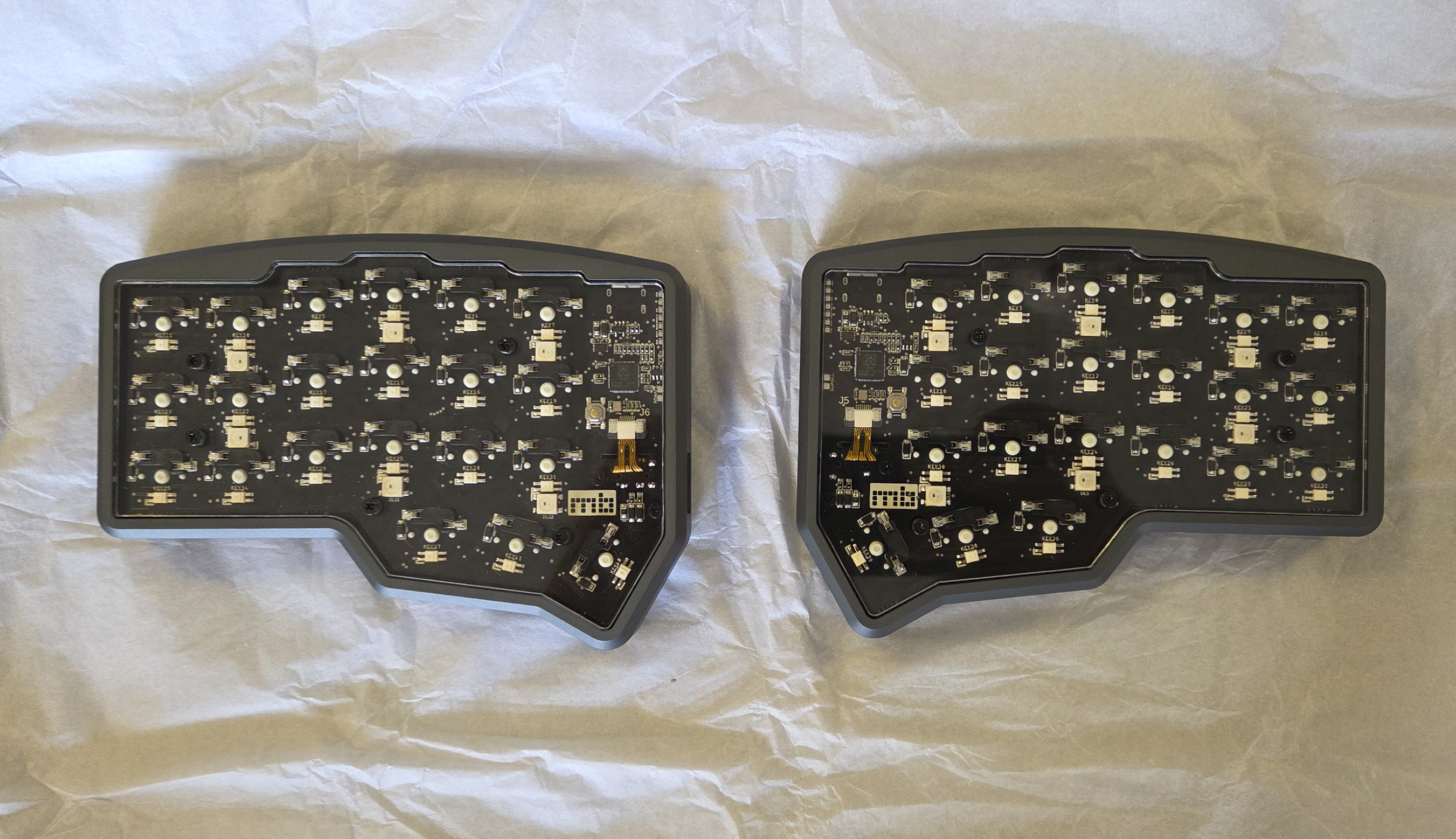
It may seem like an odd first step, but I'd recommend starting off by screwing in our 8mm Standoffs for the OLED Cover onto the PCB. This can be a bit awkward to do once the PCB is in the case, so it's best to get it out of the way.

<figure><img src="https://456586235-files.gitbook.io/~/files/v0/b/gitbook-x-prod.appspot.com/o/spaces%2F6bjiReLol1HqmhjbjtT5%2Fuploads%2FMLyfxIDC9EKJByExIRDg%2FCorne%20Max_0010_Generative%20Fill.jpg?alt=media&#x26;token=3e1f3c89-7a43-4d9e-80f8-c0a9e59b8f3b" alt=""><figcaption><p>INSTALLED STANDOFFS FOR OLEDS</p></figcaption></figure>

<figure><img src="https://456586235-files.gitbook.io/~/files/v0/b/gitbook-x-prod.appspot.com/o/spaces%2F6bjiReLol1HqmhjbjtT5%2Fuploads%2FvxYu2IrUXZOjg4tQXwG2%2FCorne%20Max234.jpg?alt=media&#x26;token=38a795a5-813d-49ac-92a5-8fdf126d3e2e" alt=""><figcaption></figcaption></figure>

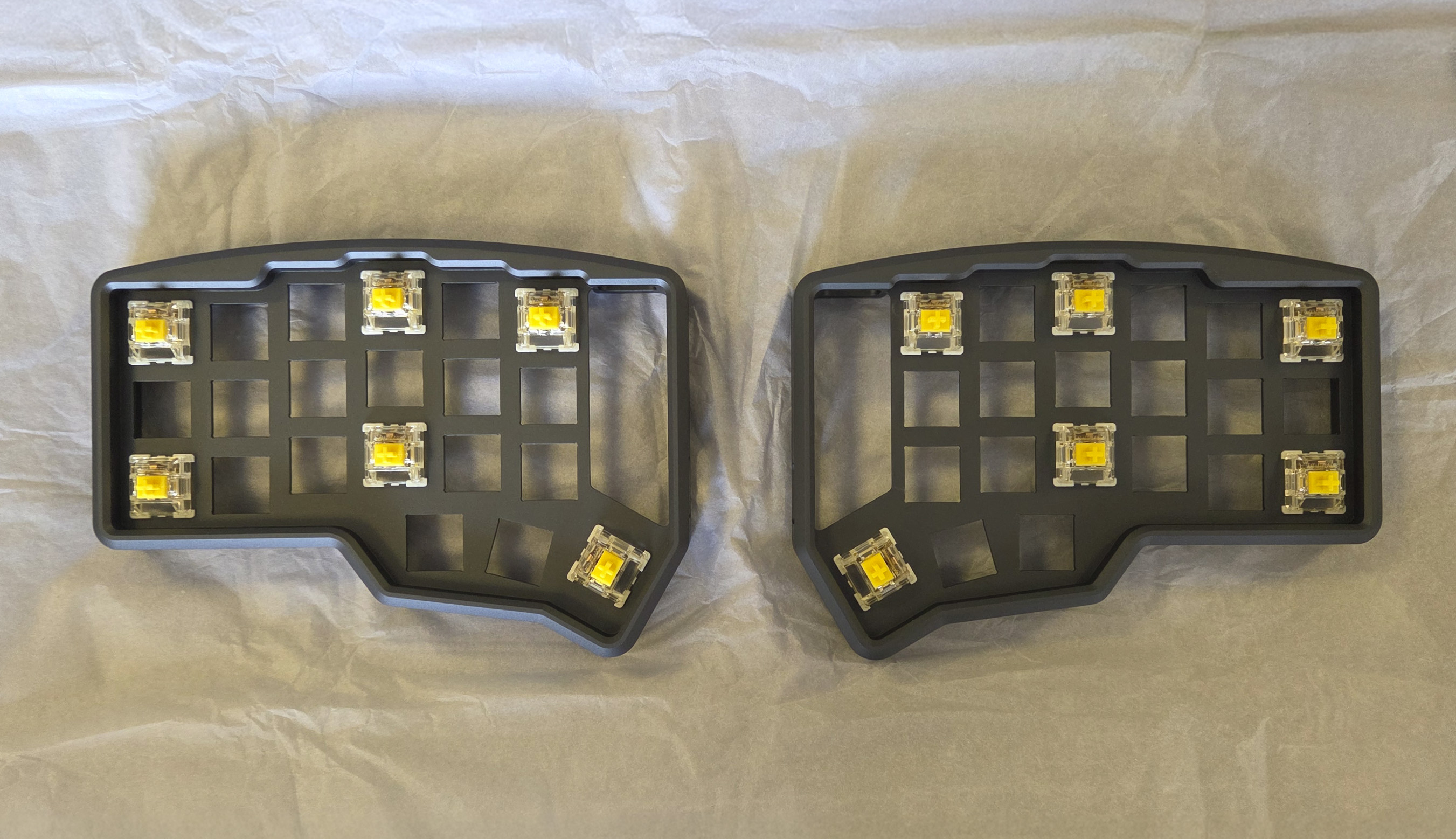
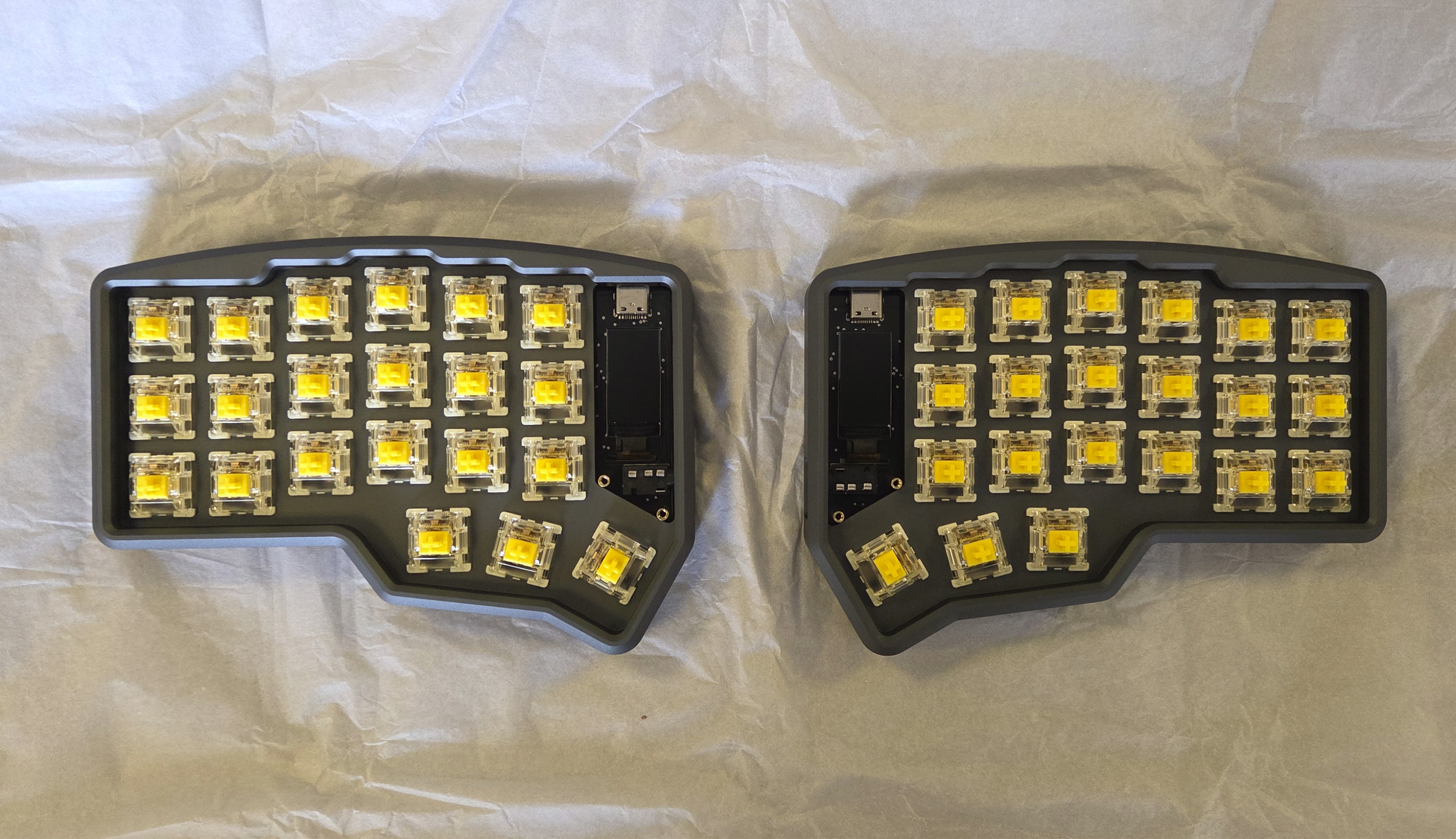
Now that the PCB is ready, we can insert 5 or 6 switches into the case, this makes lining up the pins on the switches a lot easier than doing them all at once:

<figure><img src="https://456586235-files.gitbook.io/~/files/v0/b/gitbook-x-prod.appspot.com/o/spaces%2F6bjiReLol1HqmhjbjtT5%2Fuploads%2FZiFSuVMwKjy9mEWV0w3n%2FCorne%20Max_0009_Generative%20Fill%202.jpg?alt=media&#x26;token=8275f74c-c0a5-43f1-9ea5-aba34636c90a" alt=""><figcaption><p>SWITCHES IN CASE</p></figcaption></figure>

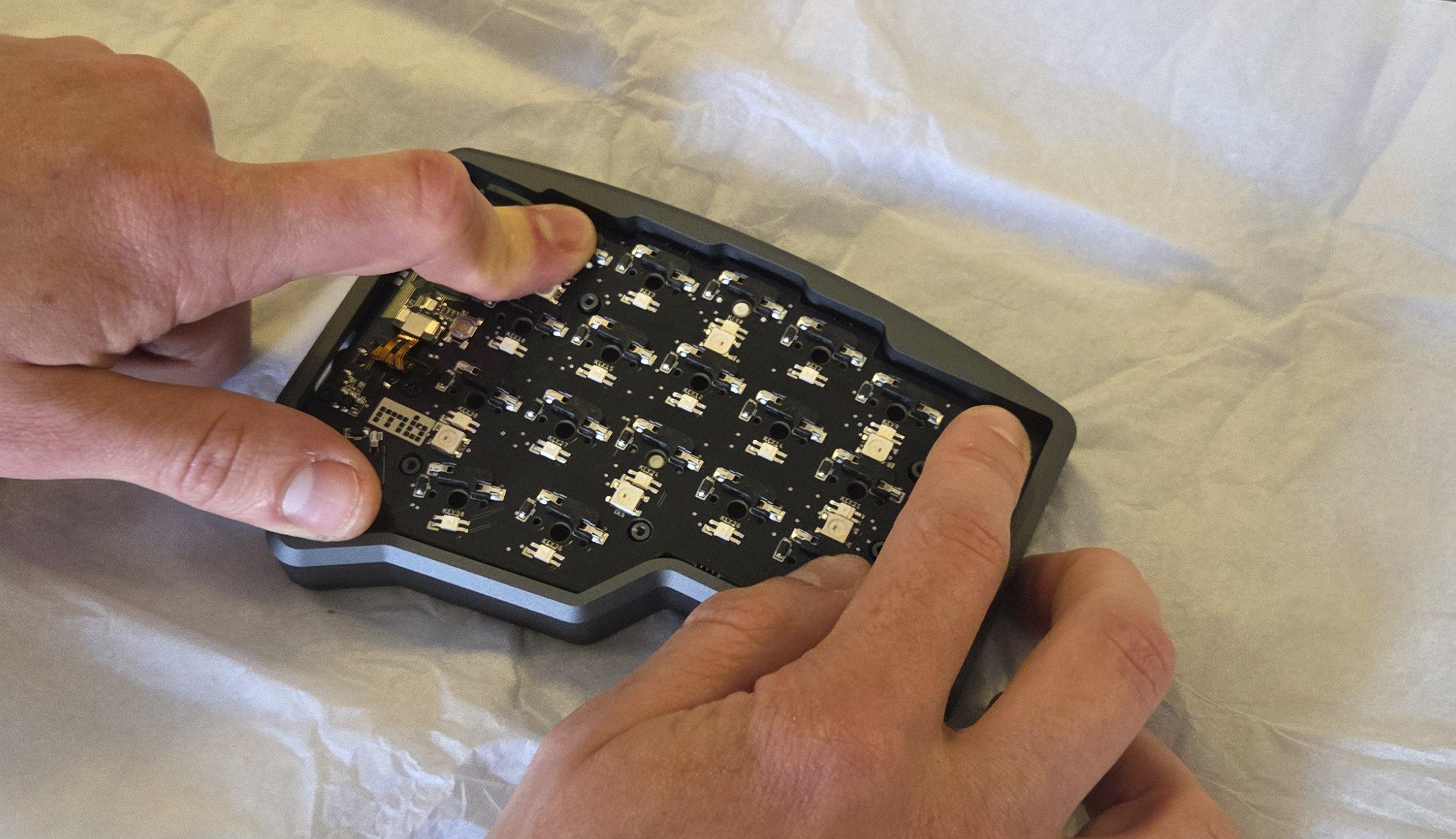
Once the switches are installed we can carefully place our PCB onto the bottom of these switches, making sure the switch pins align with the hotswap sockets, and push the PCB so that the pins all get inserted!

{% hint style="info" %}
If you're having trouble getting the PCB into the plate, try inserting the USB-C port and TRRS Jack first, once they're in it should drop in nicely
{% endhint %}

<figure><img src="https://456586235-files.gitbook.io/~/files/v0/b/gitbook-x-prod.appspot.com/o/spaces%2F6bjiReLol1HqmhjbjtT5%2Fuploads%2FaPQyMlSOOg5M7jUhVB69%2FCorne%20Max_0009_20250620_155235.jpg?alt=media&#x26;token=f32ec956-71c9-4eaa-940d-eb98286a3409" alt=""><figcaption><p>PUSHING PCB INTO CASE</p></figcaption></figure>

<figure><img src="https://456586235-files.gitbook.io/~/files/v0/b/gitbook-x-prod.appspot.com/o/spaces%2F6bjiReLol1HqmhjbjtT5%2Fuploads%2FiFzKmimevER5GbfhC5OQ%2FCorne%20Max_0008_20250620_155257.jpg?alt=media&#x26;token=f095cc0a-f344-40e4-91ca-30ddbd8209de" alt=""><figcaption><p>MAKE SURE THE SWITCHES ARE FULLY SEATED</p></figcaption></figure>

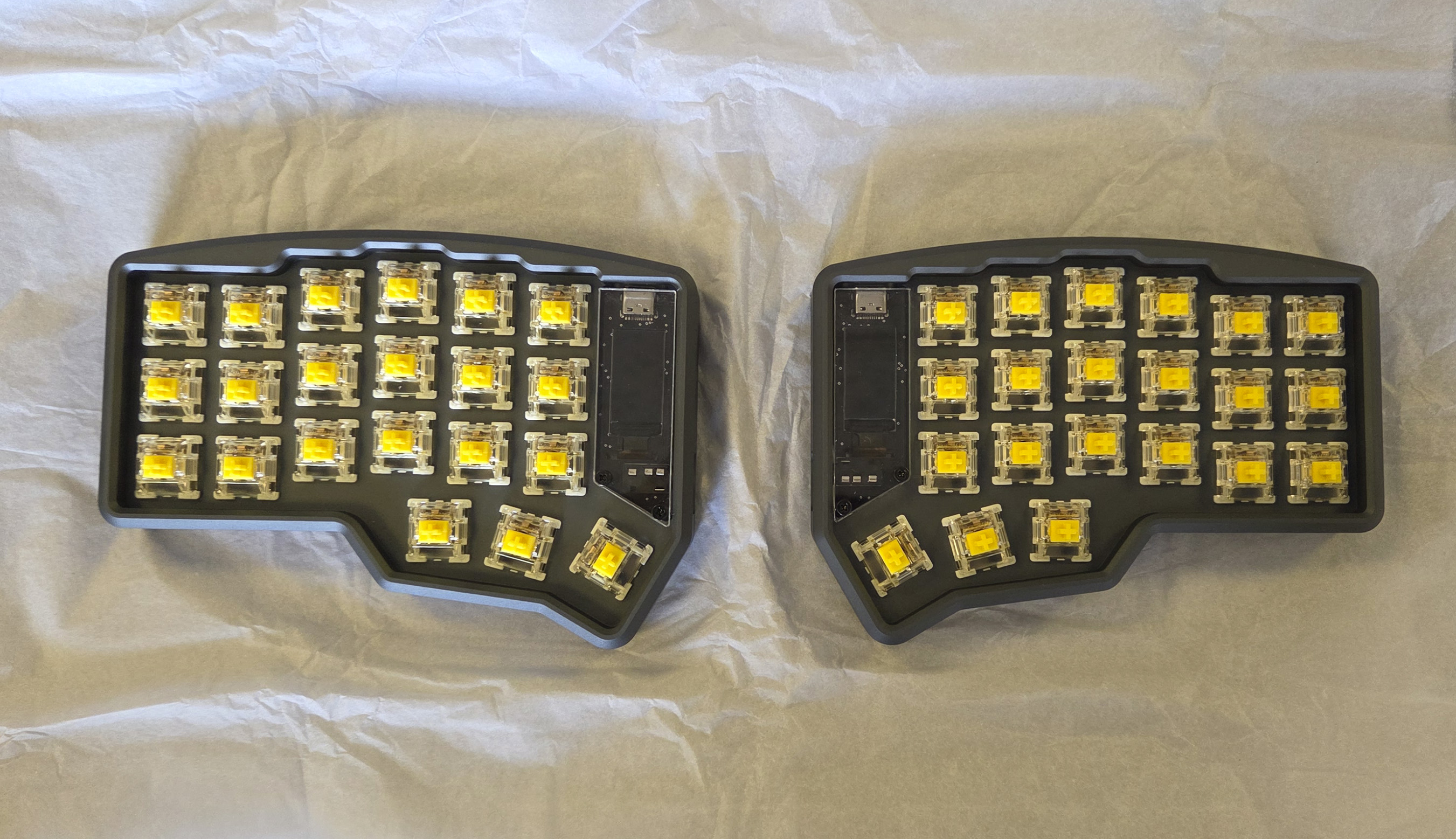
Finally we can insert the rest of the switches into the case and PCB, making sure the pins are aligned before inserting them.

<figure><img src="https://456586235-files.gitbook.io/~/files/v0/b/gitbook-x-prod.appspot.com/o/spaces%2F6bjiReLol1HqmhjbjtT5%2Fuploads%2FgjjTrSwQVD18F0FRgllC%2FCorne%20Max_0006_20250620_155818.jpg?alt=media&#x26;token=ccfb312e-db00-4911-8190-7304a7ee5f66" alt=""><figcaption><p>SWITCHES ALL INSTALLED</p></figcaption></figure>

### Step 2: Installing the Acrylic

Our second step is to screw in our acrylic backplates and LCD screen covers. First off we can peel the protective covers off of the acrylic backplates and then screw them into the case.

{% hint style="warning" %}
Be careful not to tighten the screws too much, this could crack the acrylic
{% endhint %}

<figure><img src="https://456586235-files.gitbook.io/~/files/v0/b/gitbook-x-prod.appspot.com/o/spaces%2F6bjiReLol1HqmhjbjtT5%2Fuploads%2F03ukm0L1iMd5euL17PW3%2FCorne%20Max_0004_20250620_160346.jpg?alt=media&#x26;token=c25e6496-9ab5-4aaa-82d3-df76601d87a8" alt=""><figcaption><p>SCREWED IN BACK PLATES</p></figcaption></figure>

Finally, we can repeat the same process for the LCD screen covers:

<figure><img src="https://456586235-files.gitbook.io/~/files/v0/b/gitbook-x-prod.appspot.com/o/spaces%2F6bjiReLol1HqmhjbjtT5%2Fuploads%2FJACx39rRVBwa4xyQsvAT%2FCorne%20Max_0004_20250620_160929.jpg?alt=media&#x26;token=0c1afd0d-57bb-44c5-b24b-0b423fd1659c" alt=""><figcaption><p>LCD SCREEN COVERS INSTALLED</p></figcaption></figure>

### Step 3: Finishing Touches

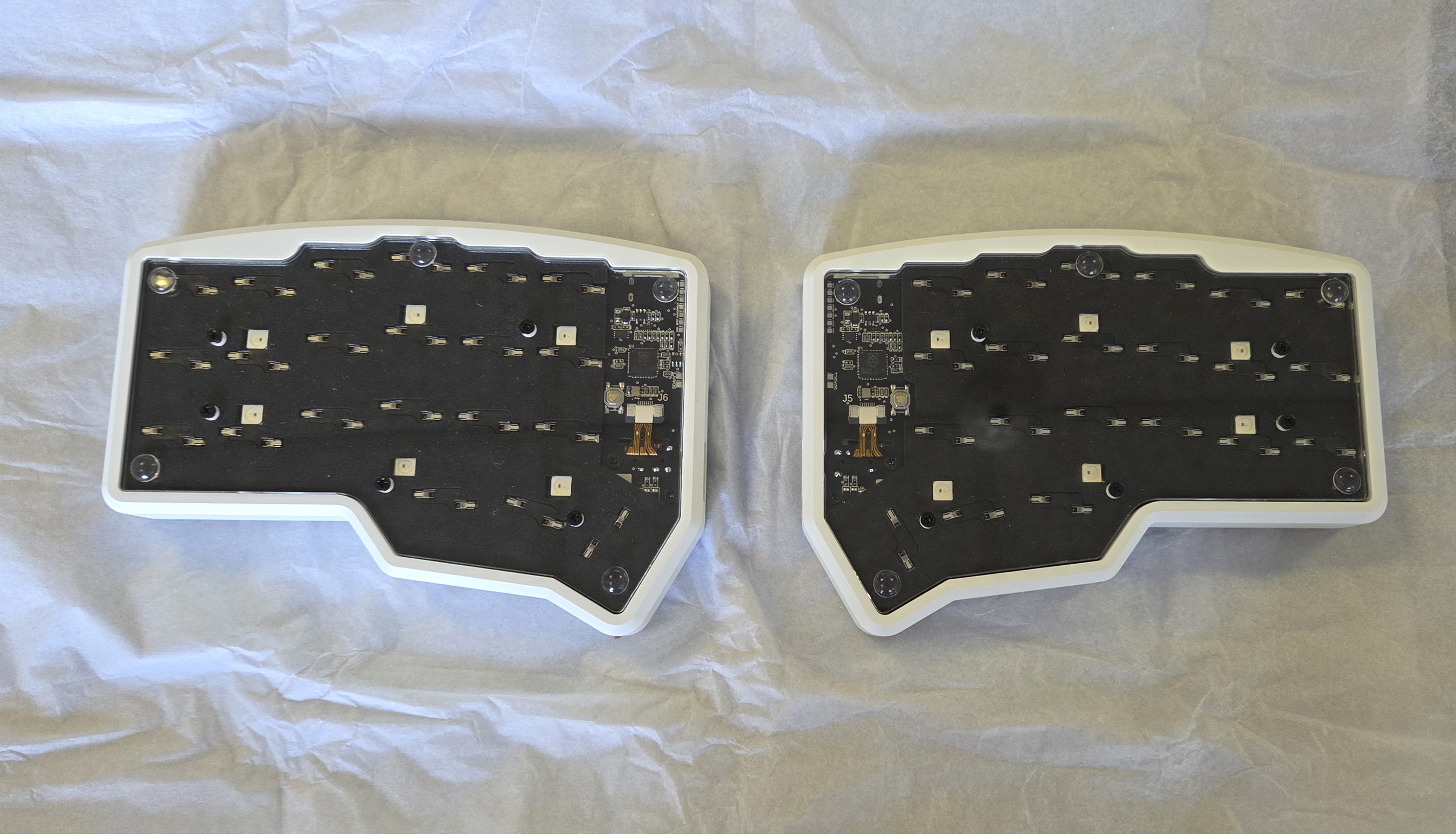
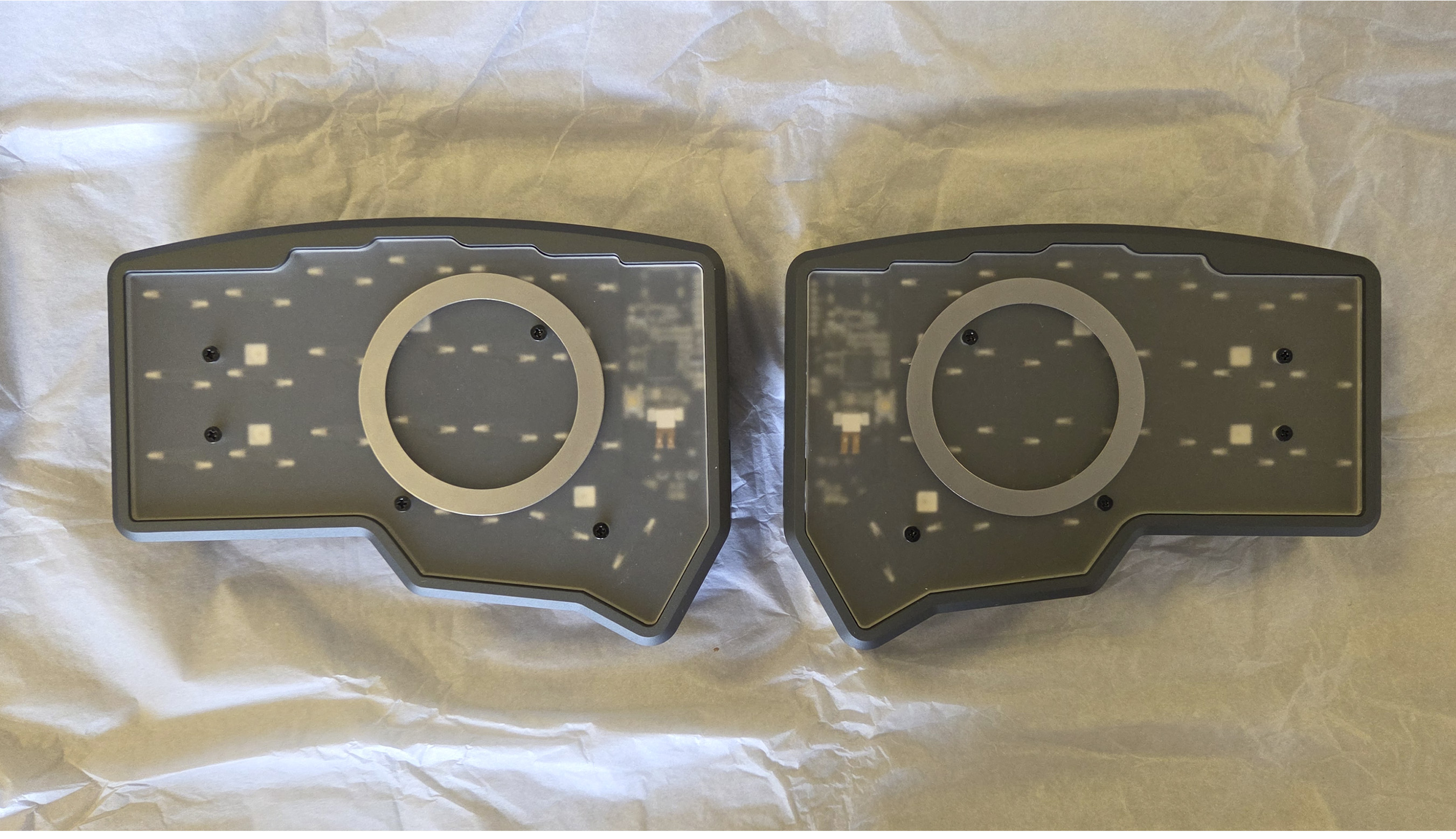
Now that the main assembly is completed you can add on your rubber feet or tenting, the placement of these are down to personal preference, here's what we've gone for:

<figure><img src="https://456586235-files.gitbook.io/~/files/v0/b/gitbook-x-prod.appspot.com/o/spaces%2F6bjiReLol1HqmhjbjtT5%2Fuploads%2FBNRTxgMxzf4L32WLjzDk%2FCorne%20Max_0002_20250620_161405.jpg?alt=media&#x26;token=310fd3b6-05ef-433a-9244-d93c119f5db8" alt=""><figcaption><p>RUBBER FEET ATTACHED</p></figcaption></figure>

<figure><img src="https://456586235-files.gitbook.io/~/files/v0/b/gitbook-x-prod.appspot.com/o/spaces%2F6bjiReLol1HqmhjbjtT5%2Fuploads%2Fr1E0bgDYY3xOMFp3vmmO%2FCorne%20Max_0003_20250620_161138.jpg?alt=media&#x26;token=da99d153-6db5-4b49-bf1c-fac992e53a9c" alt=""><figcaption><p>TENTING RING ATTACHED</p></figcaption></figure>

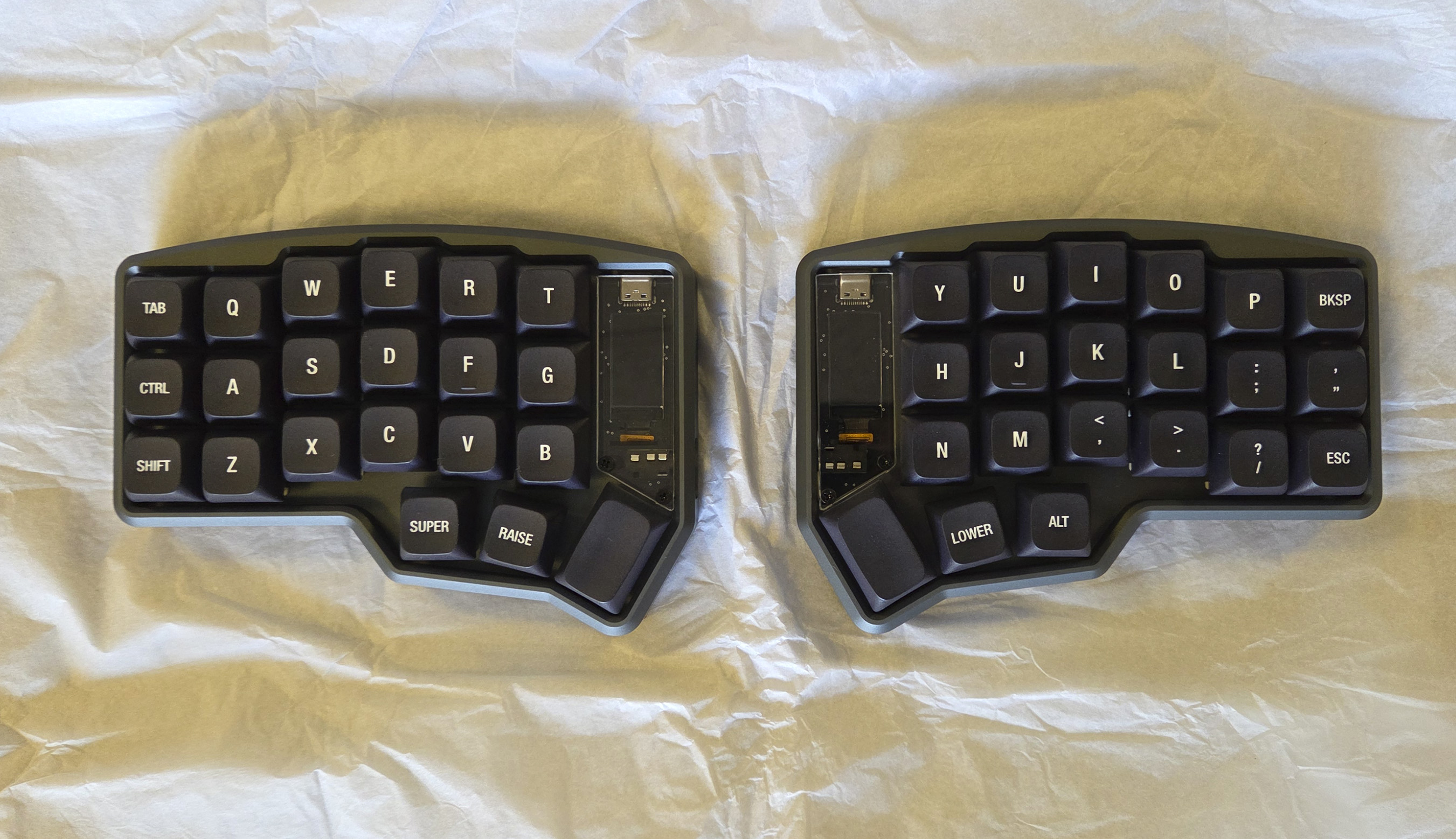
Finally, we can put on our keycaps of choice, by simply pushing each keycap onto their respective switches and we're done!

<figure><img src="https://456586235-files.gitbook.io/~/files/v0/b/gitbook-x-prod.appspot.com/o/spaces%2F6bjiReLol1HqmhjbjtT5%2Fuploads%2FVQuKiSFcRjgy6OidNOUv%2FCorne%20Max_0001_20250620_163320.jpg?alt=media&#x26;token=9d1fa347-6d8b-47be-9f6e-495516faa4ae" alt=""><figcaption><p>COMPLETE BUILD</p></figcaption></figure>